Why a WLED Light Keeps Going Offline, and How to Get Told When It Does
Why a WLED controller drops off Wi-Fi (weak signal, Wi-Fi sleep, power, DHCP, mDNS), how to fix each one, and how to get an offline alert.
Written by Jamie Conde, who builds WLED Max at MeowScript. WLED Max is an independent app and is not affiliated with or endorsed by the official WLED project.
Quick answer: check the Wi-Fi signal on the light’s Info page first. Better than -70 dBm is fine, -70 to -80 dBm is marginal, and below -80 dBm it will drop. If the signal is good, the cause is nearly always Wi-Fi power saving, a weak power supply, an IP address that keeps changing, or an app that looks for the light by name on a network that blocks it.
None of the fixes here need an app. They’re WLED and router settings.
First, is it really offline?
Open the light’s IP address in a browser. If the web UI loads, the light is fine and the trouble is how your app finds it (skip to the mDNS note further down). If it doesn’t load, ping it from a computer:
ping 192.168.1.50No replies at all: the light is off the network. Replies that come and go: poor Wi-Fi.
Signal
In the WLED web UI, tap Info and look at the Wi-Fi signal. It’s shown as a percentage and in dBm.
| Signal | What to expect |
|---|---|
| better than -70 dBm | fine |
| -70 to -80 dBm | marginal, slow responses now and then |
| below -80 dBm | drops, especially with effects that send a lot of data |
ESP boards have tiny antennas. Put one in a metal box, behind a TV or inside a gutter channel and it loses a lot. What helps: move the access point or add one closer, use a board with an external antenna (many ESP32 boards have a connector), get the controller out of the metal box, and keep the antenna end of the board away from the strip and the power supply.
WLED is 2.4 GHz only. One network name for 2.4 and 5 GHz is usually fine. Some mesh systems push clients between nodes too eagerly, though, and a separate 2.4 GHz network for IoT gear often settles things.
Wi-Fi sleep
In Config > WiFi & Network (WiFi Setup on 0.14 and 0.15) there’s a checkbox called Disable WiFi sleep. Tick it.
One checkbox near the end of the page. In WLED Max it's the WiFi Sleep switch in Device Settings, WiFi Setup (off means no sleep).
Modem sleep saves a little power, but the light answers slowly and on some routers drops off completely. ESP32 builds have it ticked by default. ESP8266 builds don’t, which is why ESP8266 lights are the ones that usually need this.
Keeps rebooting: brownout (error 91)
Does it “go offline” whenever it shows bright white? That’s a brownout. The LEDs pull too much current, the ESP reboots, and each reboot takes it off the network for a few seconds. You’ll see the light flash or restart its effect, and Info will show a short uptime.
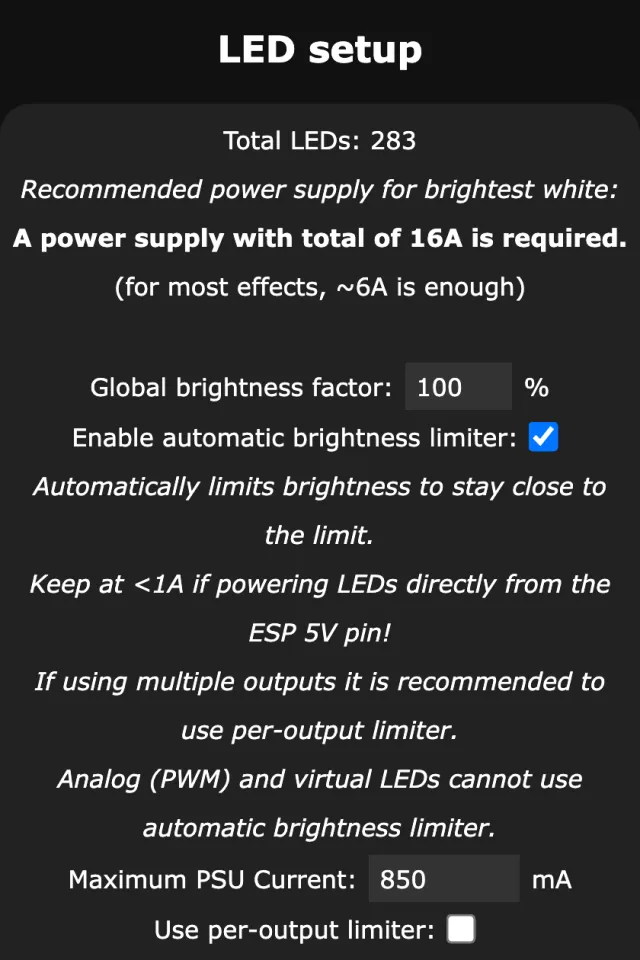
A bigger power supply fixes it, so does power injection, or a lower Maximum PSU Current in Config > LED & Hardware (Max Current in WLED Max’s LED Preferences) so WLED caps the brightness. WLED settings explained has the numbers. On ESP32 boards with WLED 16, the web UI shows error 91 after such a restart; WLED error codes explains it.
Offline after an update
A light that was fine before a firmware update and can’t be found after it usually falls into one of these:
- It’s back in WLED-AP mode. The Wi-Fi settings didn’t survive the update. Look for a WLED-AP network, join it (password wled1234), set up Wi-Fi again and restore your backup.
- It’s on a new IP address. The reboot asked the router for an address and got a different one. Find it in the router’s client list and add a DHCP reservation (next section).
- It’s restarting over and over. WLED 0.15.5 and 16 notice a boot loop after 5 quick crashes and step back by themselves. On ESP32, right after an update, the first step is switching back to the previous firmware. Otherwise they first restore the last good configuration, then reset the configuration. Give it a few minutes, then check whether your settings changed.
- The wrong build went on. An Ethernet board updated with a build without Ethernet, for example, never comes back on the cable. Flash the matching build over USB at install.wled.me. Which .bin to use helps pick it.
Changing IP address
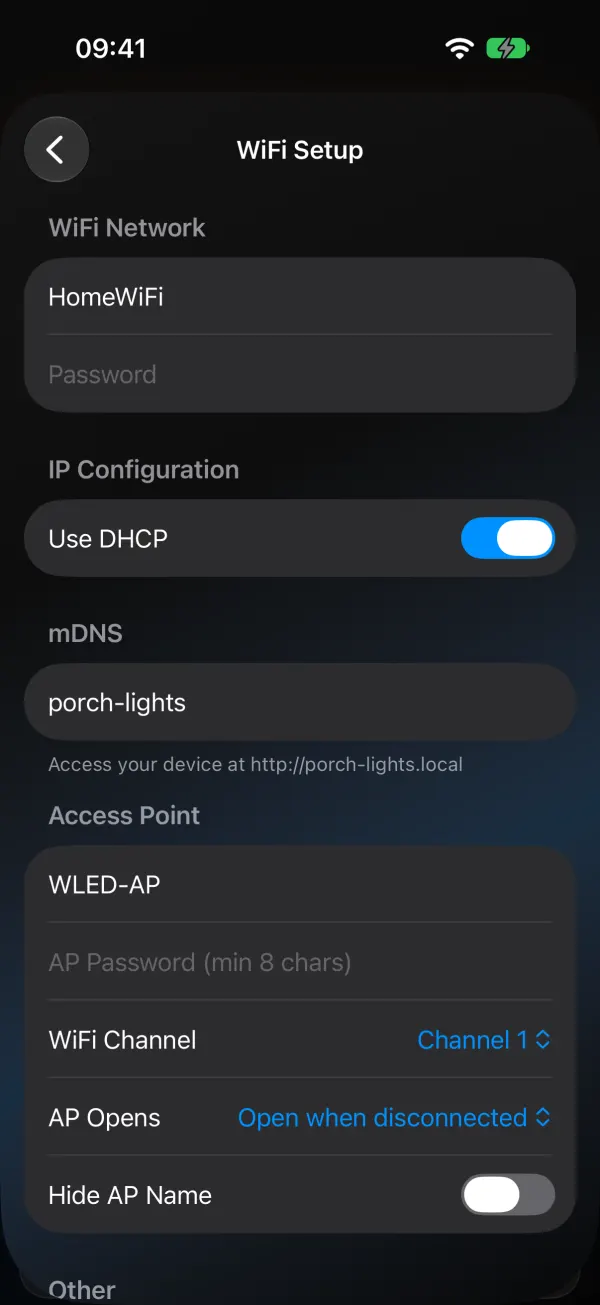
After a router restart the light may come back on a new IP, and apps that saved the old one can’t reach it. Give it a DHCP reservation for its MAC address in the router (the MAC is on the Info page), or set a static IP on WLED’s WiFi & Network page. The router reservation is easier to keep track of.
Found by name (mDNS)
Apps find WLED lights with mDNS, which doesn’t cross VLANs or guest networks by default and is filtered by some mesh routers. If the browser reaches the light but the app doesn’t, that’s the likely cause, and WLED app can’t find your lights walks through the fixes, including the iPhone Local Network permission.
Getting told when a light drops off
WLED Max has an optional Device Offline notification (“Get notified when a light stays offline for a few minutes”). It’s free and off by default. You’ll find it in Settings›App Preferences›Notifications.
It’s kept calm on purpose. A light has to stop answering for a few minutes while your phone is on Wi-Fi, and the app checks it once more before it says anything. Then you get one notification, like “Porch Lights went offline”, and the Devices tab marks the light. If you’re looking at the Devices tab at that moment, the list shows it and no notification is sent. Lights that drop at the same time share one notification, and you hear about the same light at most once per outage and once a day. Nothing is sent on mobile data, and if the light comes back the notification clears itself. It runs while the app is open. It isn’t round-the-clock monitoring. For that, Home Assistant or your router’s device alerts do a better job.
Version 1.1.4 made these alerts calmer, so if you switched them off in an older version because they were noisy, give them another go.
If nothing here helps, WLED’s community (Discord, Reddit r/WLED, the forum) has seen just about every flaky controller there is. If it looks like an app problem, Contact Us in the WLED Max settings reaches us, and replies arrive in the app.
Checklist
Most flaky lights are fixed by the first three lines. The network items matter when the browser reaches the light and the app doesn't.
- Signal better than -70 dBm at the controller
- Disable WiFi sleep ticked
- Power supply sized for the LED count, Max Current set
- DHCP reservation for the light
- Same network as your phone (or an mDNS reflector)
- Local Network permission on iPhone
Firmware out of date too? Updating WLED on ESP8266 and ESP02 covers that, and it’s worth backing up the config before you change anything big.