Back Up and Restore a WLED Config (cfg.json, presets.json and Palettes)
Which WLED files to save (cfg.json, presets.json, palettes), how to restore them to a new ESP32, and why schedules live in cfg.json.
Most people find out where WLED keeps its settings right after they lose them. Everything lives in a few JSON files on the light’s own flash: cfg.json for settings (Wi-Fi, LED outputs, sync, timers) and presets.json for presets and playlists. Custom palettes, ledmaps and remote maps are separate files. Grab copies before every firmware update and before you swap a controller. The web UI method below is free and needs nothing but a browser.
Which files matter
| File | What is in it | Back it up? |
|---|---|---|
| cfg.json | Wi-Fi, LED outputs, GPIO, current limit, sync, time and timers, usermod settings | yes |
| presets.json | all presets and playlists | yes |
| palette0.json, palette1.json… | custom palettes (WLED 0.14 and later; up to 10 on 0.14, 0.15 and on ESP8266, many more on WLED 16 with ESP32) | if you made any |
| ledmap.json, ledmap1.json… | custom pixel maps for matrices and odd layouts | if you use them |
| ir.json, remote.json | IR remote and ESP-NOW remote button mappings | if you use them |
Timers and schedules are in cfg.json, not presets.json. People restore their presets, look for their sunset timer, and it’s gone. That’s why.
Backing up from a browser
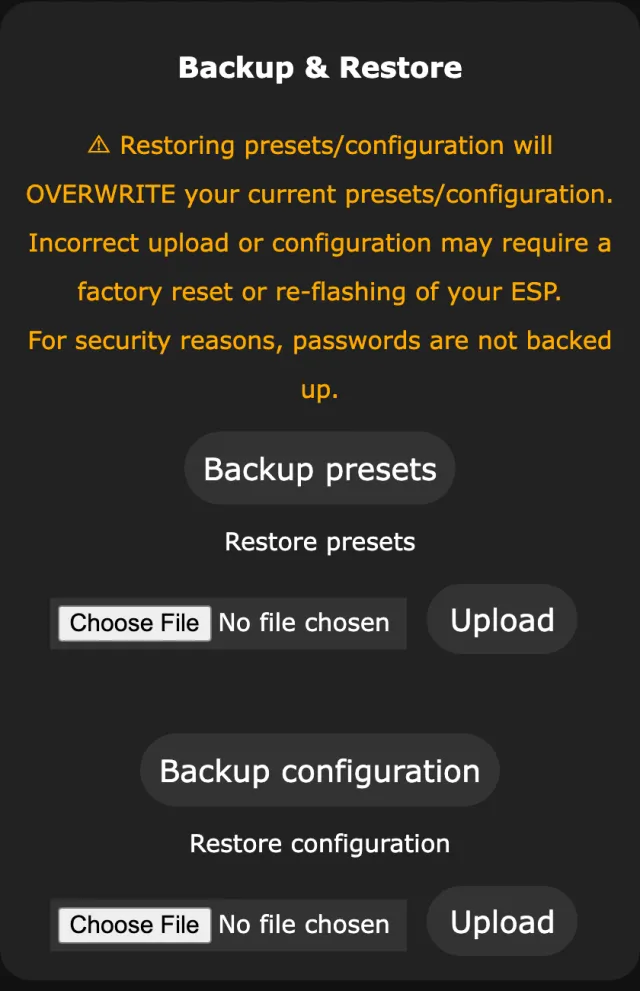
- Open the light in a browser and go to Config›Security & Updates.
- Tap Backup presets. The browser downloads presets.json.
- Tap Backup configuration. The browser downloads cfg.json.
- Rename both with the light’s name and the date, like
porch-cfg-2026-05-10.json. Otherwise you end up with ten files all called cfg.json.
Palettes and ledmaps aren’t on that page. Open http://<light-ip>/edit, WLED’s file editor, and download each file from there.
Restoring
Same page: Restore presets and Restore configuration. Pick the file, then tap Upload. The light reboots after a config restore. Passwords are not in the backup, so expect to type the Wi-Fi password again when you put a config onto a fresh board.
Restoring a config onto a different board needs a bit of care.
The Wi-Fi and network settings come along. If the old light had a static IP and is still running, you now have two lights with the same address.
So do the GPIO and LED type. If the new board uses a different data pin (a QuinLED board versus a D1 mini, for example), the strip stays dark until you fix the outputs under LED & Hardware (called LED Preferences on 0.15 and older).
A config restore brings the old board's network settings and data pin with it. On a different board, check the IP and the LED outputs right after.
Going from ESP8266 to ESP32, or back, is possible, but check every output afterwards. The chips have different pin numbers and limits.
Presets are much safer to move than configs, because a preset holds looks, not hardware settings. The one catch is effect IDs: WLED 16 changed the meaning of some of them (effect 77, for example), so presets made on 0.15 can look different on 16.
Backup & Restore in WLED Max
In WLED Max, it’s under Settings > Backup & Restore, on iOS and Android.
Under Create Backup, pick a light next to Device (with only one light it is already filled in) and tap Backup Now.
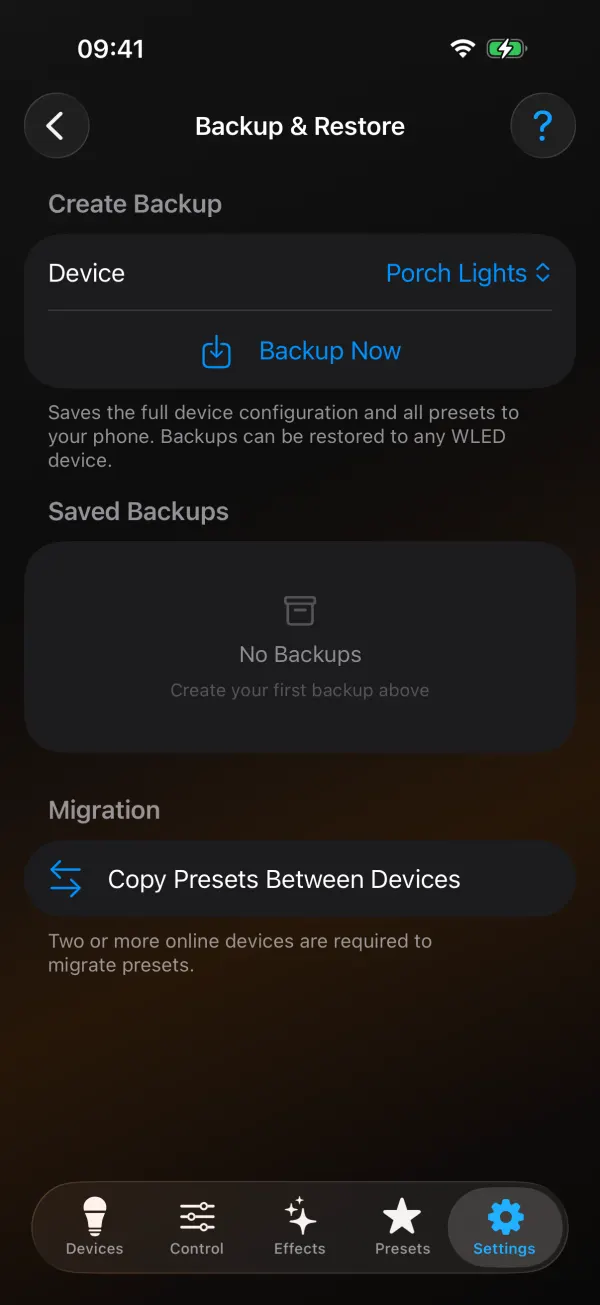
These backups are stored encrypted inside the app on your phone, and there’s no button to export one as a file, so they stay on that one phone. Android’s Export App Data (also under Backup & Restore) saves your list of lights, groups and global presets to a file, but not these light backups. If you want a copy off the phone, download the raw files from the web UI as well.
To restore, tap a backup under Saved Backups. Restore to [original light] puts everything back where it came from. Restore to Different Device… puts it on another light, say a new ESP32 that replaces a dead one.
The useful part is what it leaves alone. A restore keeps the target light’s own network and identity settings. Restoring the porch backup onto a new board doesn’t copy the porch light’s Wi-Fi, static IP or name, so you don’t get two lights fighting over one address. Looks, presets, palettes and schedules come over. The LED wiring settings come over only when that’s safe (see below).
Since version 1.1.4, on iOS and Android, the app checks the light you picked and tells you in plain words what will happen. Backups made with 1.1.4 or later remember which light they came from.
- Same light. You get a plain Restore, and everything goes back.
- Another light with the same chip. You choose between Restore Everything (handy when a new ESP32 replaces a dead one wired the same way) and Restore, Keep This Light’s LED Setup.
- A different chip, say an ESP32 backup going onto an ESP8266, or onto an ESP32-S3 or C3. Only Restore, Keep This Light’s LED Setup is offered. The light keeps its own LED outputs, data pins, LED type and count, buttons, IR and relay pins, matrix layout, ledmaps and add-on (usermod) settings. Everything else comes from the backup.
- Pins the light doesn’t have. Same as a different chip: the light keeps its own LED setup, and the app names the pins, for example GPIO 25.
- Older backups (made before 1.1.4) don’t say where they came from, so the app suggests keeping the light’s LED setup. Restore Everything is still there if you know the wiring matches.
It also warns you about firmware. A backup from a newer WLED going onto an older one skips the settings the old version doesn’t know, and schedules may not work the same. Going from 0.15 to 16, a few effects changed, so some presets can look a little different. A backup from WLED MoonModules on standard WLED, or the other way round, gets a note too.
Restore to [original light] still finds the right light after your router hands it a new address. If a different light now answers at the old address, the app stops, tells you (“This Is a Different Light”) and changes nothing.
The same screen also has Copy Presets Between Devices under Migration. The steps and caveats are in the presets guide.
If a light’s presets.json gets damaged (a power cut in the middle of a save will do it), the Presets tab notices and offers Save a Copy of the File before anything else happens. Keep that copy. Most presets can often be pulled out of it by hand.
When to back up
After you finish setting up a light. Before every firmware update. Before big preset or segment changes, especially the yearly holiday rework.
And keep one web UI backup on a computer as well. A backup that only exists on your phone disappears if you reset the app or lose the phone.
Restore problems
Restore finished but the strip is dark. The config came from a board with a different data pin or LED type. Check the outputs under LED & Hardware (LED Preferences on 0.15). WLED Max 1.1.4 keeps the target’s LED setup by itself when the chips differ, so this mostly happens with the web UI restore or with Restore Everything.
Presets restored but effects look wrong. Either a firmware difference (see the effect ID note above), or the effect doesn’t exist in the target’s build, like audio effects on a build without AudioReactive.
Schedules missing after restore. You restored presets.json only. Timers are in cfg.json.
Custom palettes missing. They’re separate files. Put them back through /edit, or use the WLED Max backup, which includes them.
Planning a firmware update next? Read WLED OTA update on ESP8266 and ESP02 first. If what you’re actually moving is your phone, not your lights, see moving your WLED app setup to a new phone.