Flash Your WLED Lights for the Doorbell, Laundry or a Finished 3D Print
Flash WLED for a few seconds, then return to exactly what it was showing, using realtime mode. Home Assistant and script examples included.
Making WLED flash red is easy. Making it go back to what it was doing afterwards is the hard part, and it’s where most doorbell automations fall apart.
The naive version goes: set the light to red, wait three seconds, set it back. But “set it back” means knowing the effect, palette, segment colors, brightness and on/off state from before. And if anything hiccups in the middle, the light just stays red.
This guide is for Home Assistant and scripts. If you’d rather tap through it on your phone with no code at all, Light Alerts step by step shows how on iPhone and Android.
Use realtime mode instead
WLED has a mode built for this. While a light receives UDP realtime frames, it shows those pixels on top of whatever it was doing and leaves its saved state alone. Every packet carries a timeout. When the frames stop and the timeout runs out, WLED drops out of realtime and shows its previous state again. Same effect, same brightness, or off if it was off. Nothing gets saved on the light.
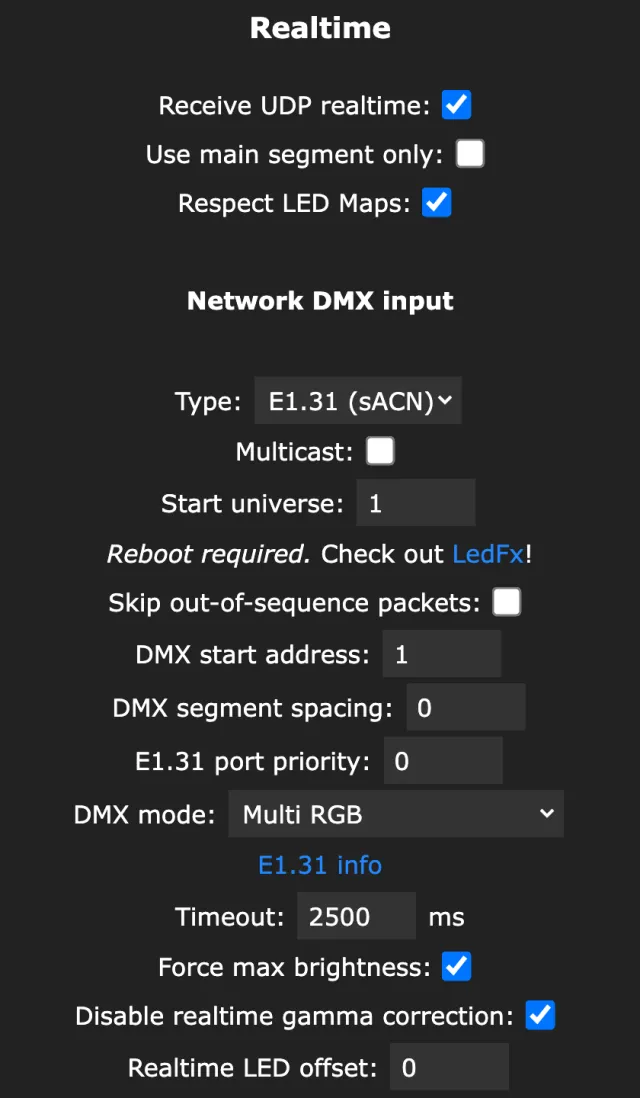
On the light, check that Config›Sync Interfaces > Realtime > Receive UDP realtime is on. It is by default. The port is the UDP Port under WLED Broadcast on the same page, normally 21324.
From a script
The DRGB protocol is about as simple as network protocols get. Byte 0 is 2, byte 1 is the timeout in seconds, then red, green and blue bytes for each LED in order. That covers up to 490 LEDs. Longer strips need DNRGB.
This flashes a 60 LED strip red three times:
import socket, time

IP, PORT, LEDS = "192.168.1.50", 21324, 60
s = socket.socket(socket.AF_INET, socket.SOCK_DGRAM)

for i in range(6):                     # 3 on/off cycles
    color = (255, 0, 0) if i % 2 == 0 else (0, 0, 0)
    packet = bytes([2, 2]) + bytes(color) * LEDS   # DRGB, 2 s timeout
    s.sendto(packet, (IP, PORT))
    time.sleep(0.4)
# stop sending: after the 2 s timeout WLED shows its previous state again
Run it from a Raspberry Pi, from OctoPrint, from anything that knows the print finished or the washer stopped.
From Home Assistant
With the WLED integration, people usually reach for a snapshot scene:
- action: scene.create
  data:
    scene_id: before_alert
    snapshot_entities: [light.living_room_wled]
- action: light.turn_on
  target: { entity_id: light.living_room_wled }
  data: { rgb_color: [255, 0, 0], brightness: 255 }
- delay: { seconds: 3 }
- action: scene.turn_on
target: { entity_id: scene.before_alert }A snapshot scene restores what Home Assistant knows about the light. Segments, custom palettes and effect sliders it doesn't track can come back different.
Fine for a plain color. A running effect with custom segments comes back less reliably than with realtime mode, since the snapshot only holds what Home Assistant knows about the light.
Light Alerts in WLED Max
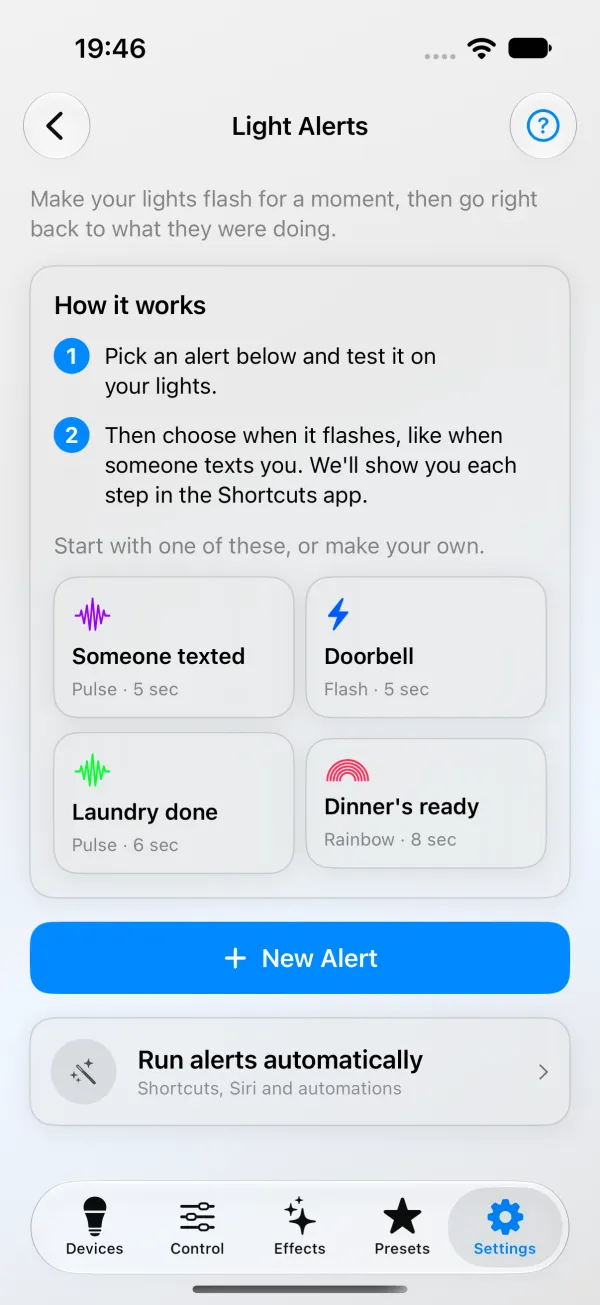
We added Light Alerts in WLED Max 1.1.4. You find them under Settings›Light Alerts (“Flash your lights when someone texts, an alarm rings and more” on iPhone, “Flash your lights with one tap or from an automation app” on Android). The lights flash for a few seconds and go right back, and nothing on the light changes.
Four alerts come ready to go. On iPhone: Someone texted, Doorbell, Laundry done and Dinner’s ready. On Android: Dinner’s ready, Laundry done, Print finished and Bedtime. Edit one or make your own. New to this? Light Alerts step by step walks through it with no code.
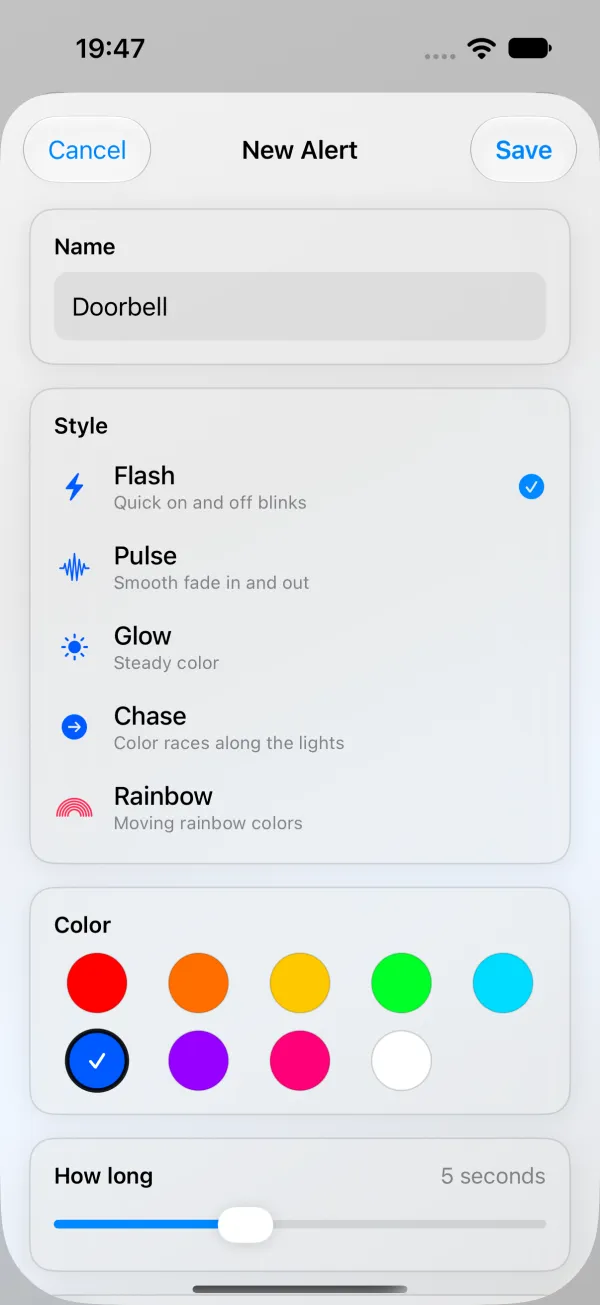
- Name, the label you’ll see in Shortcuts or on your home screen, like “Washer”.
- Style: Flash, Pulse, Glow, Chase or Rainbow.
- Color, one of 9.
- How long, 2 to 10 seconds.
- Lights, the lights that should flash.
- Tap Test on My Lights.
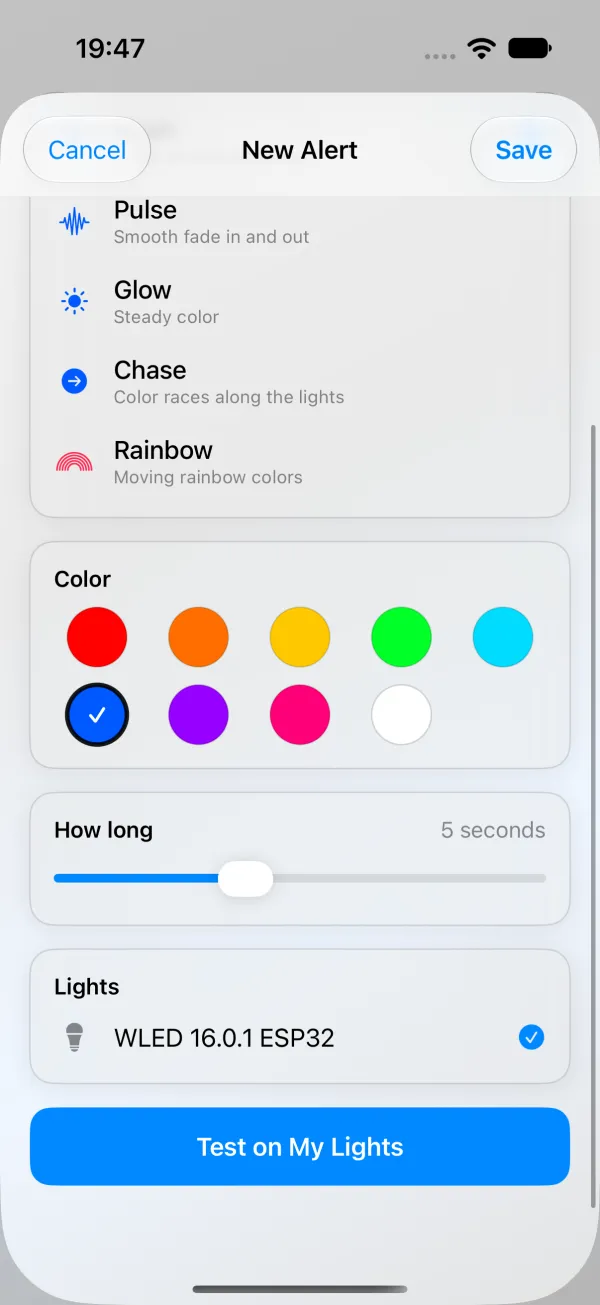
A dimmed light makes a dim flash, which is easy to miss. If that happens, the app offers Flash at Full Brightness.
An alert you have to open the app for isn’t much use, so each saved alert has a Set Up in Shortcuts button (iOS) or a Run Automatically button (Android), and Show Me Step by Step walks you through the other app.
On iOS, the Shortcuts app gets a Flash Lights action. Siri can run it, and so can a Shortcuts automation: a message from someone, an NFC tag, an alarm, arriving home, or your doorbell’s chime heard by Sound Recognition. On iOS 27 and later it can also start from another app’s notification. The Home app can’t start it, even for a doorbell that’s in the Home app. Details in WLED with iPhone Shortcuts and Siri.
On Android, Add to Home Screen pins an alert as an icon, up to 4 alerts show up when you long-press the WLED Max icon, and a Tasker/Locale plugin called WLED Max Light Alert works with Tasker and MacroDroid. Details in WLED with Tasker and MacroDroid.
What it needs:
- Receive UDP realtime on. If it’s off, the app offers to switch it on.
- The phone on the same Wi-Fi as the lights. Alerts go straight from the phone, with no cloud relay, so they don’t work while you’re away.
- On the free plan, alerts run on your one active light. Several lights at once means Premium.
- Some lights can’t have their settings changed from the app, like ESP32 lights with extra hardware set up on I2C pins, or lights with a settings PIN. The app tells you, and you turn on Receive UDP realtime yourself in the light’s web UI.
A few setups that work
For the doorbell, the Home Assistant route above is the dependable one: trigger on the doorbell’s own sensor and run the script above (a shell_command works), red or blue, about 5 seconds. On an iPhone without Home Assistant, Sound Recognition can listen for the chime, as long as the phone is close enough to hear it. A washer with no app of its own can still trigger it: put it on a smart plug that reports power, and fire when the draw drops and stays low for a minute. A finished 3D print is a webhook or an OctoPrint event calling the same script with a different color. Dinner’s ready is a home screen icon on Android or a Siri phrase on iOS.
When it doesn’t behave
Nothing happens on Test in WLED Max. Is the phone on home Wi-Fi, not mobile data or a VPN? Is the light online, with Receive UDP realtime on? On iPhone also check Settings > WLED Max > Local Network.
Nothing happens. Is the machine sending the packets on the same network as the light, with nothing in between blocking UDP port 21324? Is the light online, with Receive UDP realtime on? A wrong IP fails silently, since UDP doesn’t report errors.
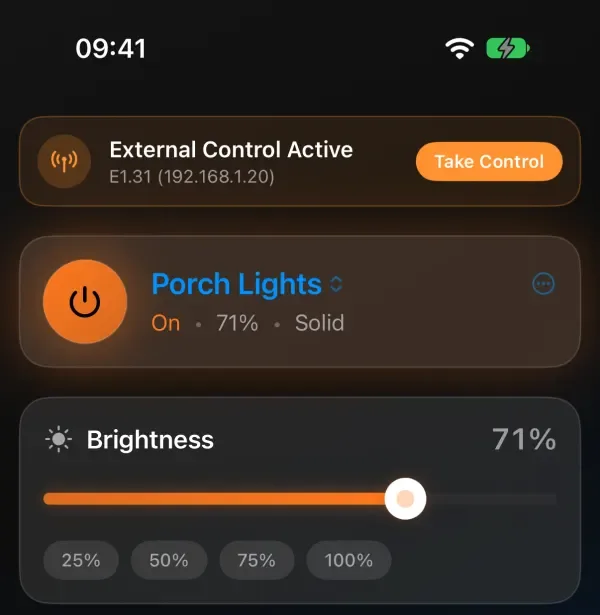
It flashes and doesn’t come back. Something else is probably sending realtime data, like Hyperion, xLights or an E1.31 source, and the light stays with it. In WLED Max the Control tab shows Take Control in that case. See WLED stuck in realtime mode.
The iPhone asks before running. On iOS 17 to 26, set the automation to Run Immediately (not Run After Confirmation). On iOS 27, open the shortcut, tap the blue arrow on the first card and turn off Confirm Before Run.
Works when tapped, not from Tasker or MacroDroid. Battery savers. Set both the automation app and WLED Max to Unrestricted under Settings > Apps > Battery.