WLED Settings Explained: Max Current, LED Outputs, Sync and Security From Your Phone
What the important WLED settings do, with real numbers: max current per LED, LED outputs and GPIO, sync interfaces and the OTA lock.
A brand new 300 LED strip that looks oddly dim usually isn’t faulty. WLED’s brightness limiter starts at 850 mA, which is about what a phone charger gives, so it turns everything down to stay under that. A lot of WLED “bugs” are like this: a setting doing its job with a number nobody changed.
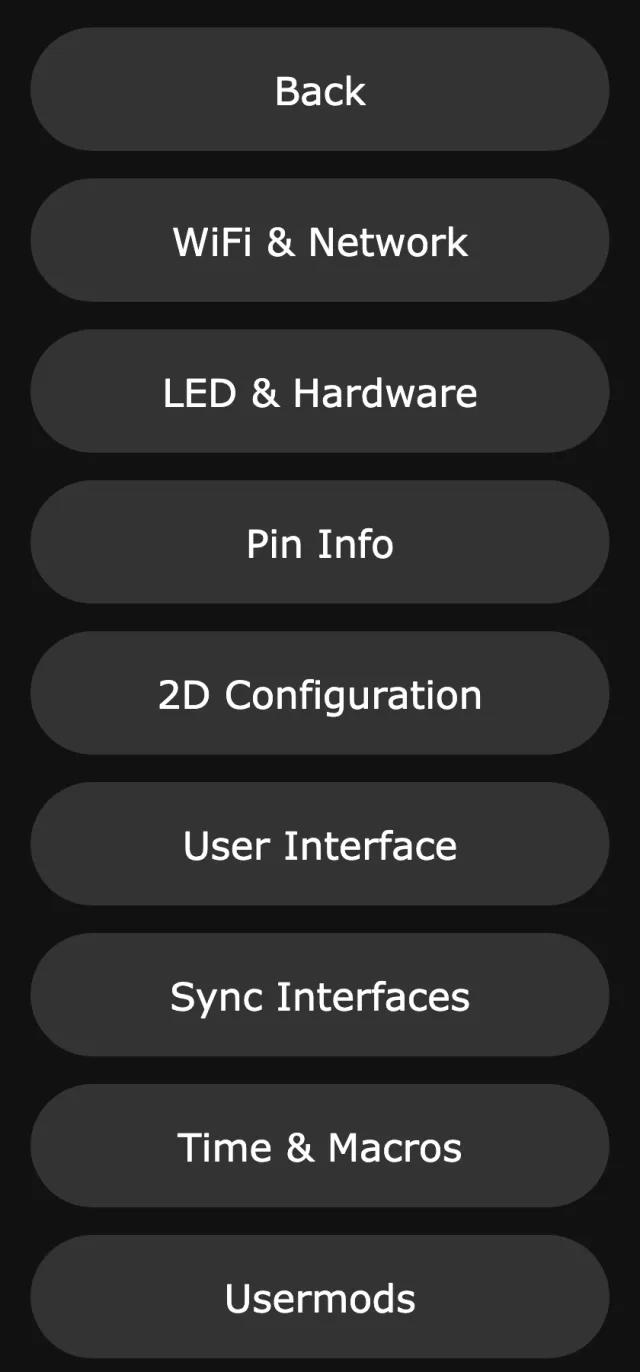
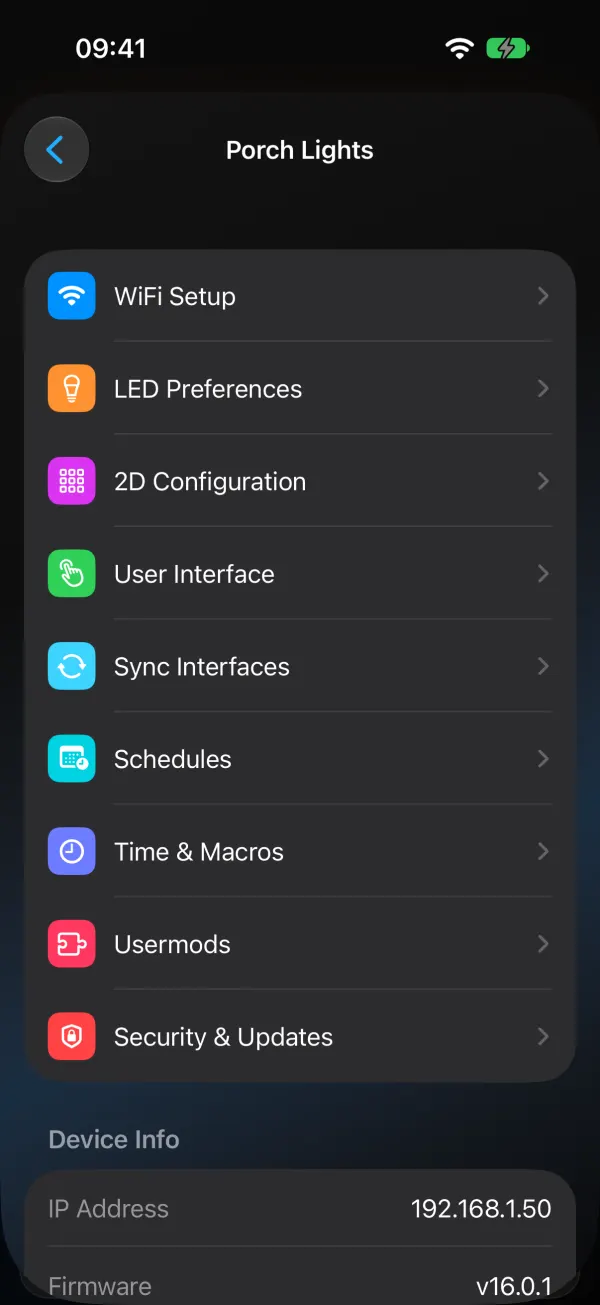
Every setting below is in the WLED web interface, and the table shows where the same thing sits in WLED Max.
Symptom first
| What you see | Usually |
|---|---|
| Dim strip, or full white looks weak | Max Current too low for your supply |
| Only the first few LEDs light up | LED Count too low, or the wrong Data GPIO |
| Red and green swapped | Color Order |
| Full white goes orange at the far end | voltage drop (inject power; a lower Max Current hides it) |
| Light reboots at full white | power supply overloaded, lower Max Current |
| Random flicker further down | data signal or ground, not a setting |
That last one trips people up. Add a common ground, shorten the first data wire, or use a level shifter. No checkbox fixes it.
Where everything lives
| WLED web UI (Config) | WLED Max Device Settings | What’s in it |
|---|---|---|
| WiFi & Network (WiFi Setup on 0.14 and 0.15) | WiFi Setup | network, static IP, access point |
| LED & Hardware (LED Preferences on 0.14 and 0.15) | LED Preferences | outputs, LED type, count, GPIO, current limit, color order, boot defaults, nightlight defaults |
| 2D Configuration | 2D Configuration | matrix panels, layout |
| User Interface | User Interface | server description (Device Name on WLED 16). In WLED Max this section also holds the Alexa name, buttons, IR remote and relay, which the web UI keeps under Sync Interfaces and LED & Hardware |
| Sync Interfaces | Sync Interfaces | UDP sync, Alexa, MQTT, E1.31/DMX/Art-Net, Philips Hue, Serial/Adalight |
| Time & Macros | Time & Macros, Schedules | NTP, time zone (the app uses a UTC offset), location, timers |
| Usermods | Usermods | add-ons such as AudioReactive |
| Security & Updates | Security & Updates | OTA lock, passphrase, reboot (backups are on this web page; in the app they’re under Backup & Restore) |
In WLED Max, open a light, tap the menu and pick Device Settings. The top shows the device info: IP, firmware, MAC address, LED count and mDNS name, plus Open Web Interface. A few things are web only, factory reset and some advanced options among them, and the app tells you when you reach one.
Max current and per-LED current
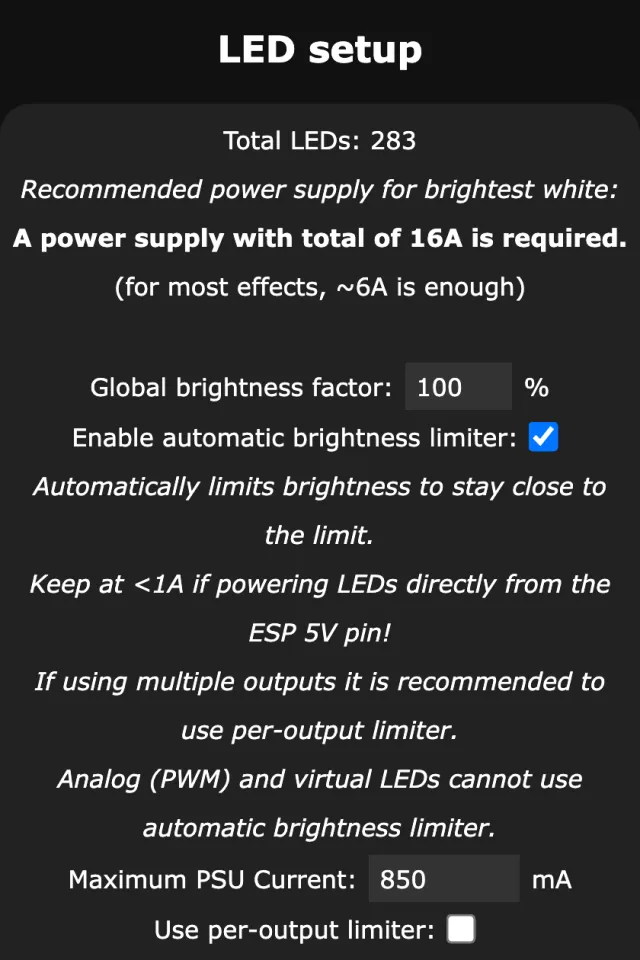
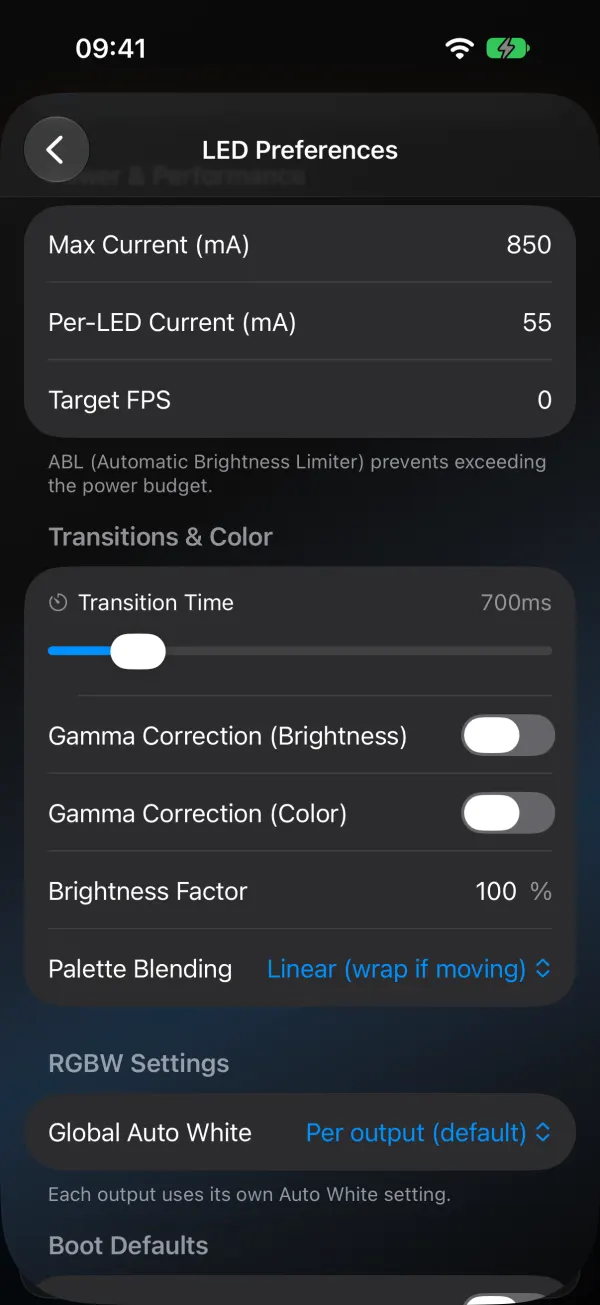
The automatic brightness limiter (ABL) estimates how much current the LEDs draw and lowers brightness to keep the total under your limit. It needs two numbers.
Max Current (mA) is what your power supply can deliver, minus a margin. A 5 V 10 A supply is 10,000 mA, so set about 8,500 to leave room for the controller and losses.
Per-LED Current (mA) is what one LED draws at full white. WLED has presets for it: 55 mA (typical 5 V WS281x), 35 mA (eco WS2812), 30 mA (typical 12 V), 12 mA (WS2815) and 15 mA (seed or fairy pixels). You can also type your own.
Worked example. 300 WS2812B LEDs at 55 mA could pull 16.5 A at full white. With a 10 A supply and Max Current at 8,500 mA, WLED caps full white at about half brightness. Colors draw less, so they can go brighter. That’s the limiter working, not a fault. Don’t set Max Current higher than the supply and wiring can take. On 5 V strips, inject power every 100 to 150 LEDs and fuse each run. Planning a whole roofline? The roofline and outdoor power guide works out the supply, the feed points and the wire size.
In WLED Max both fields are under LED Preferences > Power & Performance. Target FPS sits there too. 42 suits most strips, and going higher only helps on short runs.
LED outputs and GPIO
An output is one data line from the controller to a strip. For each one you set:
- LED Type (WS281x, SK6812 RGBW, APA102 and so on)
- Data GPIO, plus Clock GPIO for 4-wire strips
- Start and Length (the LED count on this output)
- Color Order (GRB is the usual one for WS2812B)
- Reversed and Skip First LEDs (for a sacrificial first pixel used as a level shifter)
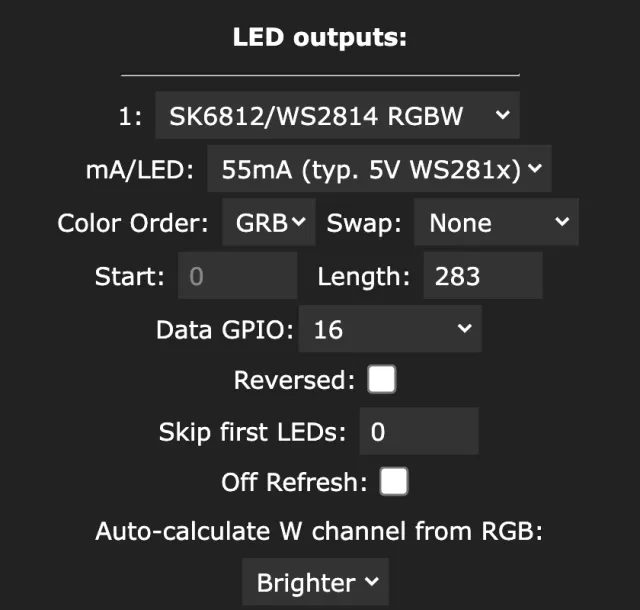
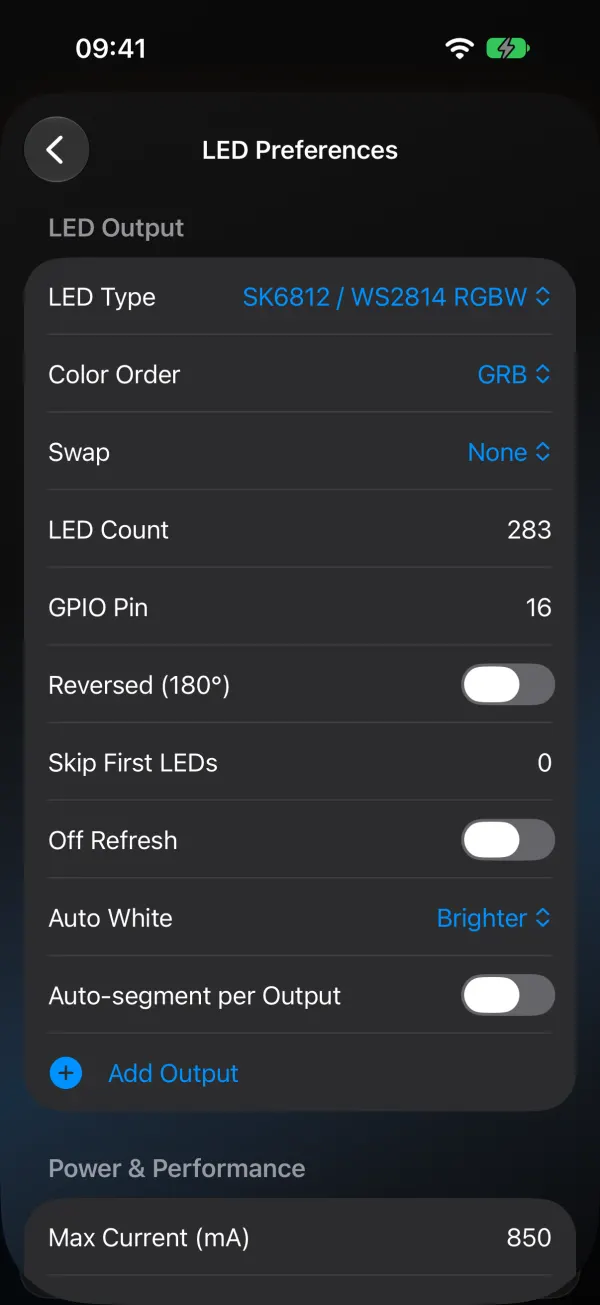
A second strip on another pin means a second output. The web UI has a ”+” button under LED & Hardware. WLED Max has Add Output and Remove Output there, and it checks the limits your firmware reports first: how many outputs, which GPIOs are free, how much LED memory is left. If it can’t add one, it tells you why. This matters most on ESP8266, which handles far fewer LEDs and outputs than an ESP32.
In the web UI, WLED applies new output settings as soon as you save. WLED Max asks you to Save & Reboot, and the light restarts with the new hardware settings.
Sync Interfaces
UDP sync (WLED Sync) keeps several WLED lights on the same effect. Send on one, Receive on the others. Controlling multiple WLED devices goes deeper.
Receive UDP realtime lets tools drive the pixels directly for a while: Hyperion, xLights, a Home Assistant script, or Light Alerts in WLED Max. Leave it on unless something keeps hijacking the light. If one does, WLED Max shows it on the Control tab with a Take Control button, and WLED stuck in realtime mode explains the rest.
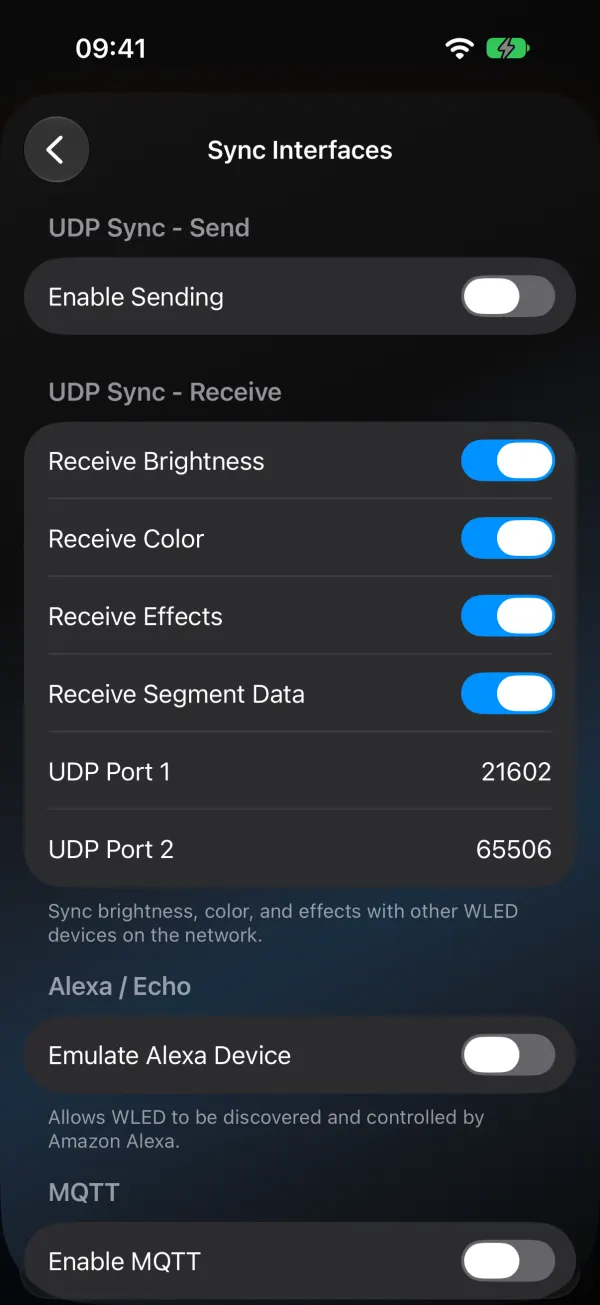
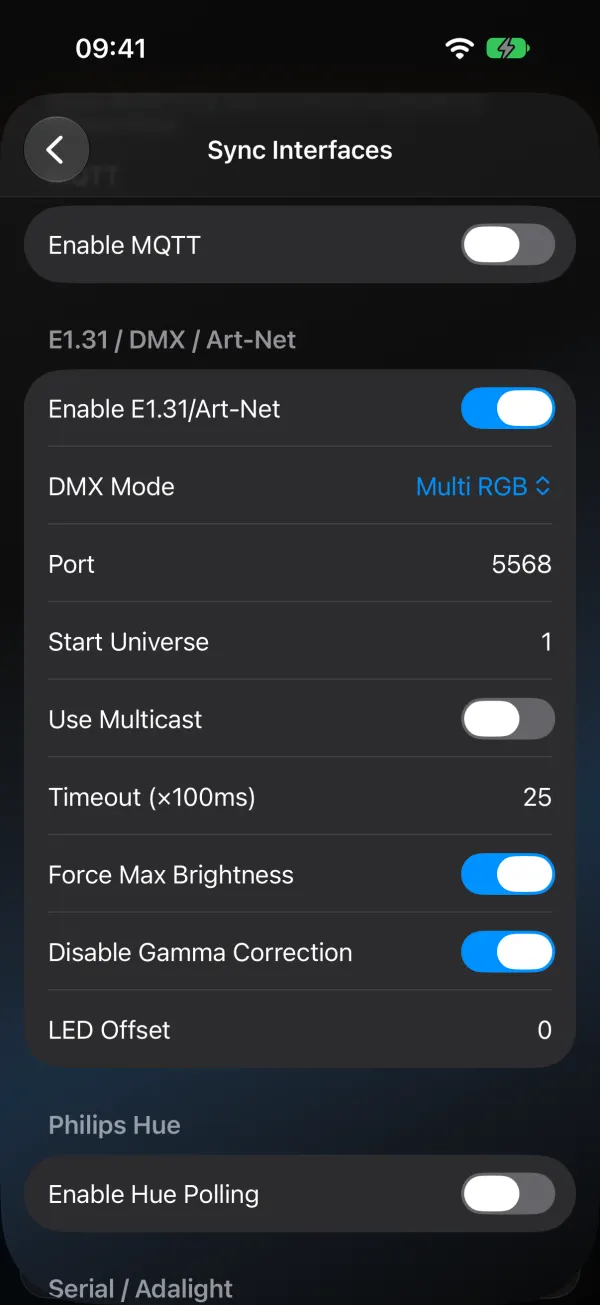
E1.31, Art-Net, DDP are for lighting software and shows. Universe and start address go here. MQTT and Alexa cover home automation outside Home Assistant’s own integration.
Security & Updates
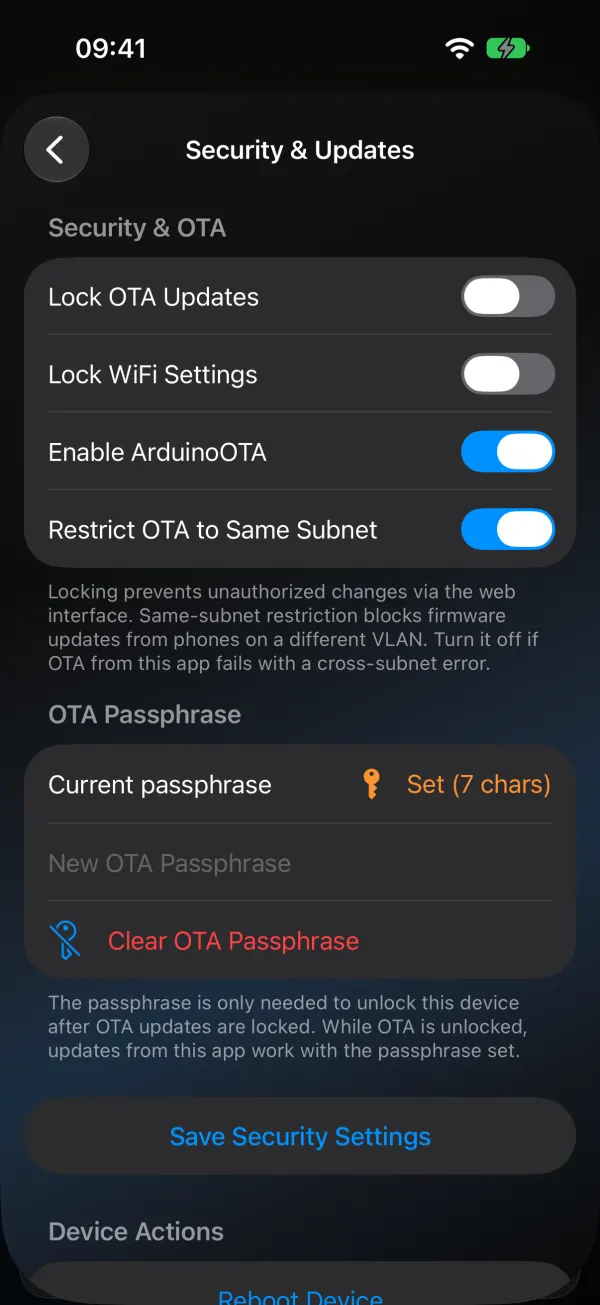
The OTA lock (web UI: “Lock wireless (OTA) software update”; app: Lock OTA Updates) blocks firmware uploads, and only your passphrase turns it off again. Lock WiFi Settings protects the network settings the same way. Worth it in a shared house or a shop. ArduinoOTA, the same-subnet update restriction and Reboot are here as well, and in the app Unlock & Reboot. The update process itself is covered in WLED OTA update on ESP8266 and ESP02.
Lights the app won’t write settings to
Since version 1.1.4, WLED Max won’t change settings on an ESP32 light that has I2C pins set, or where it can’t read those pins. These are usually builds with sensors, displays or audio boards attached, and a settings change from the app could upset that setup. You’ll see “This light uses extra hardware, so change this in the light’s own settings page.” with the light’s address to open in a browser. If the light’s settings are locked with a PIN, the app says so, asks you to unlock them in the WLED web interface first, and changes nothing.
A WiFi Setup change can move the light to a new address, or off your network. Back up first.
One last thing that catches people: a WiFi Setup change (static IP, a different network) can move the light. If it vanishes after you save, check the router’s client list, or wait for the WLED-AP hotspot to come up. And back up the config before big changes.