WLED OTA Update on ESP8266 and ESP02: Which .bin You Need and Why It Fails
Pick the right WLED .bin for ESP8266, ESP02 or ESP01, see why 2 MB boards run out of space, and use the two-step update when an OTA fails.
Quick answer: use the release file whose name matches the build your light reports (the “release” on WLED’s Info page, such as ESP8266, ESP02 or ESP32). On ESP8266 the new image has to fit between the running firmware and the file system, so 2 MB boards (ESP02 builds) often fail with “not enough space”. Use the compressed .bin.gz, or update in two steps: the small _min build first, then the full one. 1 MB boards (ESP01 builds) have no wireless updates at all. Those need a USB cable and install.wled.me.
Which build is your light running?
Open the light in a browser and tap Info (the “i” button). The version and build name are there. Or open http://<light-ip>/json/info and find "release", for example "release":"ESP02" or "release":"ESP32".
The release field is the build name to match when you download.
Release files on GitHub (github.com/wled/WLED/releases) carry the same names:
| Build name | Typical hardware | Flash | Wireless update |
|---|---|---|---|
| ESP8266 | D1 mini, NodeMCU | 4 MB | yes, plenty of room |
| ESP02 | boards with 2 MB flash, many cheap controllers | 2 MB | yes, but tight |
| ESP01 | ESP-01, ESP-01S | 1 MB | no, built without OTA |
| ESP32 | ESP32 dev boards, QuinLED, most controllers | 4 MB | yes |
| ESP32-S2, S3, C3 | newer ESP32 chips | varies | yes |
Stay on the build name you have now. Switching builds over the air can leave you with wrong pin defaults, or a light that won’t boot.
Updating in the web UI
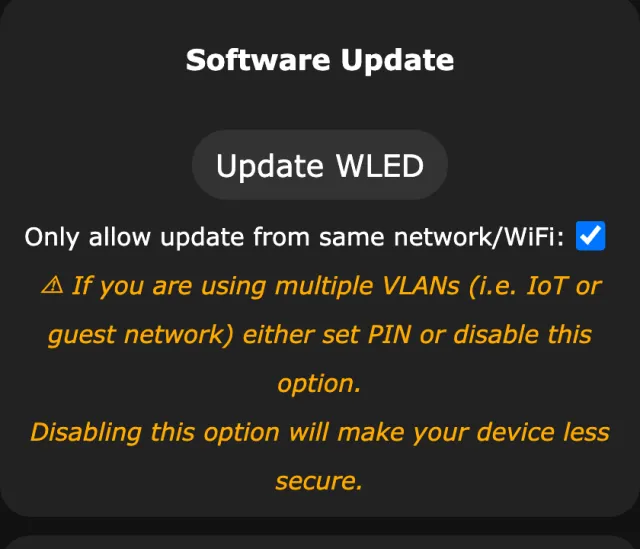
WLED 16 does most of the work for you. Go to Config›Security & Updates and tap Update WLED (or open http://<light-ip>/update). The page shows the installed version, your release name and the latest version. Auto update fetches the matching file from GitHub and uploads it. On ESP32 and 4 MB ESP8266 boards that’s all there is to it. On 2 MB boards, read the next section first, because Auto update picks the plain .bin.
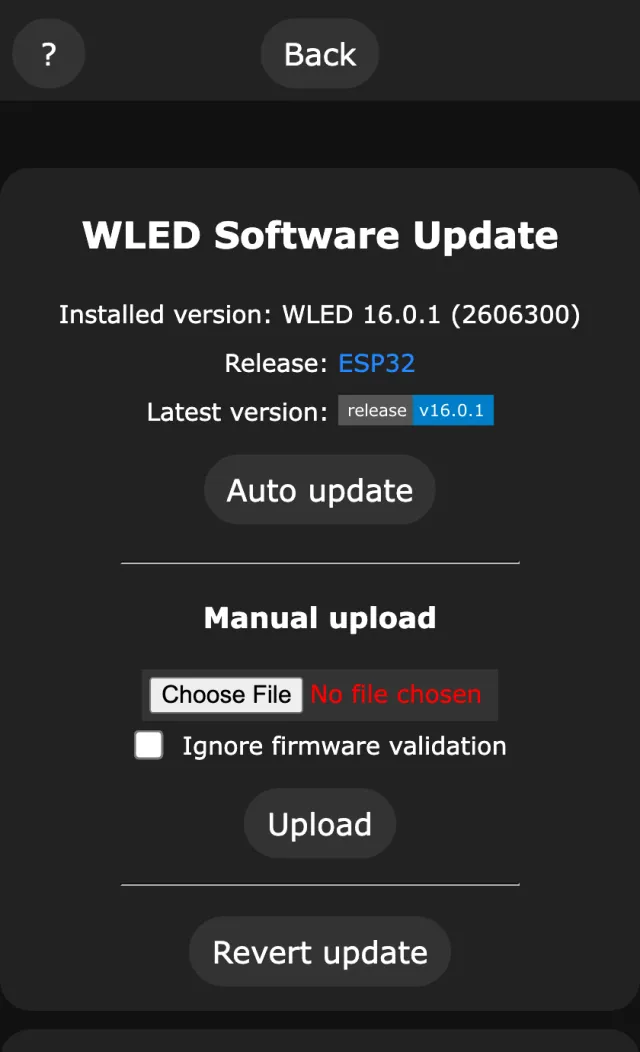
On WLED 0.15 and older, or when you want to choose the file yourself:
- Download the file for your build from the releases page.
- Go to Config > Security & Updates and tap Manual OTA Update (on WLED 16, Update WLED), or open
http://<light-ip>/update. - Choose the file and tap Update! (on WLED 16, Upload).
- Wait. It uploads, writes and reboots, usually in under a minute. Leave the power alone while it does.
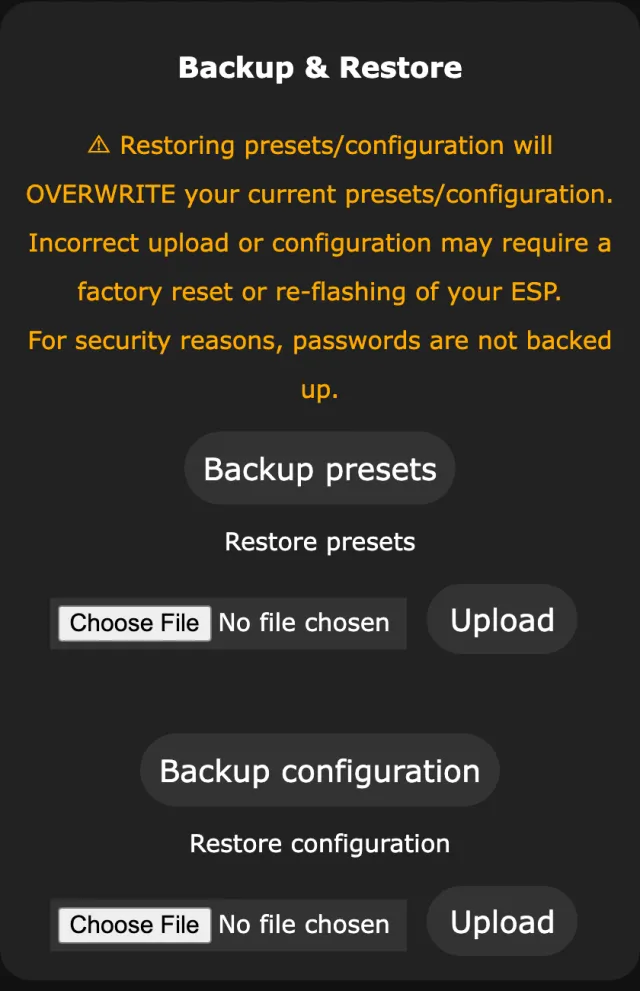
Before any of this, save a backup. Security & Updates has Backup presets and Backup configuration buttons. A normal update keeps your settings, but the backup takes ten seconds. Back up and restore a WLED config explains what’s in each file.
Troubleshooting: why ESP8266 updates fail
Update failed: “Not enough space” on 2 MB boards
The ESP8266 has no fixed update partition like the ESP32. The new image is parked in the gap between the end of the running firmware and the start of the file system. On a 2 MB board the file system starts at 1,572,864 bytes (0x180000). With about 800 KB of current firmware, that leaves roughly 750 KB for the new image, and a full WLED build is bigger. WLED up to 0.15.1 also reserves one extra 4 KB sector, so it’s tighter still.
Why 2 MB boards run out of room: the new image has to fit in the gap.
Two ways around it:
- The
.bin.gzfile. ESP8266 takes a gzip compressed image as is and unpacks it at boot. It’s roughly a quarter smaller, which is often the difference between fitting and failing. - Two steps. Install the small
ESP02_minbuild first (fewer features, fits easily), reboot, then install the fullESP02build. With the small build running there’s more room, so the full one fits. TheESP02_minfiles exist from WLED 16 on. 0.15 releases don’t have them.
WLED 16 checks that an upload’s build name matches the running build, so going from ESP02 to ESP02_min means ticking Ignore firmware validation on the update page. That’s a known upstream issue (wled/WLED#5576). The manual route is ESP02, then ESP02_min.bin.gz, then ESP02.bin.gz.
Fails straight away on ESP01
ESP01 builds are compiled without OTA. There’s nothing to upload to. Connect the board by USB and use install.wled.me.
Wrong file
An ESP32 .bin on an ESP8266, or the reverse, gets rejected if you’re lucky. If you’re not, the light won’t boot until you reflash it over USB. Match the build name every time.
Update failed with 401 “Access Denied”
A 401 means the light refused the upload before reading it. The second line of the message says why:
| Message | Cause | Fix |
|---|---|---|
| Please unlock OTA in security settings! | Lock wireless (OTA) software update is ticked | Untick it in Security & Updates (needs the OTA password) |
| Please unlock settings using PIN code! | A settings PIN is set and this browser hasn’t entered it | Enter the PIN, then upload again |
| Client is not on local subnet. | WLED 16 only: the upload came from another subnet with Only allow update from same network/WiFi ticked, or from an address outside the private ranges | Update from a device on the light’s network, untick the option, or set a settings PIN |
Apps and Home Assistant get the same answer when they update the light. Home Assistant 2026.10 and newer show the reason; older versions failed quietly (see WLED and Home Assistant fixes).
Locked, or on another subnet
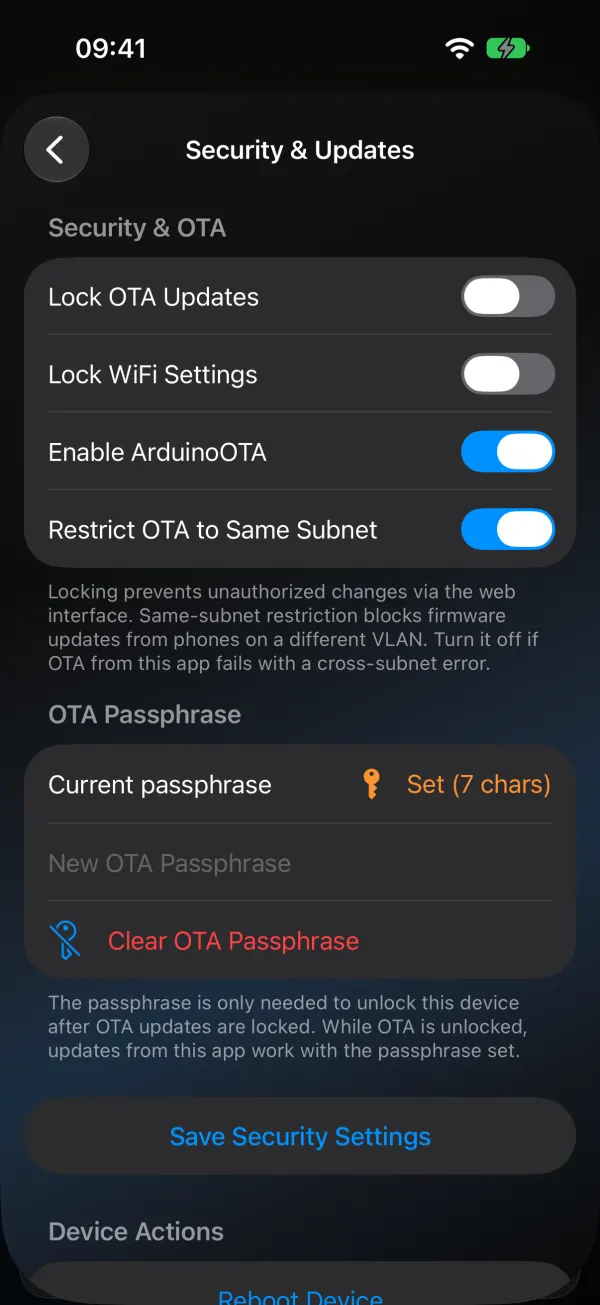
With Lock wireless (OTA) software update ticked in Security & Updates, the light refuses uploads until you untick it, which needs the OTA password. With Only allow update from same network/WiFi ticked, it refuses updates from other subnets. If your phone is on a different VLAN, untick that (or set a PIN, as the page suggests), or update from a device on the light’s network.
In WLED Max the same two switches are Lock OTA Updates and Restrict OTA to Same Subnet under Device Settings, Security & Updates.
Other symptoms
Stuck at 0%, or it times out. Weak Wi-Fi at the light. Move the phone closer to the router (the router, not the light), or update from a computer on a wired connection.
Rebooted into the old version. The upload finished but the image didn’t validate. Try the .bin.gz or the two-step method.
Back in WLED-AP mode afterwards. Rare, but it happens when the config gets lost. Join WLED-AP (password wled1234), set up Wi-Fi again, then restore your backup.
Effects look different on WLED 16. Some effect IDs changed (effect 77, for one). WLED Max flags presets that use effect 77 so you know which ones to save again.
Updating from your phone
In WLED Max, open Firmware Update by long-pressing the light in the device list and picking Firmware, or from the Firmware Update Available banner. Android also has it in Device Settings.
- The app lists recent releases from the official WLED GitHub repository, prereleases included. There’s no stable/beta picker, so check the version before you tap.
- It picks the exact build your light reports (ESP32, ESP8266, ESP02, ESP01, S2, S3 or C3). If that exact file is missing it falls back to the chip type, and Browse all builds lets you choose.
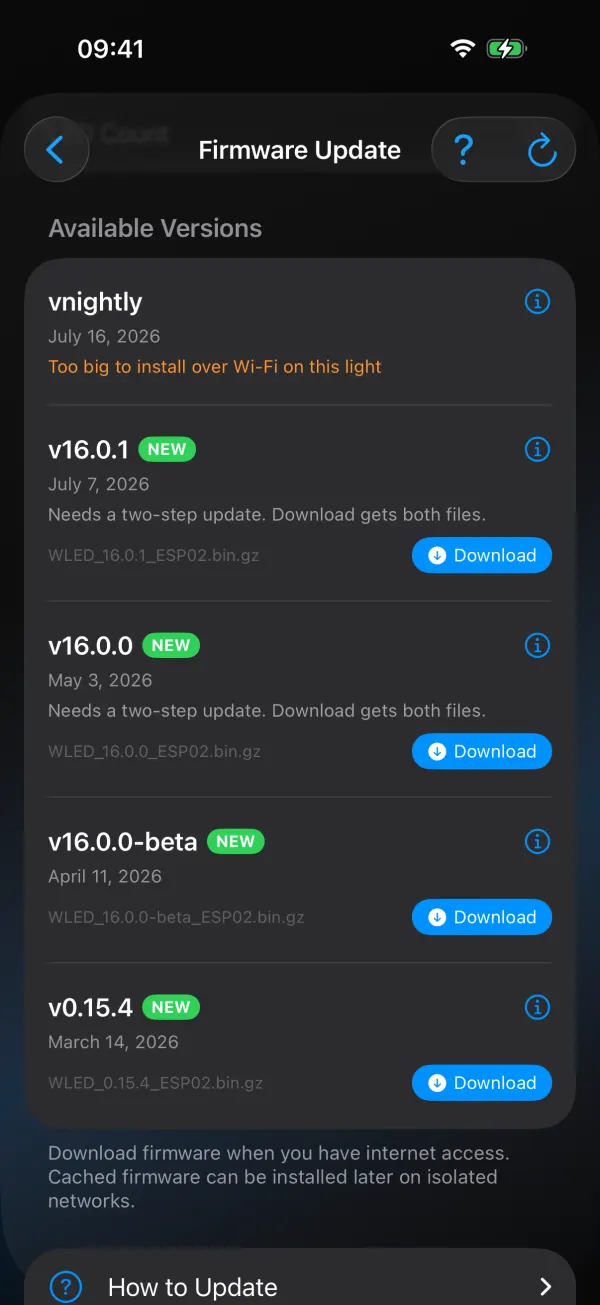
- Tap Download next to the release under Available Versions, then Install next to it under Cached Firmware. Downloads stay cached, so a firmware you fetched earlier installs later without internet.
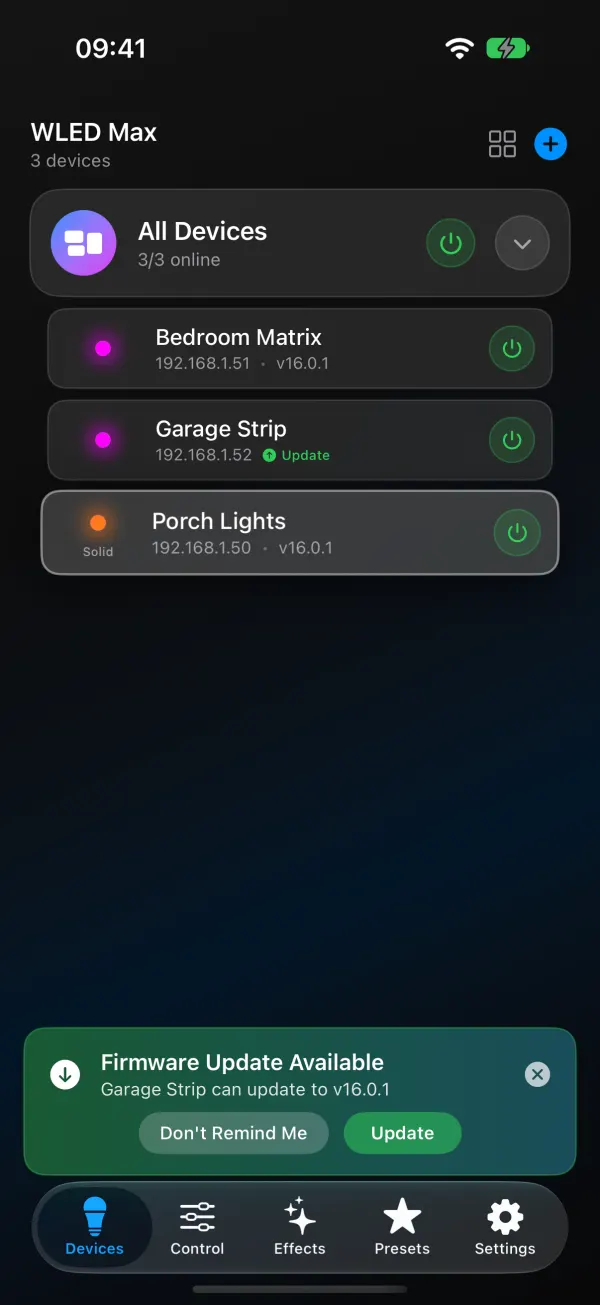
Version 1.1.4 handles the ESP8266 cases above for you, on iOS and Android:
- Releases that need two steps on your board say so in the list (“Needs a two-step update. Download gets both files.”).
- When the full build won’t fit, the app offers Start Two-Step Update. It installs the small version first (“Step 1 of 2: small version”), then the full one (“Step 2 of 2: full version”), with no manual downloads. If step 1 doesn’t finish, the light is still on its old firmware and nothing has changed. If step 2 doesn’t finish, the light keeps working on the small version and Try Step 2 Again finishes the job.
- If a release is too big for that board even in two steps, the row says “Too big to install over Wi-Fi on this light”, nothing is uploaded, and the app suggests a USB install with install.wled.me.
- On a build without wireless updates (ESP01), the app says so and points you to install.wled.me instead of failing halfway.
When an update is refused, the screen suggests fixes such as clearing an OTA passphrase or allowing updates from another subnet. If a light runs a custom build, the update banner warns that installing an official release replaces custom firmware and extra usermods with standard firmware. The app can’t upload your own .bin. For custom builds, use the web UI.
To hear about new stable releases for your lights, turn on Firmware Updates in Settings›App Preferences›Notifications. It’s off by default.
Related: WLED settings explained and why a WLED light keeps going offline.