How to Set Up a New WLED Device on Wi-Fi (WLED-AP)
Connect a new WLED board to home Wi-Fi: join WLED-AP (password wled1234), open 4.3.2.1, enter your network. Plus iPhone fixes, Wi-Fi reset and factory reset.
Quick answer: join the board’s own hotspot, WLED-AP, password wled1234. Open 4.3.2.1, tap WIFI SETTINGS, type your home network and password, save. The board restarts on your Wi-Fi and any WLED app on that network can find it.
That’s the whole job when it goes well. The rest of this page is for when it doesn’t, and for the part nobody warns you about: finding the light again afterwards.
WLED-AP password and the 4.3.2.1 address
- Network name: WLED-AP
- Password: wled1234
- Address: http://4.3.2.1
Those are the defaults in the WLED source (0.14, 0.15 and 16). A few controllers ship with their own name or password, so if WLED-AP doesn’t take wled1234, check the box or the seller’s page. You can change both later under Config > WiFi Setup (WiFi & Network on WLED 16) (AP SSID and AP password; the password needs at least 8 characters, or leave it empty for an open hotspot). There’s also a Hide AP name option. If someone ticked that, the network won’t appear in the list, and you have to join it by typing its name.
When does the hotspot show up? With the default setting (AP opens: No connection after boot), a board opens WLED-AP when it can’t join a saved network, about 12 seconds after it starts trying. Once it’s on your Wi-Fi, the hotspot goes away. Other choices are Disconnected (also opens if the connection drops later), Always, Never (not recommended), where only the button brings it back, and on 0.15 and 16 Temporary, which closes the hotspot again about 5 minutes after startup if nobody has connected.
Check these first
- WLED has to be on the board already. Plenty of controllers ship with it (GLEDOPTO, Athom, QuinLED and others). A bare ESP32 or ESP8266 needs flashing first. The official web installer at install.wled.me does that from a desktop browser over USB, and the WLED docs cover wiring.
- 2.4 GHz only. ESP32 and ESP8266 chips can’t join 5 GHz Wi-Fi. One network name for both bands is usually fine, because the board picks 2.4 GHz by itself. A 5 GHz only network will never show up in the list.
- Skip the guest network. Many routers stop guest devices from talking to each other (“client isolation”). The light joins fine, and then no app can reach it.
- Have the Wi-Fi password in front of you. A typo is the most common reason setup “fails”.
In a browser (any phone)
- Power the controller. A board with no saved Wi-Fi starts the access point by itself. On a board that was set up before, most controllers bring the access point back if you hold the button (check the manual for yours).
- In your phone’s Wi-Fi settings, join WLED-AP with the password wled1234.
- A sign-in page usually pops up. If not, open a browser and go to http://4.3.2.1.
- Tap WIFI SETTINGS.
- Enter your network name (SSID) and password. Leave the static IP fields empty unless you know you want one.
- Tap Save & Connect. The board restarts, and WLED-AP disappears once it has joined your Wi-Fi.
- Put your phone back on your home Wi-Fi and go looking for the light. Try http://wled-xxxxxx.local (the last six characters of the board’s MAC address), check your router’s client list for a new device, or use an app that does discovery.
The fields that matter on the WLED-AP page. Everything else can wait until the light is on your network.
Step 7 is where people get stuck. Your phone just left the light’s network, the light got a fresh address from your router, and now you’re hunting for it.
With Setup New Device in WLED Max
On the Devices tab, tap + (Add Device), then Setup New Device (“Configure a brand new WLED device via WiFi Access Point”). It’s the same steps as the web page. The difference is that the app finds the light for you at the end.
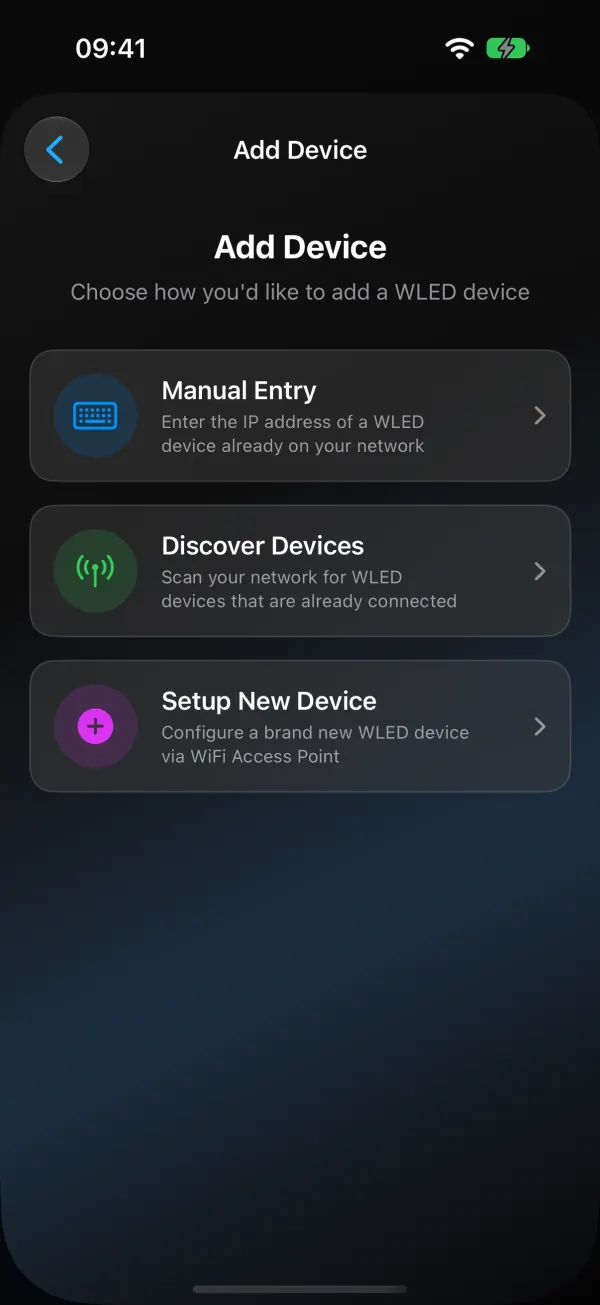
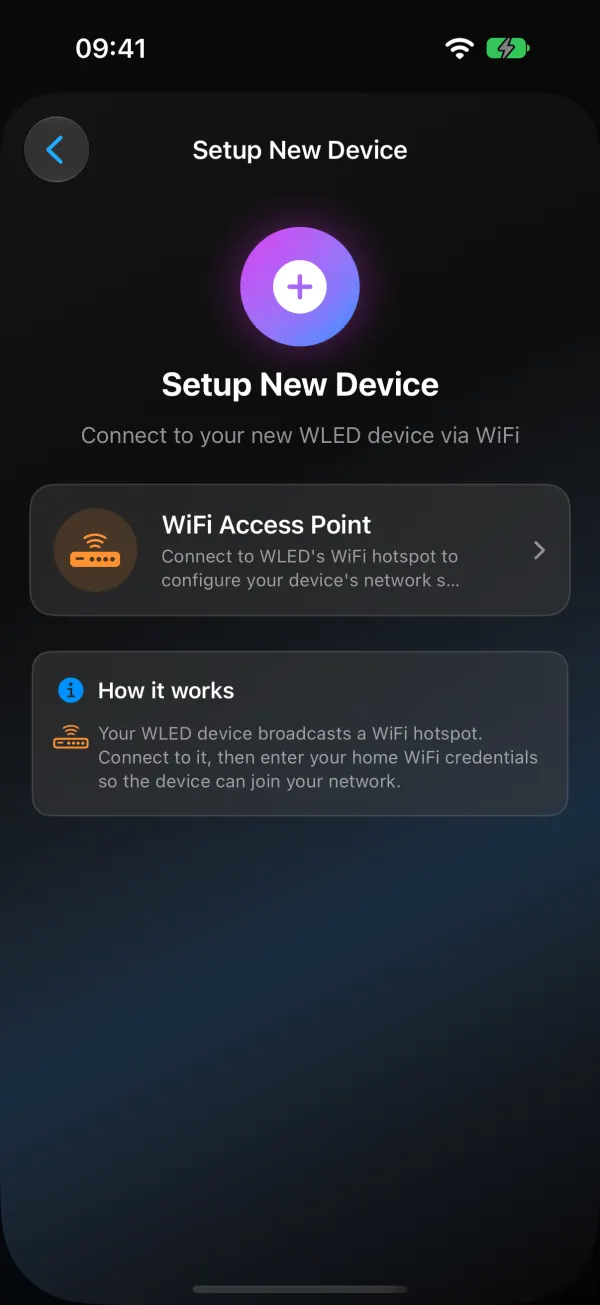
- Connect to WLED-AP. On iOS the app joins the hotspot itself once you confirm. Android sends you to Wi-Fi settings: join WLED-AP there, come back, and tap I’ve Connected to WLED-AP. If your board uses a different hotspot name or password, turn on Use custom AP settings and type them in. The button then shows your hotspot’s name.
- Scan for Networks. The light looks for nearby networks, which takes about 10 seconds. Pick yours. Hidden or missing? Tap Network not listed? Type its name.
- Enter the password, and a Device Name if you want one.
- Tap Configure Device. The app sends your Wi-Fi details, the light restarts, and the app waits for it to appear on your home network. It goes into your device list by itself. You can also tap Done, Add in Background and let it finish.
If a step fails, Try Again repeats that step without sending you back to the start, and Start Over begins again from the hotspot. Version 1.1.4 also lets you type a network name the scan missed.
There’s no Bluetooth or Improv setup on either platform. Everything goes over the WLED-AP hotspot, so all you need is a current WLED release in AP mode.
WLED-AP not working on iPhone
iPhones are fussy about networks with no internet, and WLED-AP is one. What helps:
- Turn off mobile data for the few minutes of setup. With mobile data on, an iPhone can keep using it while it sits on WLED-AP, and the setup page or app request goes nowhere useful.
- Stop it jumping back. If the phone keeps returning to your home network, open your home network’s details in Wi-Fi settings and switch Auto-Join off until setup is done.
- Forget old entries. A saved WLED-AP from an earlier board with a different password gets in the way. Tap it in Wi-Fi settings and choose Forget This Network.
- Let the sign-in page do its thing, or close it. The page that pops up is the WLED page. If you close it with Cancel, choose Use Without Internet rather than Use Other Network, then open http://4.3.2.1 in Safari.
- Give the network scan time. The light scans for Wi-Fi networks itself, which takes several seconds. If your network isn’t in the list, scan again before you assume something is wrong.
If WLED-AP doesn’t appear at all, the board is probably still connected to a network it already knows (the hotspot closes once it’s online), or it isn’t running. See the reset section below.
WLED not showing up on Wi-Fi after setup
Most failed setups are a typo in the Wi-Fi password, a 5 GHz only network, or a guest network. Check those three before anything else.
A “Sign In” screen appeared. That’s the captive portal and it’s normal. In the WLED Max flow on iOS, tap Cancel, then Use Without Internet. Don’t pick Use Other Network, because that drops the connection to the light.
My phone keeps jumping back to home Wi-Fi. Phones like to leave networks with no internet. On Android, when it says WLED-AP has no internet, tap Stay connected (or Yes) and turn off things like “Switch to mobile data” while you set up. On iOS, an old saved WLED-AP entry with a different password can get in the way. Forget it in Wi-Fi settings and try again.
The scan finds no networks. Bring the board closer to the router for setup and tap Rescan, or type the network name yourself.
Nothing shows up after Configure Device. Nine times out of ten the password was wrong. The light falls back to WLED-AP after a short while, so join it again and redo the Wi-Fi step. Also make sure the network is 2.4 GHz and not a guest network.
It joined, but I can’t find it now. That’s a discovery problem, not a setup problem. Phones on a VPN, lights on another VLAN and routers with client isolation are the usual causes, and WLED app can’t find your lights goes through each one.
The LEDs look wrong. Wi-Fi setup doesn’t touch LED type, count or data pin. Those live in Config > LED & Hardware in the web UI (LED Preferences on 0.14 and 0.15), or Device Settings > LED Preferences in WLED Max. Only the first few LEDs light? The LED count is too low. Red shows as green? Wrong color order.
Reset WLED Wi-Fi or factory reset
Just the Wi-Fi. If you can still open the light, change the network under Config > WiFi Setup (WiFi & Network on WLED 16). If you can’t (new router, new password), power the light on and wait. It can’t join the old network, so after a short while it opens WLED-AP again, and you set it up like a new board.
With the button. On controllers with a button wired to WLED’s first button input (GPIO 0 by default), the hold time decides what happens. WLED checks it when you let go:
| Hold, then release | What happens |
|---|---|
| Under 0.6 seconds | Short press: toggles the light |
| More than 5 seconds | Opens WLED-AP, keeps all settings |
| More than 10 seconds | Factory reset: erases the file system, so all settings and presets are gone, then restarts |
That’s the same on WLED 0.14, 0.15 and 16. Not every controller wires its button to that input, so check yours before holding it for 10 seconds.
From the web page. Config > Security & Updates, tick Factory reset, and save. WLED says it plainly: “All settings and presets will be erased.” Back up first (same page, Backup presets and Backup configuration), and see back up and restore a WLED config for how to put things back.
Using WLED without home Wi-Fi
You don’t need a router at all. A board with no saved network keeps WLED-AP open, and you control it at http://4.3.2.1 with your phone joined to it. If the board does have a saved network but you sometimes take it somewhere else (a market stall, a camper), set AP opens to Disconnected so the hotspot appears whenever the home network isn’t there.
Two limits. Without internet the light can’t get the time from NTP, so sunset and clock timers can’t run at the right time. And your phone has no internet while it’s on WLED-AP.
Once it’s on your network
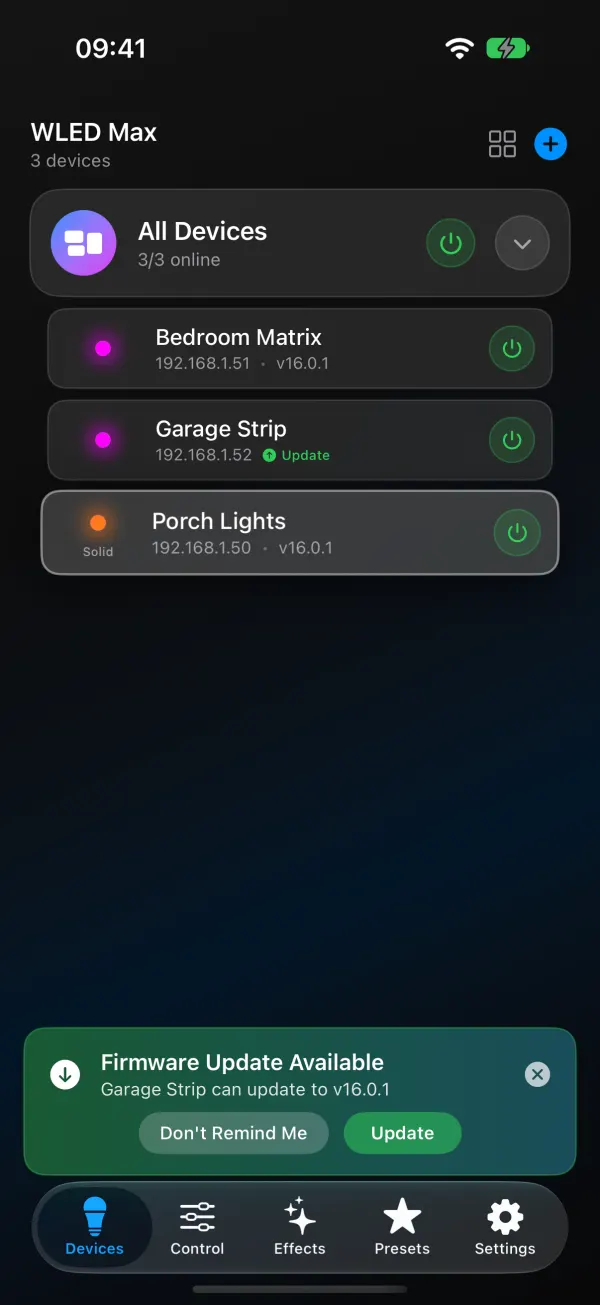
Give it a name you’ll recognize. In WLED Max that’s Rename in the Control menu (up to 24 characters, and it’s written to the light too). Set the LED count and power limit in LED Preferences while you’re there; WLED settings explained has the numbers. Then play with a few effects. The effects list with live previews explains what the sliders do.
FAQ
What is the default WLED-AP password? wled1234. You can change the hotspot name and password in the light’s Wi-Fi settings.
What IP address does WLED use in AP mode? 4.3.2.1.
Do I need a computer? Only to flash WLED onto a bare board. Wi-Fi setup works from a phone, in the browser or in an app.
Can WLED use a 5 GHz network? No. ESP32 and ESP8266 boards are 2.4 GHz only.