WLED App Can't Find Your Lights? Discovery Fixes
WLED app not finding your lights? Check mDNS, guest Wi-Fi, VLANs, VPNs and the iPhone Local Network permission, or add the light by IP.
Written by Jamie Conde, who builds WLED Max at MeowScript. WLED Max is an independent app and is not affiliated with or endorsed by the official WLED project.
Quick answer: apps find WLED lights with mDNS (Bonjour), and mDNS only works when the phone and the light share a network segment. Check that the light shows up in your router, that your phone is on the same Wi-Fi with no VPN and no guest network, and on iPhone that the app has Local Network access. Still nothing? Add the light by its IP address. That always works if the browser can open it.
Almost everything below applies to any WLED app, and to the web UI too.
Is the light actually online?
Start here, because it splits the problem in two. Open your router’s app or admin page and look at the client list. WLED usually appears as wled- plus six characters. Write down its IP, for example 192.168.1.57.
Now type that address into your phone’s browser while on the same Wi-Fi. If the WLED page opens, the light is fine and only discovery is broken. If it doesn’t, something is wrong with the network path, the light is off, or it fell back to its WLED-AP hotspot because the Wi-Fi password changed. A light that never joined your Wi-Fi at all needs the new device setup first.
What to look for in the router: a client named wled- plus six characters, and its IP.
Not sure where to find the IP? The router’s client list is the easy way. Once you’re connected, the Info page in the WLED web UI shows it too, and apps with discovery list it for each light.
Why discovery fails when the browser works
The browser connects straight to an address. Discovery is different. Every WLED light announces itself as a _wled._tcp service under a name like wled-abcdef.local, and an app sends out “who offers WLED here?” over multicast. Lights answer. Multicast is exactly what a lot of home networks drop or don’t forward:
- Across VLANs or subnets. Lights on an IoT VLAN and the phone on the main network won’t see each other unless the router runs an mDNS reflector. So no, discovery doesn’t cross VLANs by default.
- Guest networks. Client isolation stops devices seeing each other at all.
- VPNs. A full-tunnel VPN sends the phone’s traffic out of the house, and the local lights disappear from view. Split-tunnel VPNs that exclude local networks are fine.
- Some mesh systems and access points filter multicast to save airtime.
mDNS discovery stays inside one segment. The phone on the left never hears the lights on the right unless the router reflects mDNS.
Things to check, in roughly this order:
- Same Wi-Fi? Phones end up on a guest network, or on a 5 GHz network with a different name that’s bridged differently. Join the network the light is on.
- VPN off? Turn off any VPN or private relay style feature and try again.
- Mobile data fallback. When Wi-Fi has no internet, some phones route traffic over mobile data. Make sure the phone really is using Wi-Fi.
- Router settings. Look for “AP isolation”, “client isolation” or “multicast filtering” and switch it off for the lights’ network. With VLANs, turn on an mDNS reflector (often called “mDNS” or “Bonjour forwarding”), or use a subnet scan as described further down.
iPhone and iPad: the Local Network permission
Since iOS 14, an app needs the Local Network permission to talk to anything on your home network. The permission is per app. If you tapped “Don’t Allow” once, that one app can’t see your lights, while the browser and other apps still can. That’s why it looks so confusing.
Turn it back on in Settings > Privacy & Security > Local Network, or open Settings, scroll to the app and enable Local Network there.
If one app can't find anything while Safari opens the light fine, check this permission first. It is set per app.
WLED Max explains the permission before iOS asks (“WLED Max looks for lights on your Wi-Fi. iOS will ask for permission.”). If access is off, the Add Device screen shows a Local Network Access Is Off card with an Open Settings button. Android has no such permission, so skip this on Android.
Add it by IP address
Discovery is a convenience. Every WLED app can connect to a known address. For the web UI, bookmark http://192.168.1.57. In WLED Max, go to Devices›Add Device›Manual Entry (“Enter the IP address of a WLED device already on your network”) and type the IP or hostname, like 192.168.1.100 or wled-abcdef.local. On Android the advanced options take a port as well.
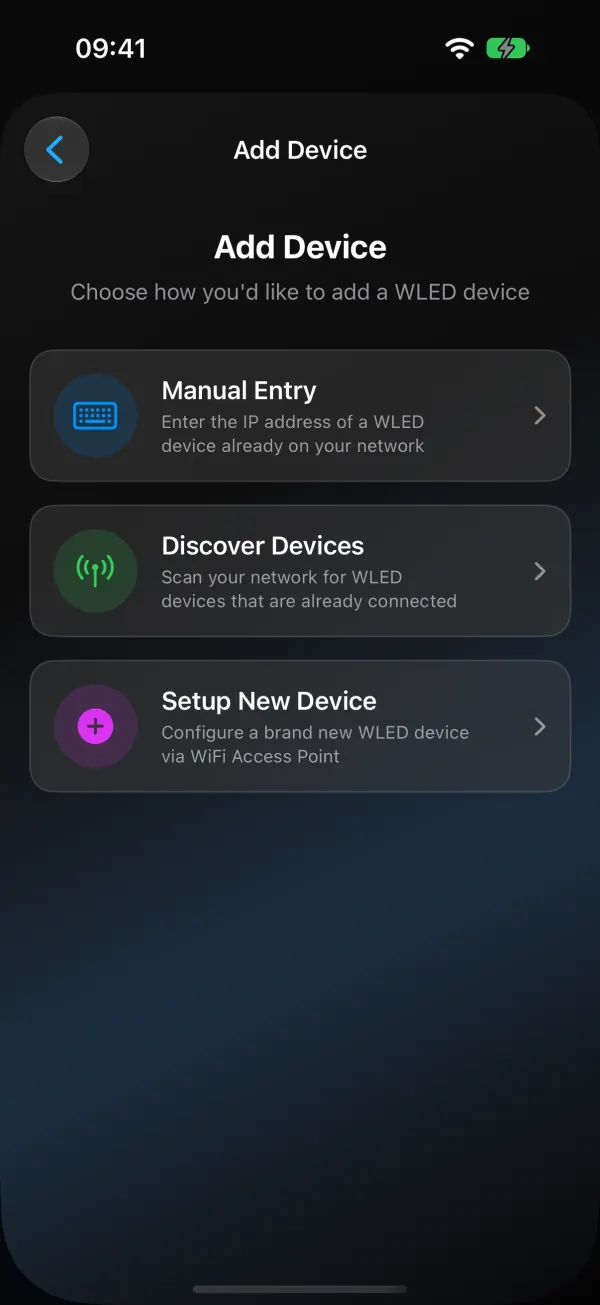
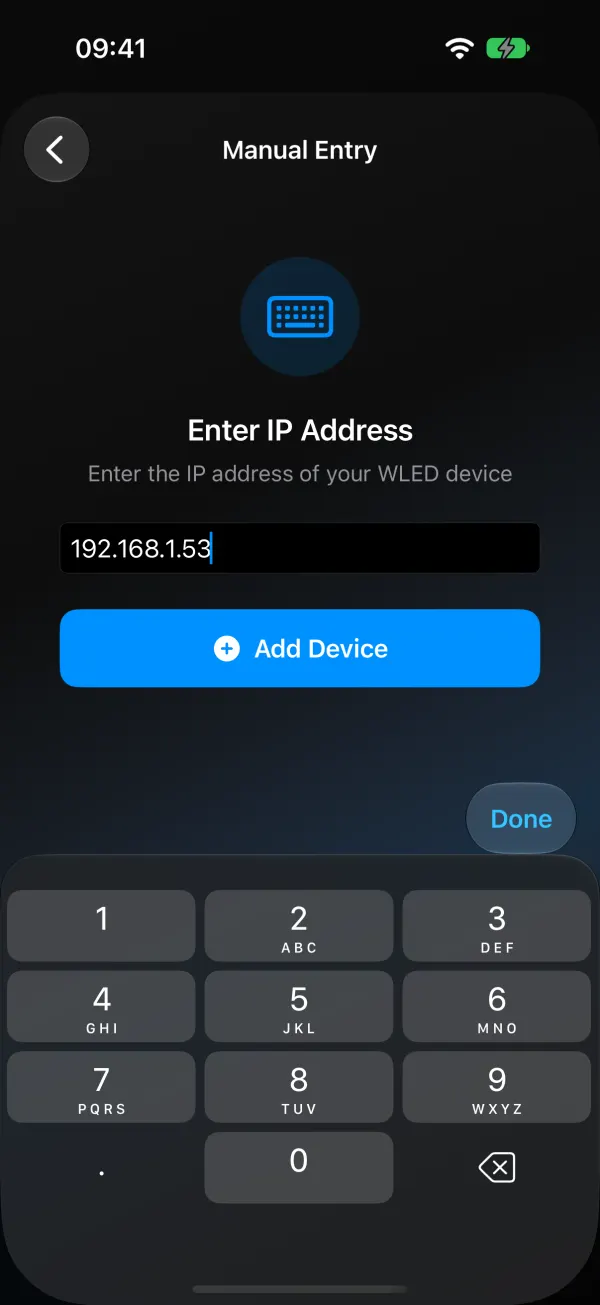
One thing worth doing either way: give the light a DHCP reservation (a fixed or static lease) in your router. The IP then never changes, and a light added by hand keeps working. A static IP set inside WLED works too, but the router reservation is easier to manage and harder to get wrong.
If wled-xxxxxx.local won’t open on Android, that’s expected on older versions and some browsers, which don’t resolve .local names. Use the IP.
Lights on a VLAN: scan the other subnet
If your phone can reach the lights’ VLAN (routing is allowed) but mDNS can’t get across, a subnet scan finds them anyway. In WLED Max, Discover Devices on the Add Device screen looks for lights on the network your phone is on. If that comes up empty, tap Scan a Different Network (“Devices on a different network (VLAN)?”) and enter the first three parts of the lights’ addresses, for example 10.10.50.. The app checks that network and lists any WLED lights it finds.
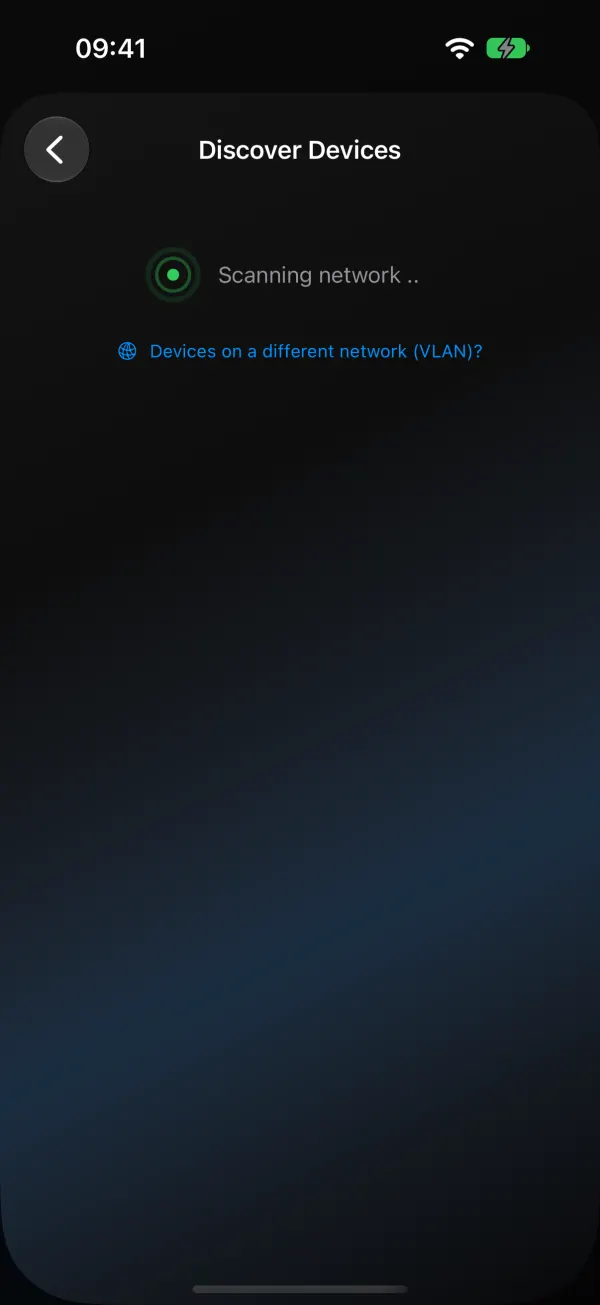
Your firewall has to allow the phone’s network to reach the lights’ network on port 80 (HTTP). Quick test: if the WLED page opens from your phone by IP, the scan will work too.
Lights it finds show up in a list. Select all or pick some, and add them in one go. After that the Devices tab shows each light with its online status, a power switch and groups.
It was found before, now it isn’t
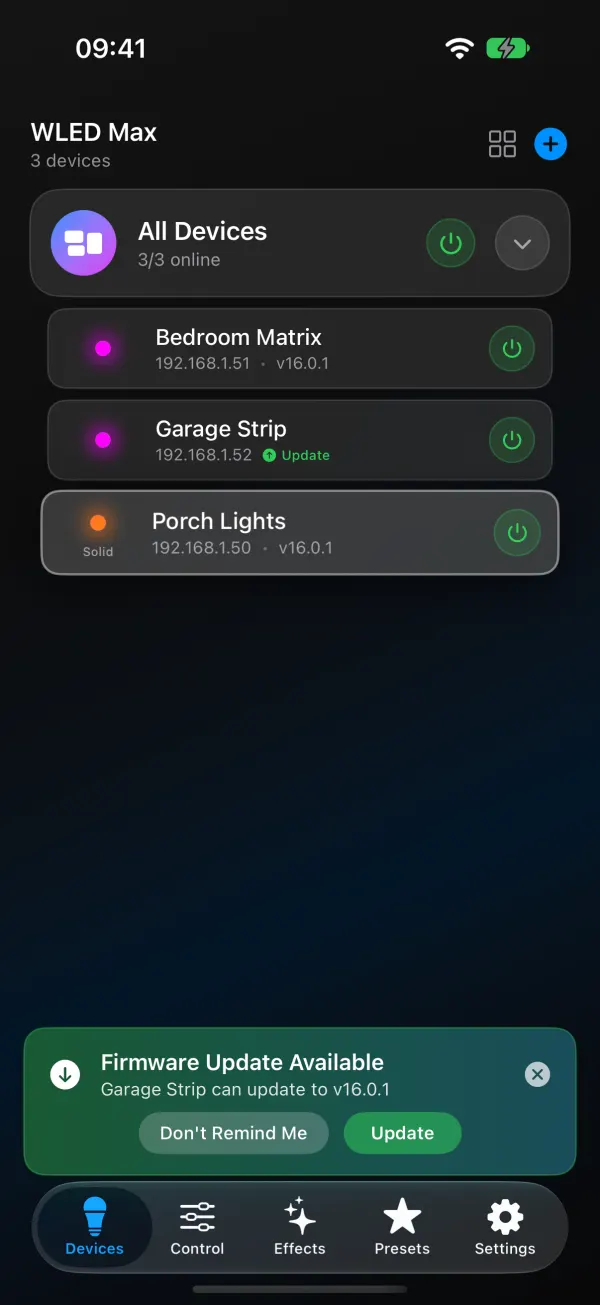
Offline in the app, fine in the browser. The light most likely got a new IP. WLED Max matches lights by MAC address and picks up the new address when discovery sees the light again, so pull down on the device list to refresh, or run Discover Devices. Don’t bother removing it and adding it back. On a VLAN, scan that network again, and set a DHCP reservation so it stops moving.
Shows up, then disappears. Weak Wi-Fi, usually. ESP8266 boards especially drop off at the edge of coverage. The light’s Info page in the web UI shows signal strength, and the offline guide has the numbers to aim for.
Found, but the colors or LED count are wrong. Discovery is working. That’s configuration, under Config > LED & Hardware in the web UI (LED Preferences on 0.14 and 0.15), or Device Settings > LED Preferences in WLED Max.
If you’re on the free plan of WLED Max, note one quirk before you start removing lights: a removed light can only come back after 24 hours if you added a different one in between. Re-adding the same light is always fine. Free plan and Premium has the details.