WLED Effects List with Live Previews
WLED has 180+ effects: about 187 on WLED 0.15 and over 200 on WLED 16. What Speed, Intensity and the extra sliders do, and how to preview each one.
Written by Jamie Conde, who builds WLED Max at MeowScript. WLED Max is an independent app and is not affiliated with or endorsed by the official WLED project.
Two WLED lights on the same Wi-Fi can show different effect lists, and neither one is broken. The list doesn’t live in your app. Each light reports its own, along with metadata that says which sliders an effect uses and whether it’s 2D or audio reactive. On WLED 0.15 that’s about 187 effects. WLED 16 adds particle effects and goes past 200.
The first half of this page is about WLED itself and applies to any app. The second half covers live previews in WLED Max.
Why the lists differ
A few things decide what a light reports:
- Firmware version. WLED 0.14 and 0.15 have roughly 187 effects. WLED 16 (the version after 0.15, released in 2026 with the new numbering) adds the particle effects (IDs 187 to 217) plus Color Clouds and Slow Transition, for 220 effect IDs.
- Build options. Custom builds can leave effects out to save space, which matters on ESP8266.
- Audio reactive effects are part of the list on recent versions, but they only react to sound if the AudioReactive usermod is in the build and set up. Most ESP32 builds have it. On ESP8266 it depends on the build, and an ESP8266 can only receive audio sync from another device.
- 2D effects only make sense once you’ve set up a matrix in Config > 2D Configuration. On a plain strip they still run, but usually look like a squashed version of the matrix effect.
Any app that reads the list from the light (/json/eff for names, /json/fxdata for metadata on 0.14 and newer) will match your firmware. An app with a hard coded list will drift as WLED changes. One example: in WLED 16, effect 77 became Copy Segment (it used to be Meteor Smooth), so an old preset pointing at effect 77 shows a different effect after the update.
What the sliders mean
Every effect gets the same controls, but each effect decides what they do. The metadata string tells the UI which ones to show and what to call them. For example, Solid Pattern’s metadata is Solid Pattern@Fg size,Bg size;Fg,!;!;;pal=0, which means the Speed slider is labeled “Fg size”, the Intensity slider “Bg size”, and the default palette is 0.
- Speed and Intensity are the two classic sliders, from 0 to 255.
- Custom 1 to 3 are extra sliders some effects add (for example blur or a second size).
- Option 1 to 3 are checkboxes, like “Overlay” or “Smear”.
- Colors and Palette: some effects use your color slots, some a palette, some both. If your color choice does nothing, the effect is palette based (see WLED colors and the white channel).
Finding effects in the WLED web UI
- Open the light’s IP in a browser and go to the Effects panel.
- Use the search box at the top of the list to filter by name.
- On recent versions, small filter buttons let you show only effects that use a palette, 2D effects, or volume and frequency reactive ones.
- Tap an effect to apply it, then use the sliders below.
- To see what the light is doing without looking at it, the Peek button shows a live bar of the current output.
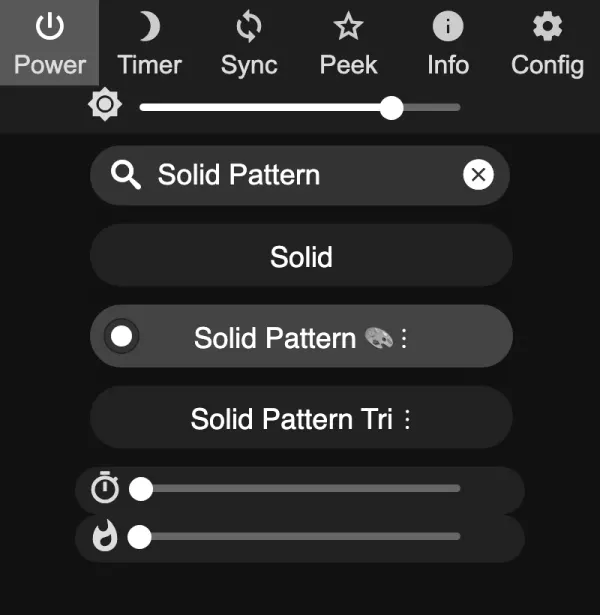
The catch is that you only learn what an effect looks like by applying it. With 187 or more effects, that’s a lot of tapping.
Live previews in WLED Max
The Effects tab in WLED Max animates every effect your light reports, live, as a moving strip or matrix. Each preview moves the way the effect looks on your lights, so you see the real thing instead of a generic icon or a GIF.
- 1D Strip and 2D Matrix tabs. On a matrix, effects are grouped into “Matrix-native” effects and “Strip effects on the matrix”.
- Filters: Volume (volume reactive), Frequency (frequency reactive) and Matrix-native, read from the light’s own effect metadata. Filters need WLED 0.14 or newer, because older versions don’t report metadata.
- Search effects… filters by name.
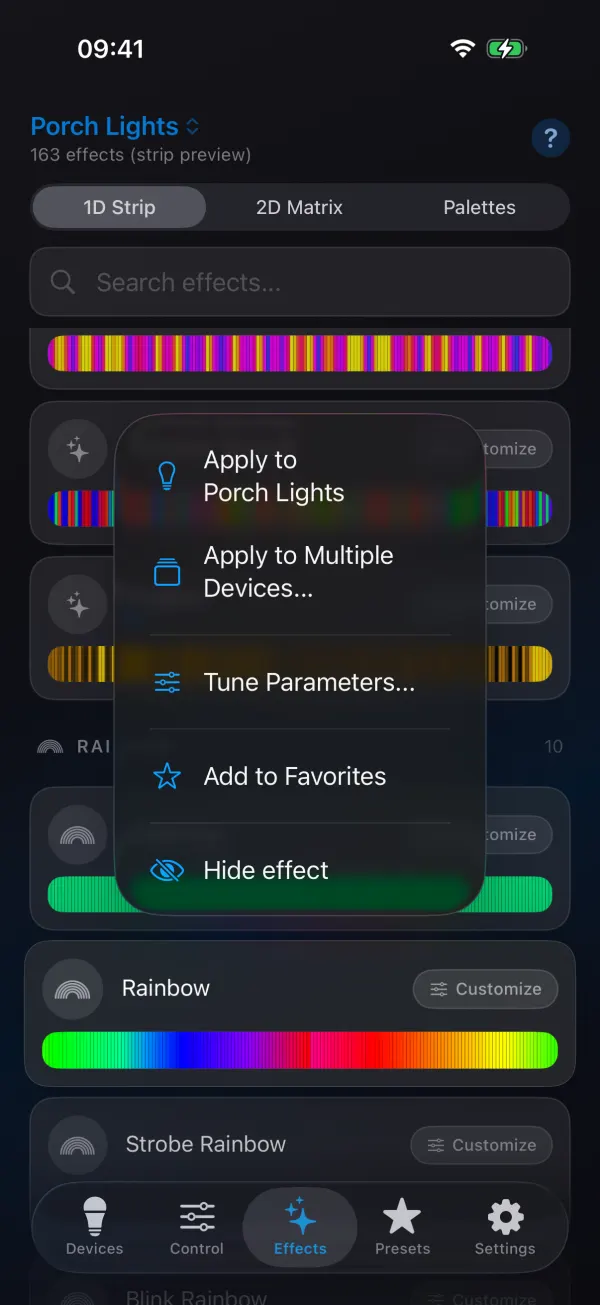
- Hide effect: long-press an effect you never use to hide it. Show hidden (N) brings them back with Unhide.
- One tap applies. Tap an effect and it is applied right away and stays applied.
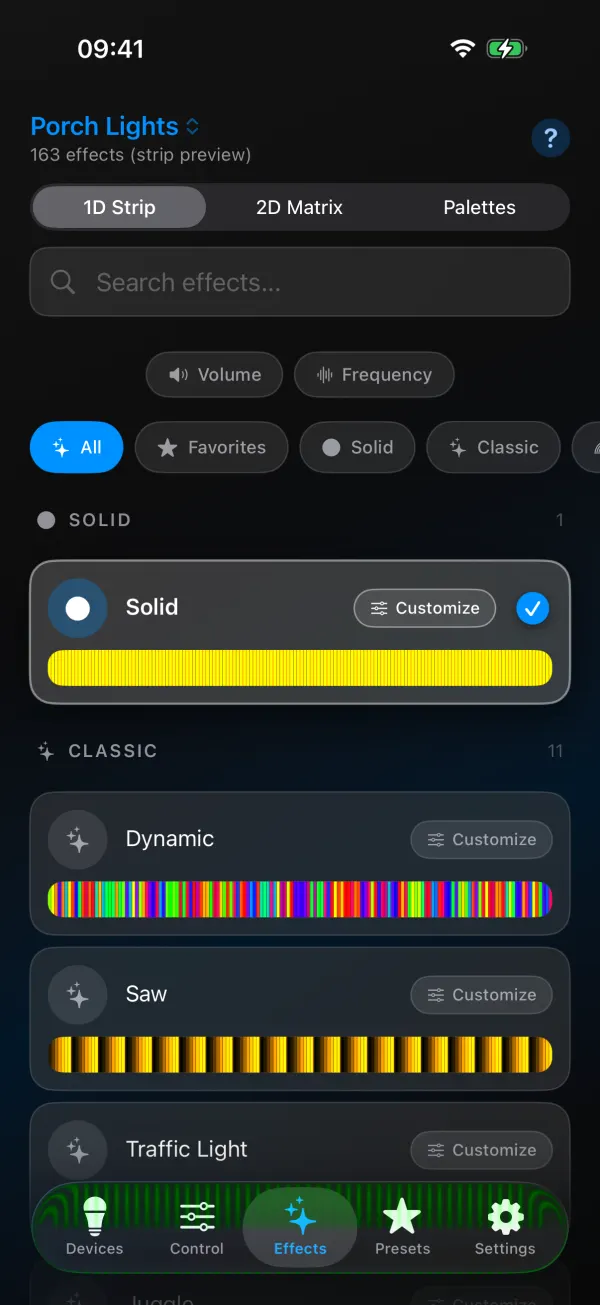
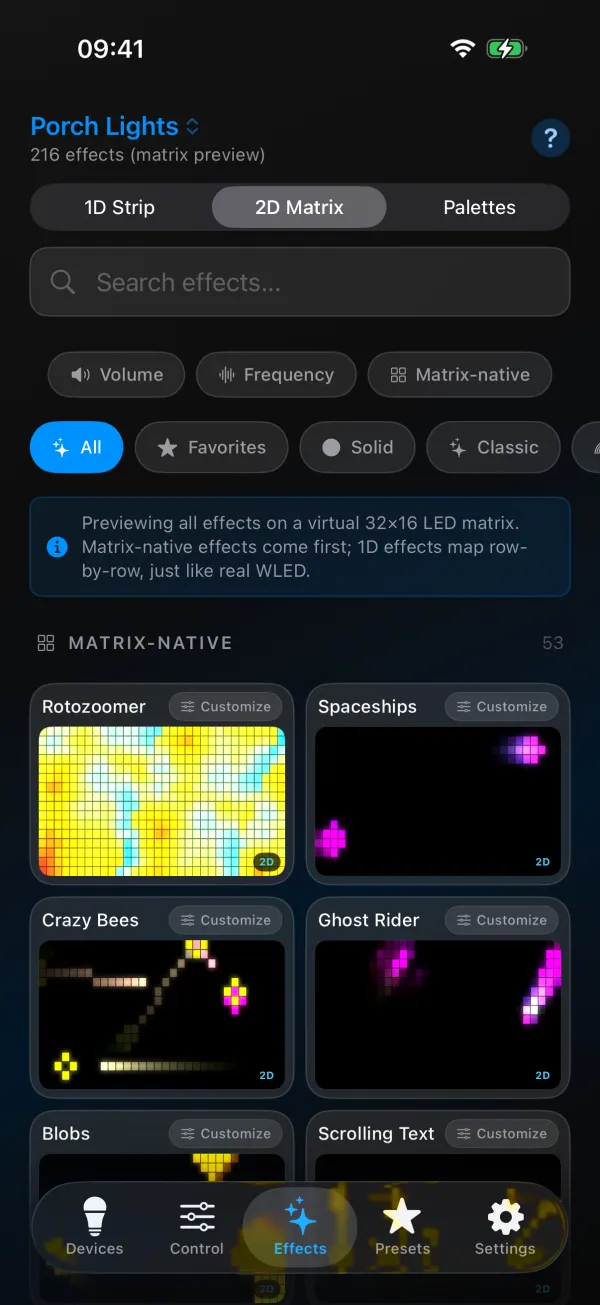
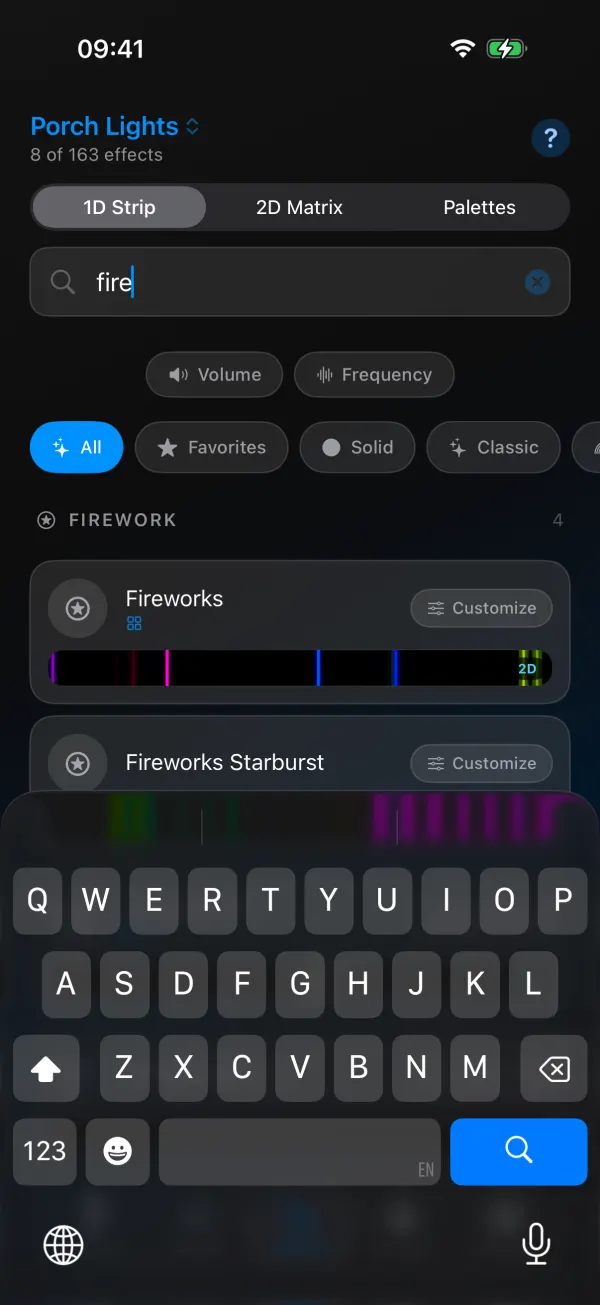
The previews show the effects your firmware has, so the count matches your light.
Customize an effect
Tap Customize on an effect to open its controls: Speed, Intensity, the extra sliders and options that effect defines (named the way the metadata names them), Palette, Colors and Brightness. For Scrolling Text there’s a DISPLAY TEXT field. The preview follows your changes, and hints explain when an effect ignores palettes or colors.
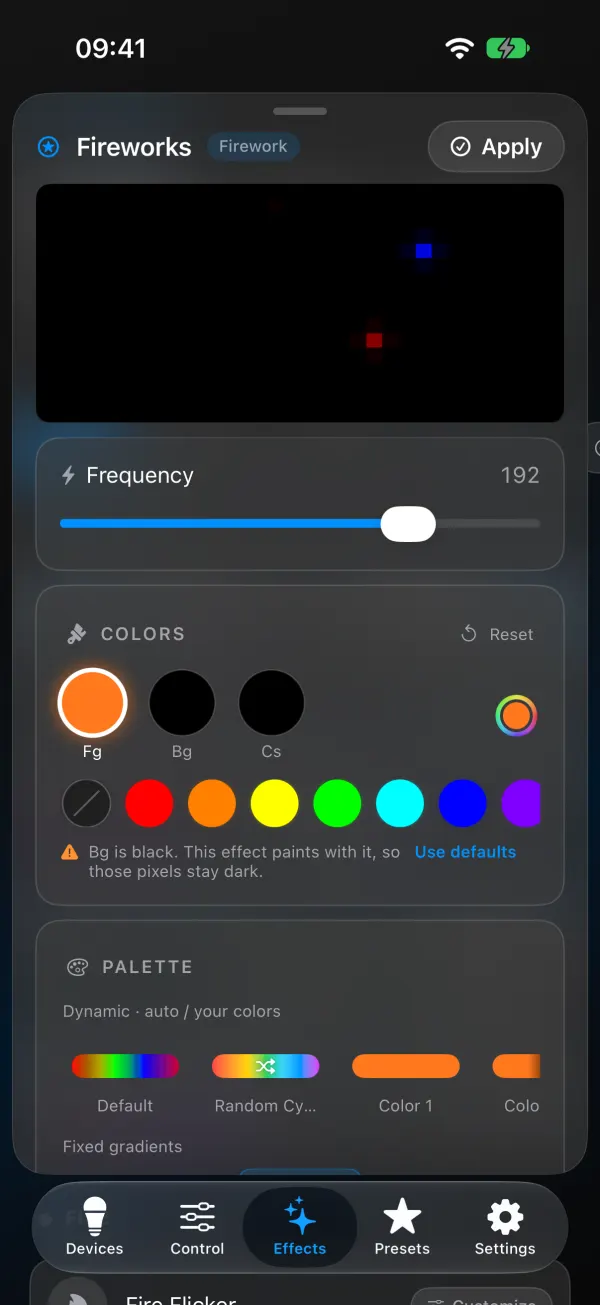
When you like it, tap Apply, give it a name and pick where to save it. On iOS you choose Save to Device (a preset slot on the light) or Save to Cloud (an app preset you can apply to any light). On Android it’s Save to Device or Save as Global Preset. More in WLED presets and the power-on preset.
To send the same effect to several lights at once, use Apply to Multiple Devices…, covered in control multiple WLED devices at once.
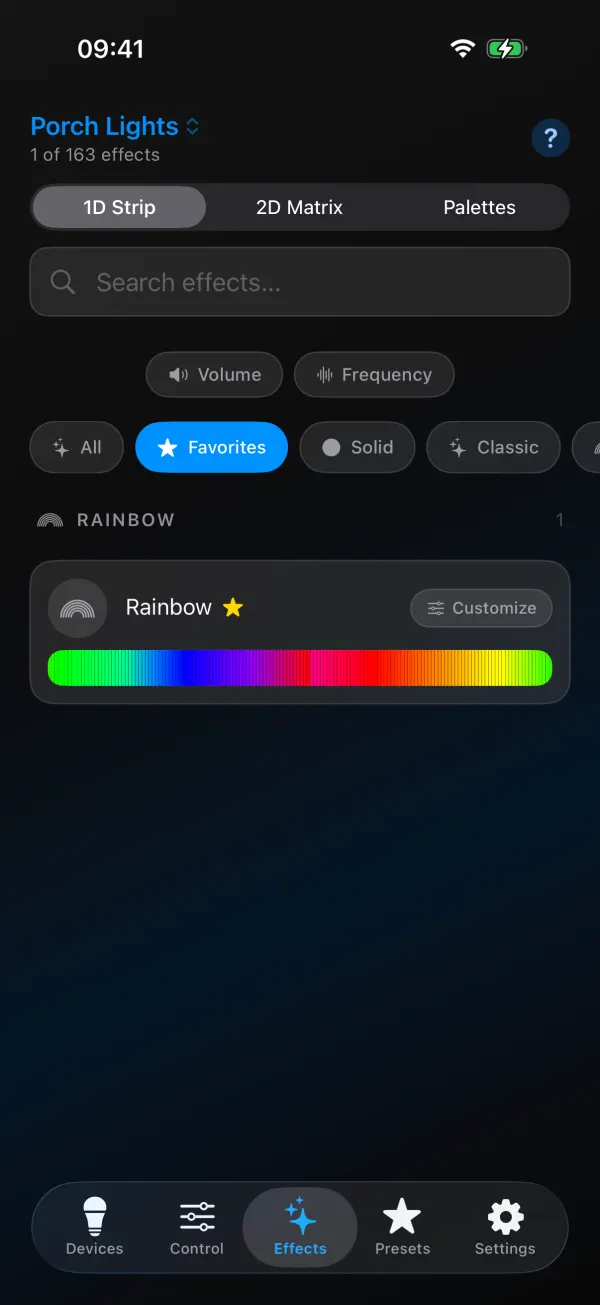
Effects you use every day can go in Quick Effects on the Control tab, up to six of them, one tap each. In the effects browser you can also press and hold an effect and tap Add to Favorites. The Favorites chip in the category row then shows only your starred effects. Remove from Favorites in the same menu takes one off again. Both apps have the Favorites chip since version 1.1.4.
WLED effects for Christmas and Halloween
Out of the long effect list, a handful do most of the work at the holidays. These exist on WLED 0.14, 0.15 and 16 alike (the number in brackets is the effect ID).
- Christmas: Colortwinkles (74) and Twinklefox (80) with the Jul or C9 palettes for classic bulbs, Fairy (49) and Fairytwinkle (51) for twinkling strings, Chase 2 (37) and Running (15) in red and white for candy cane stripes, Candle Multi (102) in warm white for windows. Slider values for each are in WLED Christmas patterns.
- Halloween: Halloween Eyes (82), Lightning (57), Fire 2012 (66), Candle (88) and Drip (96), plus Solid Pattern (83) for orange and purple blocks. The WLED Halloween guide has settings and presets to paste.
For other holidays, the holiday colors guide lists colors and effects per date.
Missing effects and odd sliders
An effect looks different on the light than in the preview. Check that the light’s LED count and matrix size are set correctly (LED Preferences and 2D Configuration in the app’s Device Settings, or LED & Hardware and 2D Configuration in the WLED 16 web UI), because effects scale with length. Also check brightness limits. A power limited strip looks duller than the preview.
Audio reactive effects don’t move. The light needs the AudioReactive usermod with a microphone or audio sync input. Without sound input they sit still or show a flat pattern.
2D effects look like random stripes. No matrix is configured, or the panel layout (serpentine, start corner) is wrong in 2D Configuration.
The filters are missing or empty. The light runs firmware older than 0.14 and doesn’t report effect metadata. Update WLED.
An old preset shows the wrong effect after updating to WLED 16. That’s the effect 77 change. WLED Max shows a warning on the Presets tab listing the presets that use effect 77, so you know which ones to fix. Re-save the preset with the effect you want.
If you just want to read about effects without any app, the WLED docs list them with short descriptions. To run different effects on different parts of one strip, see WLED segments explained.