How to Control Multiple WLED Devices at Once
Run several WLED controllers together with built-in UDP sync (port 21324) and sync groups, or send one effect to many lights from an app.
You may not need an app for this at all. WLED has had light-to-light sync built in for years: one light sends its changes over UDP, the others copy them. Where it falls short is choosing which lights get a change each time, and that’s where app groups come in. Here’s how to tell which one you want.
| You want | Use |
|---|---|
| Lights that always copy one “main” light | WLED UDP sync |
| Several separate lights, same look sometimes | App groups or Apply to Multiple Devices |
| Pixel-perfect animation across controllers (one continuous show) | Realtime protocols (DDP, E1.31) from xLights, LedFx or similar |
| Automations by room | Home Assistant with the WLED integration |
Keep in mind that UDP sync copies states, not frames. Two lights running the same effect will look alike, but they won’t be frame-locked. For most rooflines and rooms nobody notices.
Sync multiple controllers with UDP sync
Works in the web UI on every WLED version.
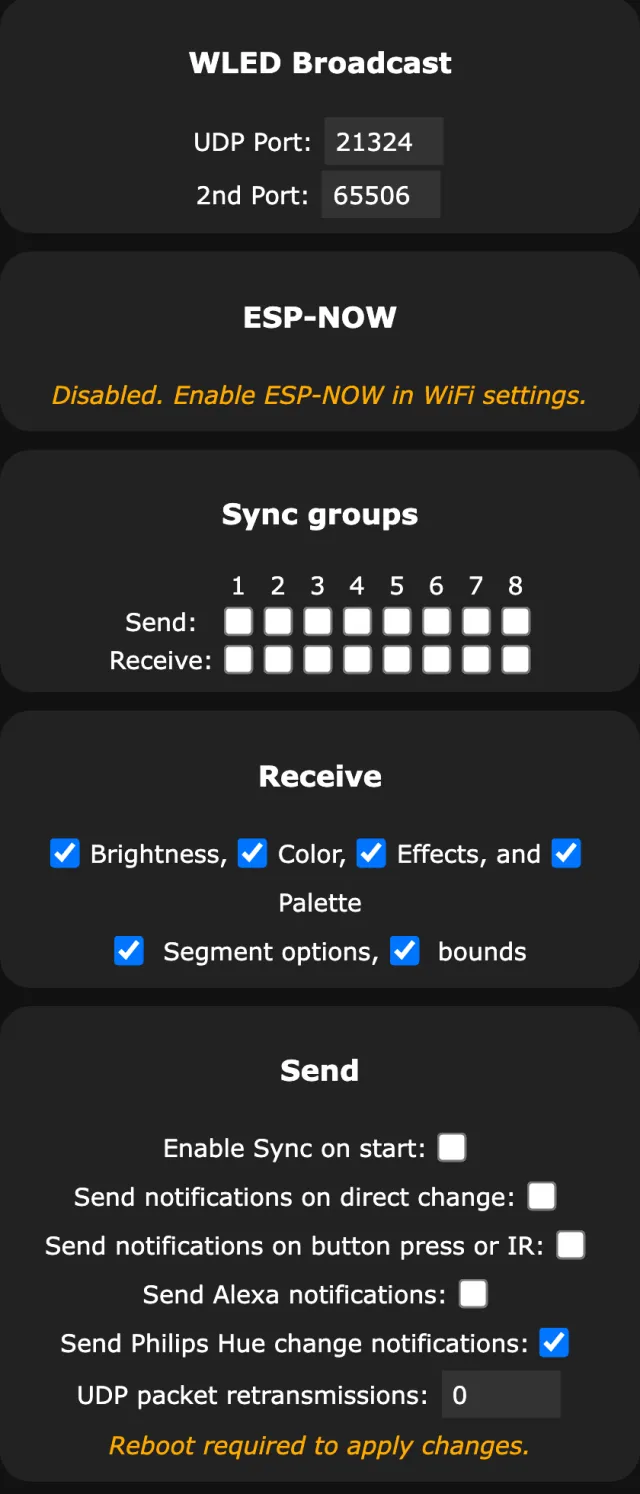
- On the light you’ll control from (the sender), open Config›Sync Interfaces.
- Under WLED Broadcast, leave the UDP port at 21324. It’s the default, and every light has to match.
- Tick Send notifications on direct change. The sender sends everything, and each receiver decides what it takes.
- On each receiving light, open the same page and tick Receive, plus the parts you want copied (Brightness, Color, Effects, Palette).
- Optional: sync groups. WLED has 8. A light only listens to the groups it receives, so the front yard can be group 1 and the patio group 2, both driven from one controller.
- The Sync button in the main web UI turns sending on and off quickly.
One sender (purple), front yard listening to group 1 (orange), patio to group 2 (blue).
The catches: sync uses UDP broadcast, so it stays inside one network and won’t cross VLANs without help. And it copies everything you ticked, every time the sender changes. There’s no easy way to say “just these three lights, just this once”.
The web UI can also list the other WLED lights it has found (Info > Instance List, if Enable instance list is on), which makes jumping between them quicker. Each light still has its own page, though.
Groups in WLED Max
The Devices tab lists your lights with online status and a power switch for each. New Group makes a group with a name and an icon (a kitchen, a bed, a sofa). A light can sit in several groups at once, so “Downstairs” and “Christmas” can overlap.
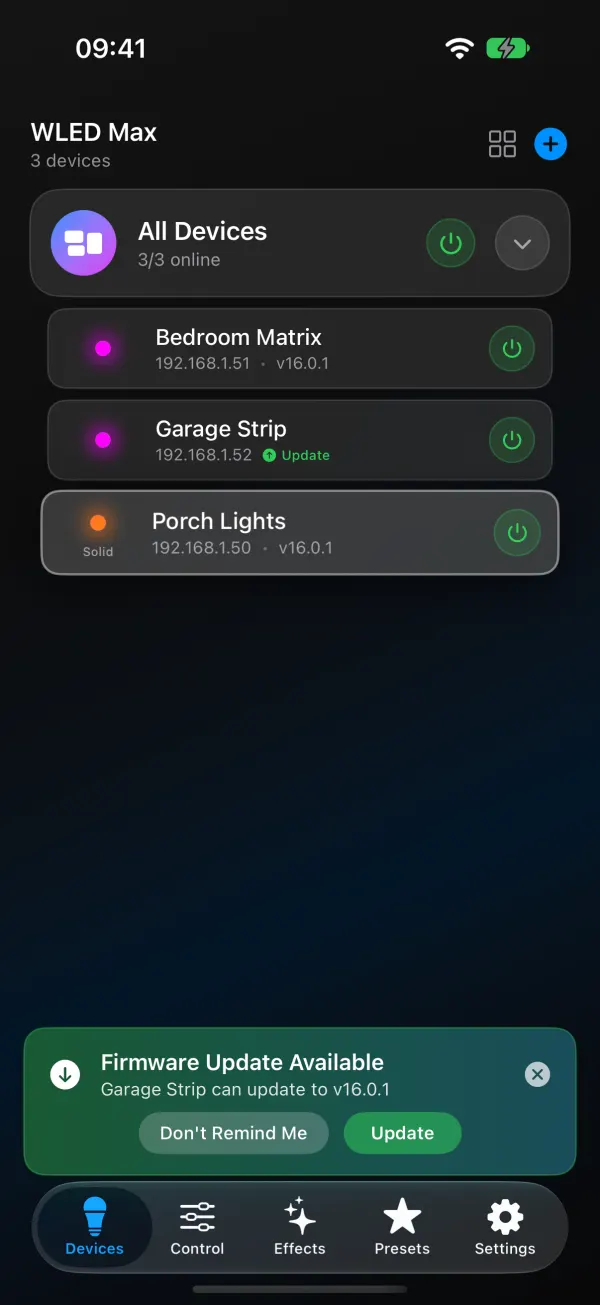
Every section header has its own switch (Turn on all devices in section / Turn off all devices in section), and groups collapse when you don’t need them, which helps once the list gets long. You’ll also see your groups wherever the app asks you to pick lights: global presets, widgets, Light Alerts and Apply to Multiple Devices.
One effect, many lights
Apply to Multiple Devices sends one effect or preset to any mix of lights, once, without linking them for good.
- Long-press an effect on the Effects tab, or a preset on the Presets tab.
- Choose Apply to Multiple Devices…
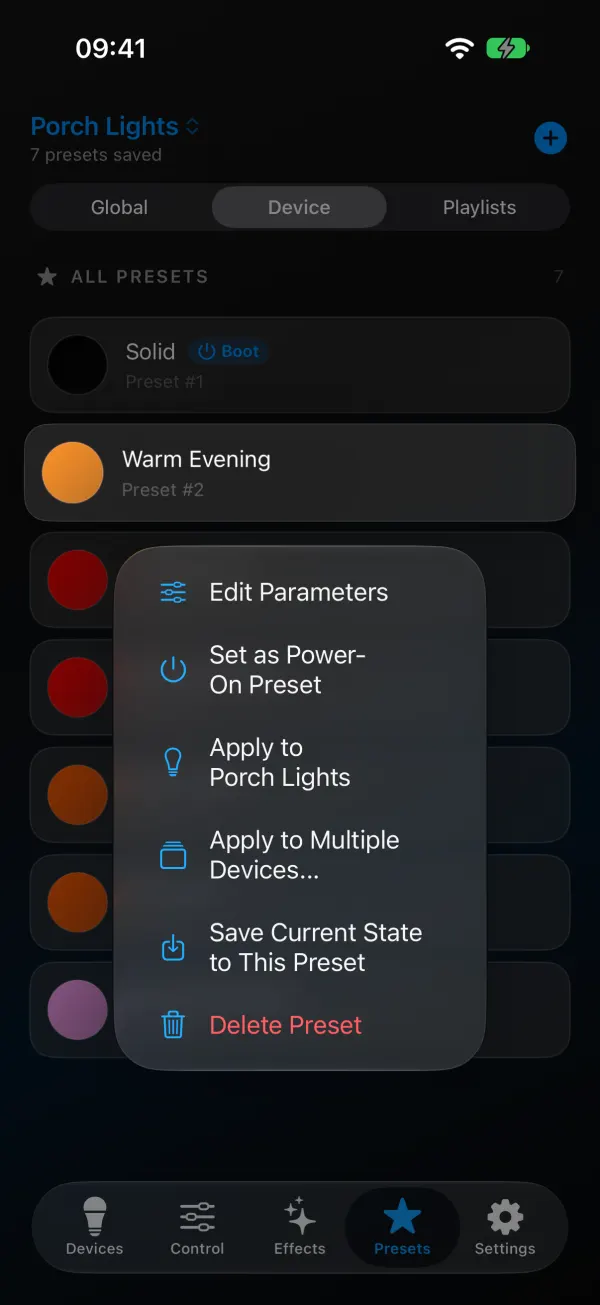
- Your lights are listed by group. Tick the ones you want, or Select All.
- Tap Apply.
Presets also have shortcuts for each group (Apply to followed by the group name) and Apply to All Devices.
There’s a catch with device presets. A device preset lives on one light under a slot number, and applying preset 5 to several lights tells each one to load its own preset 5. If slot 5 holds something different on another light, that light shows something different. Two ways around it:
- Global presets (Presets tab > Global Presets) are saved on your phone, “available for all controllers”, and can go to any light, a group or all lights. On iOS they follow Sync with iCloud if you turn it on. This is usually what you want for “make everything warm white”.
- Copy Presets Between Devices copies one light’s presets to another so the slots match. Steps in the presets guide.
Groups and Apply to Multiple Devices are in the free version, but they only make sense with two or more lights, and the free plan controls one. So in practice they need Premium. Better to know that before you set up groups.
WLED sync not working
Synced lights drift out of step. Each light runs the effect on its own clock, since sync copies the state and nothing more. Applying the effect to all of them in one go helps, and so does keeping LED counts the same. For true frame sync, use DDP or E1.31 from a sequencer like xLights (see WLED and xLights).
Some lights ignore sync. Check that they all use the same UDP port and sync group and sit on the same network segment. Guest networks and VLANs block broadcast.
A preset applied to several lights looks different on each. Different presets in the same slot. Use a global preset, or copy presets first.
An effect looks different on a light with older firmware. Effect lists change between versions. WLED 16 added effects and changed effect 77 (see the effects list). Put the lights on the same version.
One light in a group shows as offline. The app can’t reach it. Start with WLED app can’t find your lights.
Do you need Home Assistant for any of this? No. It’s great for automations by room or time, but sync and an app cover “same look on several lights” without it.