WLED Colors, Color Temperature and the White Channel
What WLED's three color slots do, how to get a real warm white from RGBW or CCT strips, and what the white and temperature sliders change.
You pick blue, and the strip stays orange. It’s one of the most common WLED color questions, and it nearly always has the same cause: the effect is drawing from a palette, not from your colors. Once you know how WLED’s color slots and white channel work, most “my colors are wrong” problems take a minute to fix.
This covers the WLED side first, so it applies to the web UI and any app. The WLED Max bits come after.
The three color slots
In the WLED web UI, the Colors panel shows three small circles under the color wheel. They are often labeled 1, 2 and 3, and in the JSON API they’re the col array of a segment. What each one does depends on the effect:
- Solid uses only the first color.
- Many effects use color 1 for the moving part and color 2 as the background (for example Chase or Running).
- Some use all three, like Solid Pattern Tri or Tri Wipe.
- Effects that draw from a palette may ignore the slots completely, unless the palette is one of the “color” palettes (like ”* Colors 1&2” or ”* Color Gradient”) that are built from your slots.
Slot 1 (primary), slot 2 (background), slot 3. Solid shows only the first one.
That’s the blue-but-orange problem from the top. Switch the palette to “Default” or one of the color based palettes, or pick an effect that uses the slots.
RGB, RGBW and CCT strips
| Strip type | Channels | What “white” looks like |
|---|---|---|
| RGB (WS2812B, WS2811) | R, G, B | Mixed from three colors, often bluish or pinkish |
| RGBW (SK6812 RGBW) | R, G, B, W | A real white LED per pixel, cleaner and more efficient |
| CCT or RGBCCT (analog or some digital) | warm white and cool white (plus RGB) | True adjustable color temperature |
If your strip is RGBW, make sure WLED knows it. In the web UI that’s Config›LED & Hardware (called LED Preferences on 0.14 and 0.15). Pick the right LED type (for example SK6812/WS2814 RGBW) and look at Auto-calculate W channel from RGB. With “None”, the white LED is only used when you set it yourself. With “Accurate” or “Brighter”, WLED extracts white from your RGB color automatically. The right choice is personal. “Accurate” keeps colors truer, “Brighter” gives more light.
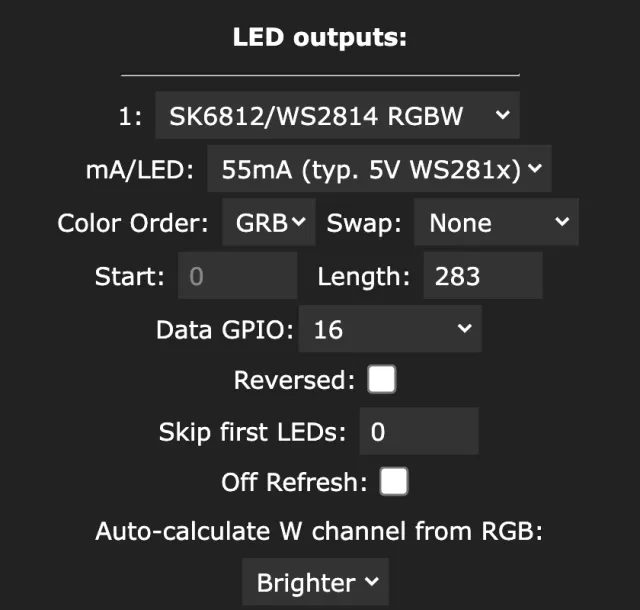
Getting warm white in the web UI
- RGBW strip: move the White channel slider in the Colors panel up and set the RGB color to black or a little warm orange. A touch of red and green on top of the white LED warms it up nicely.
- CCT capable light: a White balance slider appears. Slide it toward warm.
- Plain RGB strip: pick a warm color like RGB 255, 160, 60 and accept that it won’t look like a real bulb. Lower brightness hides the color shift a bit.
Roughly how it looks: RGB mixed white on the left, a warm white LED on the right.
Colors wrong? Check color order first
If red comes out green, or blue comes out red, no color setting will look right until the Color Order of the output matches the strip. WS2812B strips are usually GRB, many WS2811 pixels are RGB, and some are something else again. WLED offers GRB, RGB, BRG, RBG, BGR and GBR.
A two minute test finds yours:
- In Config›LED & Hardware (LED Preferences on 0.14 and 0.15), set Color Order to RGB and save.
- Set the light to Solid pure red, then pure green, then pure blue, and write down the color you actually see each time.
- The first letters of what you saw, in that order, are your strip’s order. Red shows green, green shows red, blue shows blue: GRB.
- Set that order and save.
In WLED Max it’s the Color Order picker for each output in Device Settings, LED Preferences.
Whites that look blue or pink, and other color problems
Whites look blue or pink. RGB strips can’t make a neutral white. Use an RGBW strip, or lower the blue in your white. Also check the color order in Config > LED & Hardware. If red shows as green, the order is wrong (GRB vs RGB) and every mixed color will be off.
The white slider does nothing. WLED doesn’t think the strip has a white channel. Pick the correct RGBW LED type in Config > LED & Hardware. While you’re there, Auto-calculate W channel from RGB decides whether WLED lights the white LED by itself when you pick a whitish color. “None” leaves it to you.
The Temperature slider changes the color but it’s not real CCT. Your light doesn’t report a CCT output, so WLED Max shows the closest color your LEDs can mix instead. That’s expected on RGB and most RGBW strips. True color temperature needs a CCT capable output (analog CCT strips or RGBCCT).
Colors change but the effect ignores them. The effect uses a palette. Choose a color based palette or a different effect.
Full white is dim or flickers. You’re hitting the power limit. WLED’s brightness limiter (Maximum PSU Current in Config > LED & Hardware) scales the strip down, and an undersized power supply causes flicker. White at full brightness is the most power hungry color. A WS2812B LED can draw around 55 to 60 mA at full white (WLED assumes 55 mA by default).
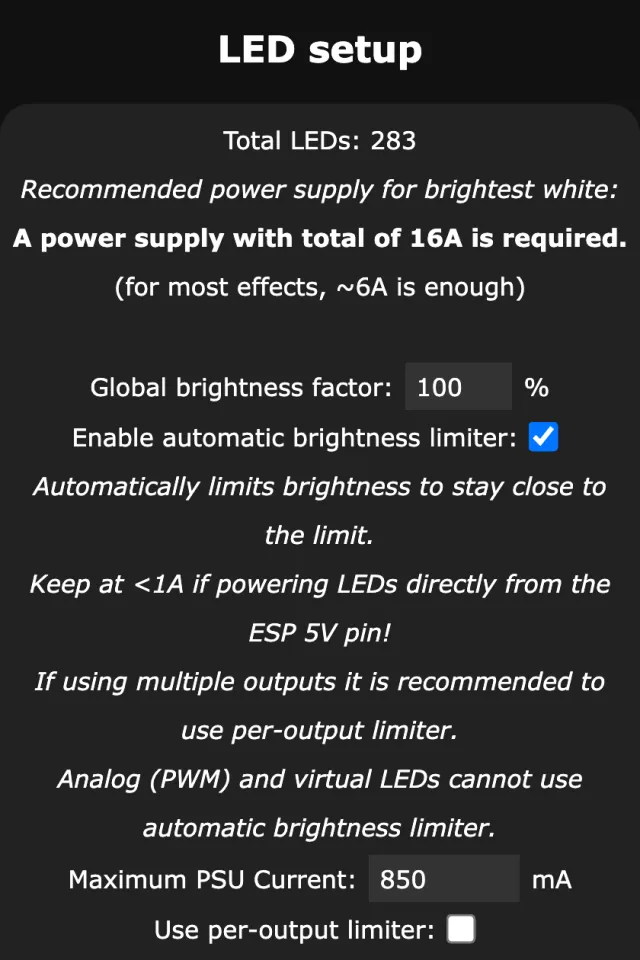
In WLED Max
WLED Max shows the same three slots on the Control tab as Primary (Fx), Background (Bg) and Custom (Cs). Tap one to pick from the quick colors (red, orange, yellow, green, cyan, blue, magenta, white), or open Picker for the color wheel and a Whites tab with presets from Warm (2700K) to Blue Sky (8000K). When you customize an effect on the Effects tab, the app tells you when that effect ignores palettes or colors, which saves a lot of guessing.
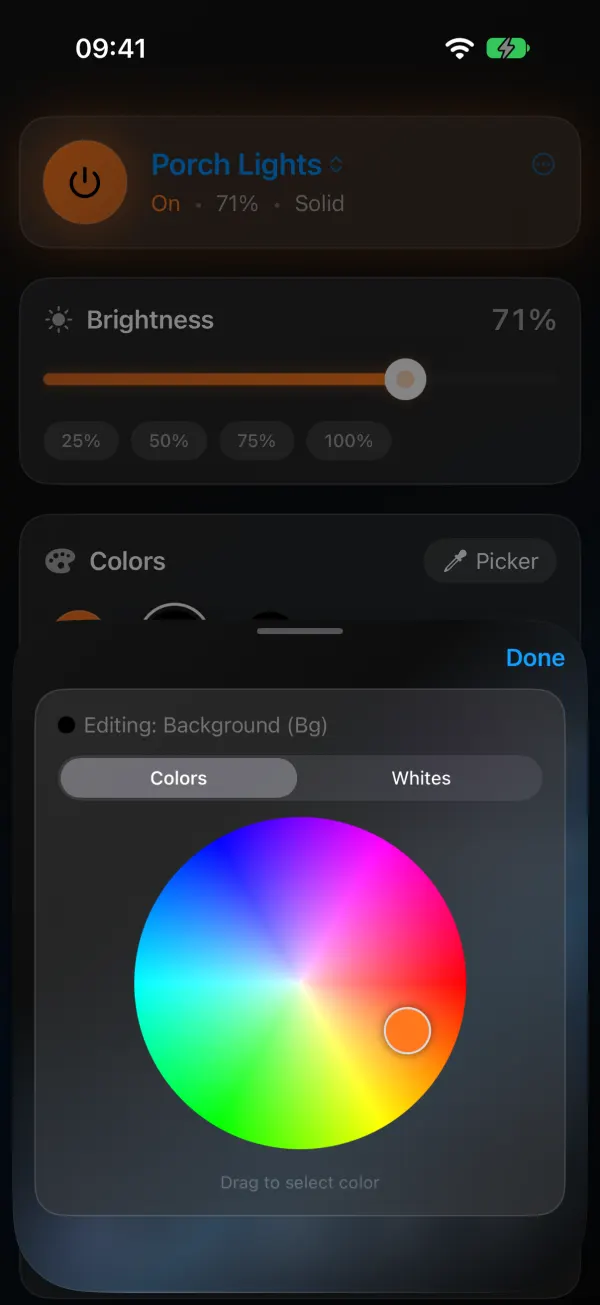
For white and temperature, on the Control tab and in the color picker:
- Temperature moves from warm to cool. On a light that reports a CCT output, the app writes real color temperature. On a light without CCT, it sends an RGB white at that temperature instead, so the slider still does something sensible.
- White LED shows up on RGBW strips in the color picker’s Whites tab. It’s a readout of the white channel, not a slider, and it’s “kept when you change the color”, so a white level you set in the web UI or saved in a preset isn’t wiped when you tint with the wheel.
Colors shown in the app match what the light shows. If your light runs a pattern from Pattern Maker, changing the color asks first (“This light shows a pattern. Changing the color replaces it.”).
One segment at a time
If your light has several segments (for example a desk strip split into left and right), the WLED web UI applies colors to the selected segments. Tick the checkbox of each segment you want to change in the Segments panel first.
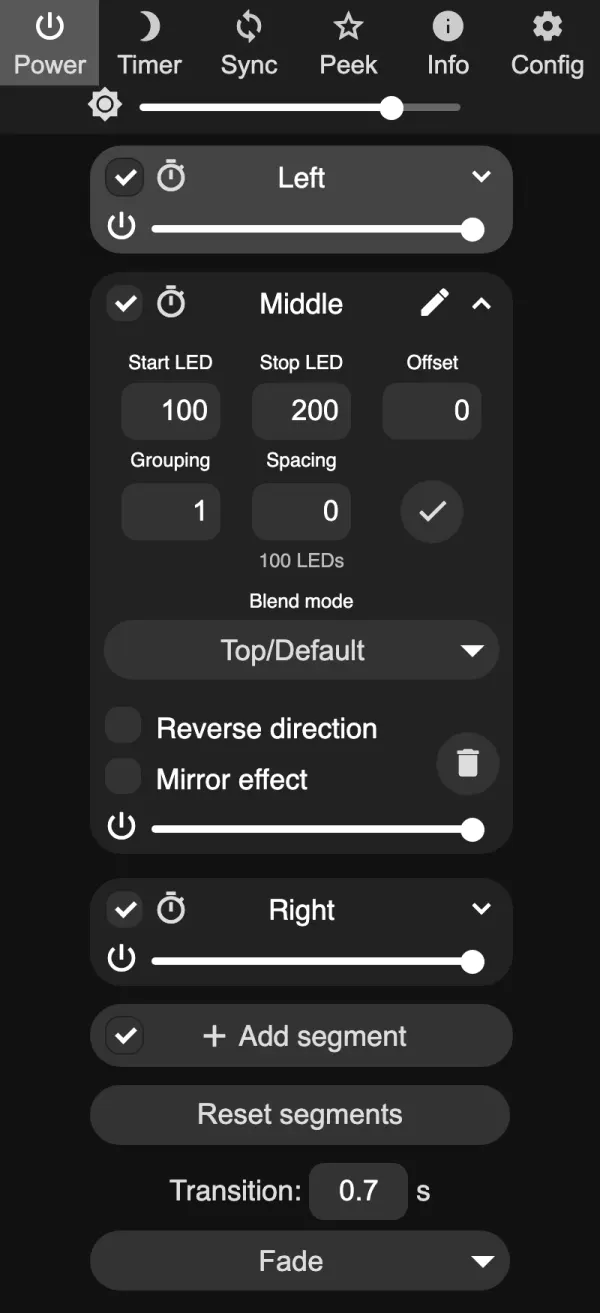
In WLED Max, the Control tab shows segment chips for multi-segment lights. “Tap a segment chip above to color one at a time.” Studio opens Segment Studio for full per-segment control, which is explained in WLED segments explained.
Quick Effects
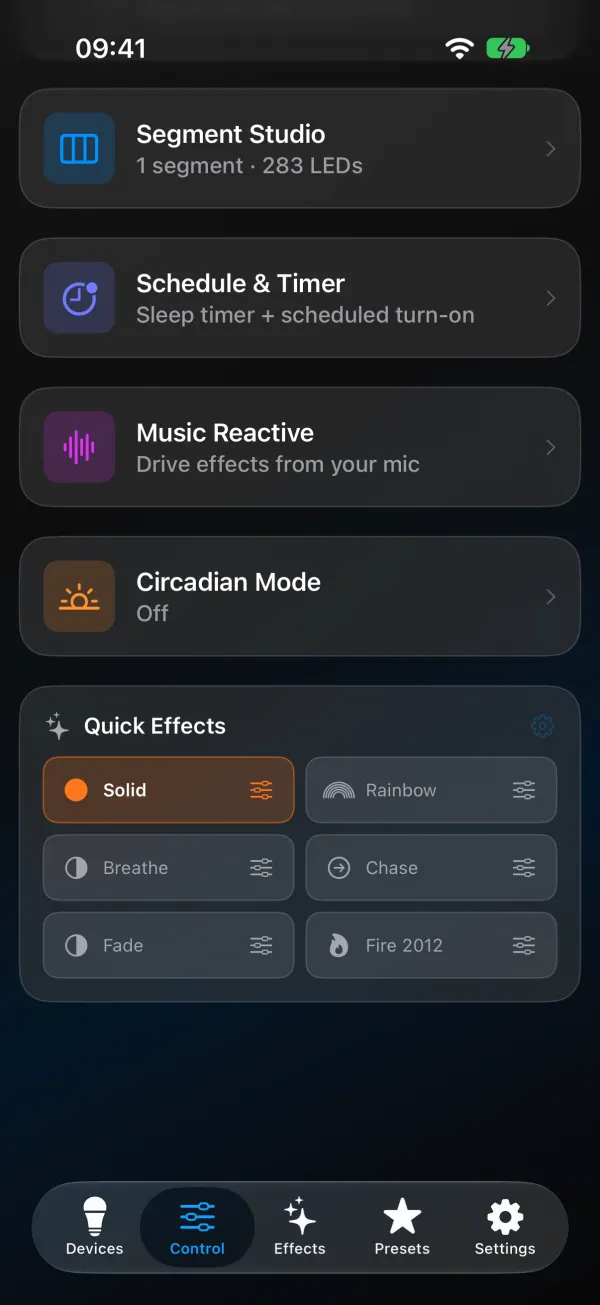
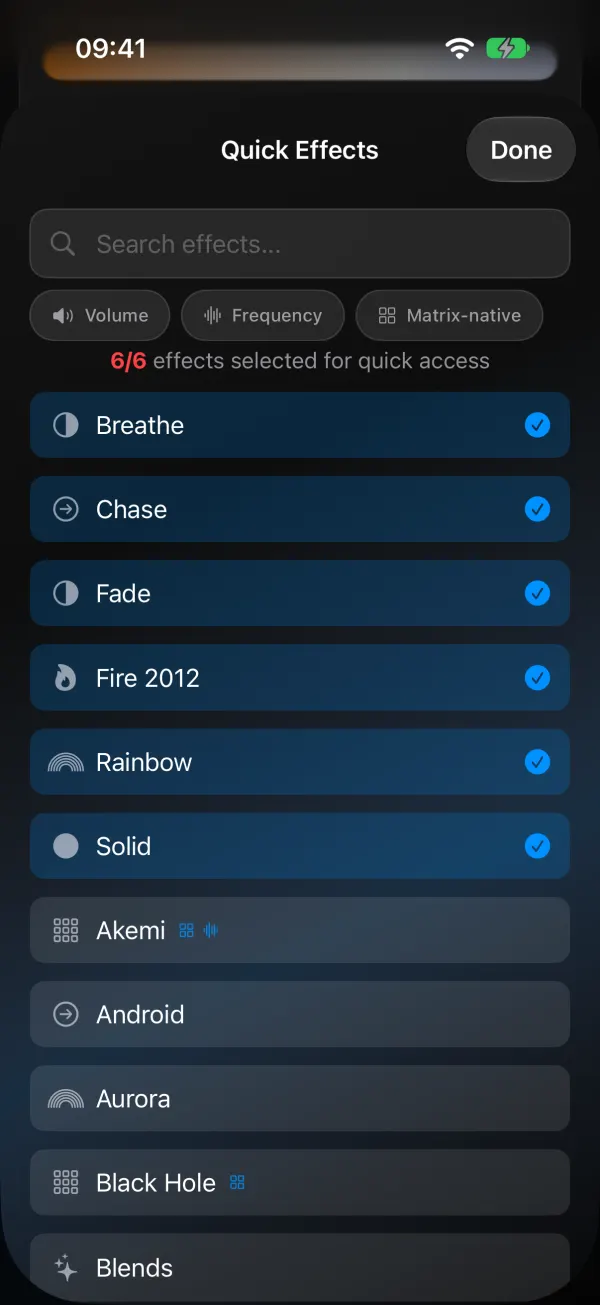
Quick Effects make the Control tab faster for everyday use: a row of up to six favorite effects, one tap each. Use Edit quick effects to choose them. (“Quick effects has a limit of 6. Remove one first to add another.”) Saved looks like “evening warm white” live on the Presets tab. See WLED presets and the power-on preset to set those up.
Brightness has its own slider, and if you like numbers, turn on Show Brightness % under Appearance.
The effects side of colors (which effects use which slot, and what Speed and Intensity do) is in the WLED effects list. If no built-in palette has the colors you want, make one from a photo.