WLED Segments Explained
What a WLED segment is, how start, stop, grouping, spacing and mirror work, segment limits on ESP8266 and ESP32, and WLED 16 blend modes.
A segment is just a range of LEDs with its own effect, colors, palette, speed and brightness. Split a TV backlight into left and right and you have two segments. Every WLED light starts with one segment that covers all of its LEDs, and you can add more in the web UI’s Segments panel. Segments can even overlap, which is either a neat trick or the reason your strip flickers.
What a segment holds
Each segment has:
- Start and Stop: the LED range. Start is included, Stop is not, so a segment from 0 to 30 covers LEDs 0 to 29 (30 LEDs). This trips up almost everyone once.
- Its own effect, palette, three colors, speed, intensity and extra effect sliders.
- Its own brightness (opacity) and on/off state, on top of the light’s main brightness.
- Grouping: how many LEDs act as one pixel. Grouping 3 makes every effect pixel 3 LEDs wide.
- Spacing: how many LEDs to skip after each group. Grouping 1, spacing 1 lights every other LED.
Grouping 1, spacing 1 lights every other LED.
- Offset: shifts where the effect starts inside the segment.
- Reverse: runs the effect in the other direction.
- Mirror: renders the effect on the first half and mirrors it onto the second half. Handy for a strip that goes up one side of a window and down the other.
- On a matrix: X and Y start and stop instead of one range.
How many you get
The limit is compiled into the firmware:
| Chip | Max segments |
|---|---|
| ESP8266 | 16 |
| ESP32, S3, C3 | 32 |
| ESP32-S2 | 20 on 0.15.1 and later 0.15 releases (0.15.0 allowed 32), 32 on WLED 16 |
| ESP32 with PSRAM (WLED 16) | 64 |
Memory matters too. Some effects need RAM per segment, and on an ESP8266 a handful of heavy effects can run out before you reach 16.
Selected vs main
Two ideas in the web UI confuse people more than anything else here.
Selected segments (the checkbox next to each one) are the ones that receive your color, effect and palette changes. If you change the color and nothing happens, the segment you’re looking at probably isn’t selected.
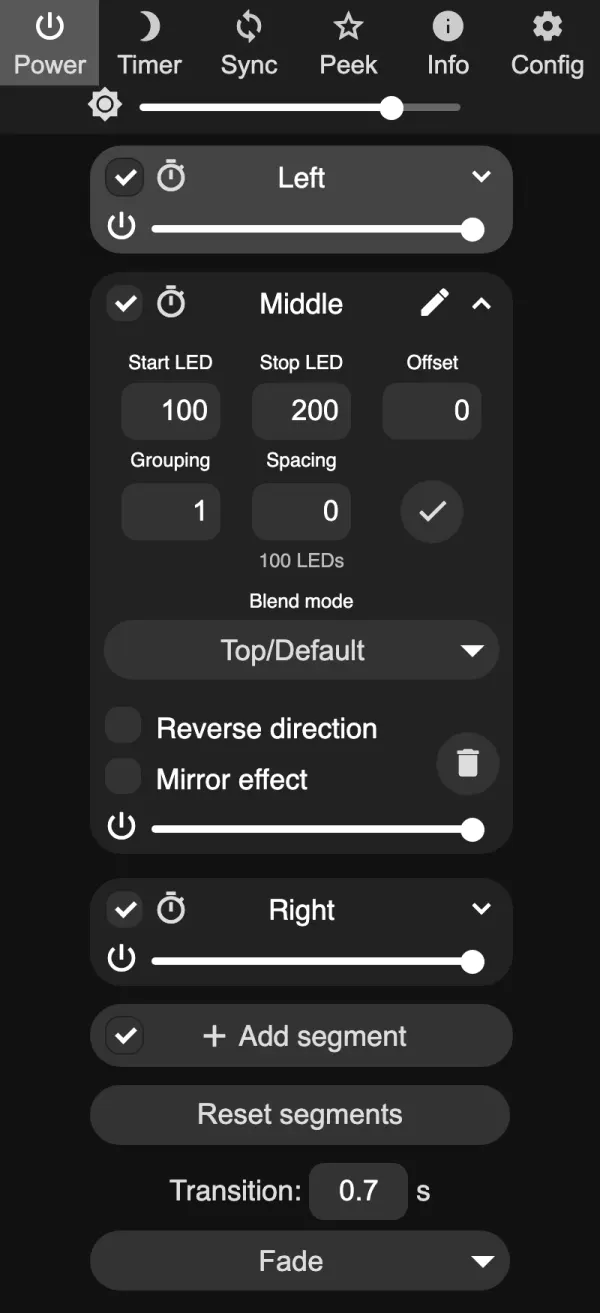
The main segment is the first selected one. A few features only act on it, for example realtime data when Use main segment only is on.
Adding segments in the web UI
- Open the Segments panel.
- Tap + Add segment and type Start and Stop. The new segment shows up with its own settings.
- Expand it to set Grouping, Spacing, Offset, Reverse and Mirror.
- Tick its checkbox, then pick an effect and colors as usual.
- Save the layout in a preset with Save segment bounds ticked. Without that, the layout is gone the next time you load another preset. More in WLED presets and the power-on preset.
It’s precise, but you’re working blind. You type numbers, then go look at the strip to see what you did.
Overlaps and blend modes
Two segments can cover the same LEDs. WLED draws them in order, so the later one paints over the earlier one where they meet. Sometimes that’s on purpose: stacked segments are how you build some repeating patterns (see the 2 red 1 white pattern guide). More often it’s an accident after editing numbers, and you get flicker or a segment that seems to be missing.
WLED 16 adds a blend mode per segment, which controls how it combines with whatever is underneath. The default, Top, replaces what’s below. The others (Add, Multiply, Screen and so on, 17 in total) mix colors, so you can layer looks that older versions couldn’t do.
Editing segments in Segment Studio
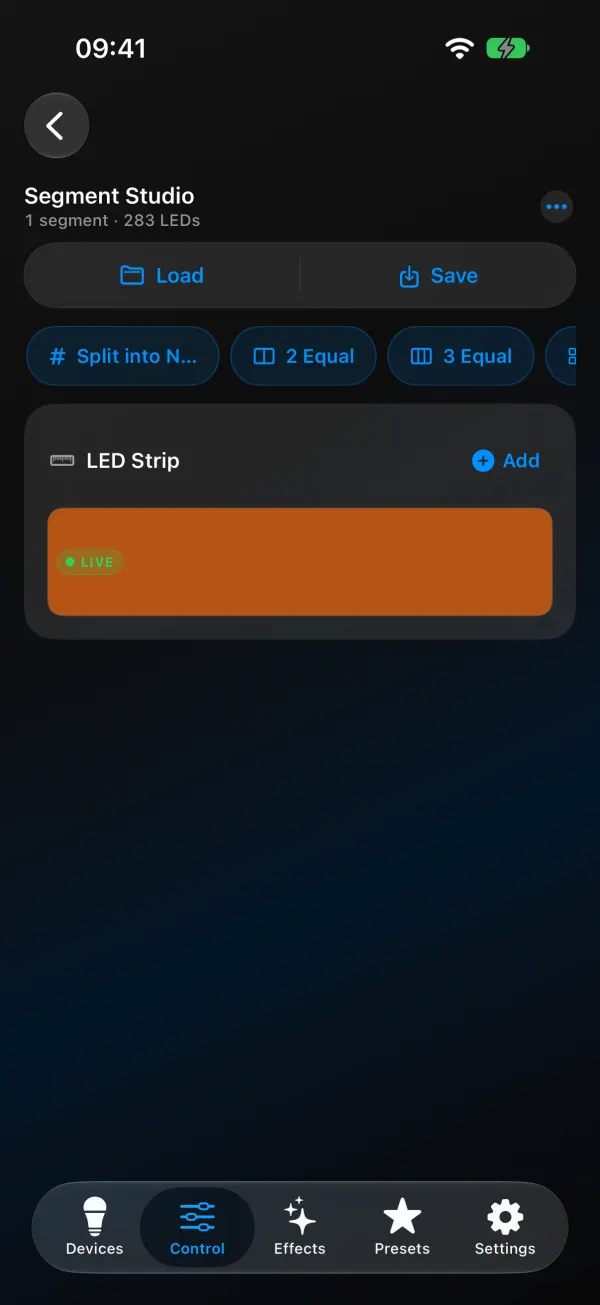
In WLED Max, Segment Studio draws your segments on a picture of the strip (LED Strip) or the matrix grid (LED Matrix). Open it from the Control tab with the Segment Studio tile, or tap Studio in the segments row.
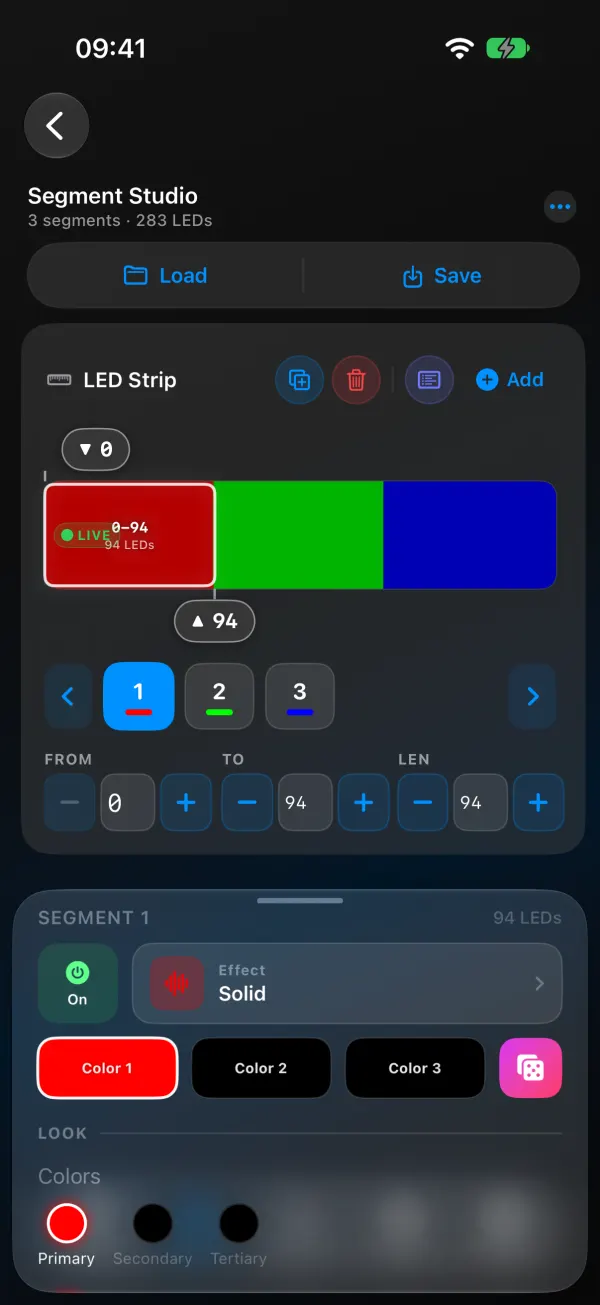
You can drag a segment’s edges, or type exact numbers in the From, To and Len fields when you need precision. Each segment gets its own effect, palette, colors, brightness, speed, intensity, Grouping & Spacing, Reverse Direction and Mirror Effect, plus Blend mode on WLED 16.
Splitting works a little differently on each platform. Split into N segments divides the whole strip evenly on both, and quick chips (2 Equal, 3 Equal, 4 Equal) show while the light has a single segment. iOS adds Mirror, Center Accent (20% edges, 60% center) and Chase Lanes. Android has Split selected in half for cutting one segment in two.
A few other things it does:
- Flags overlaps (“Segments 2 & 3 overlap on LEDs …”) and offers Trim, which shortens one of them until the overlap is gone.
- When you delete a segment, it asks whether to leave a gap or merge the LEDs into the left or right neighbor. You get 5 seconds to undo.
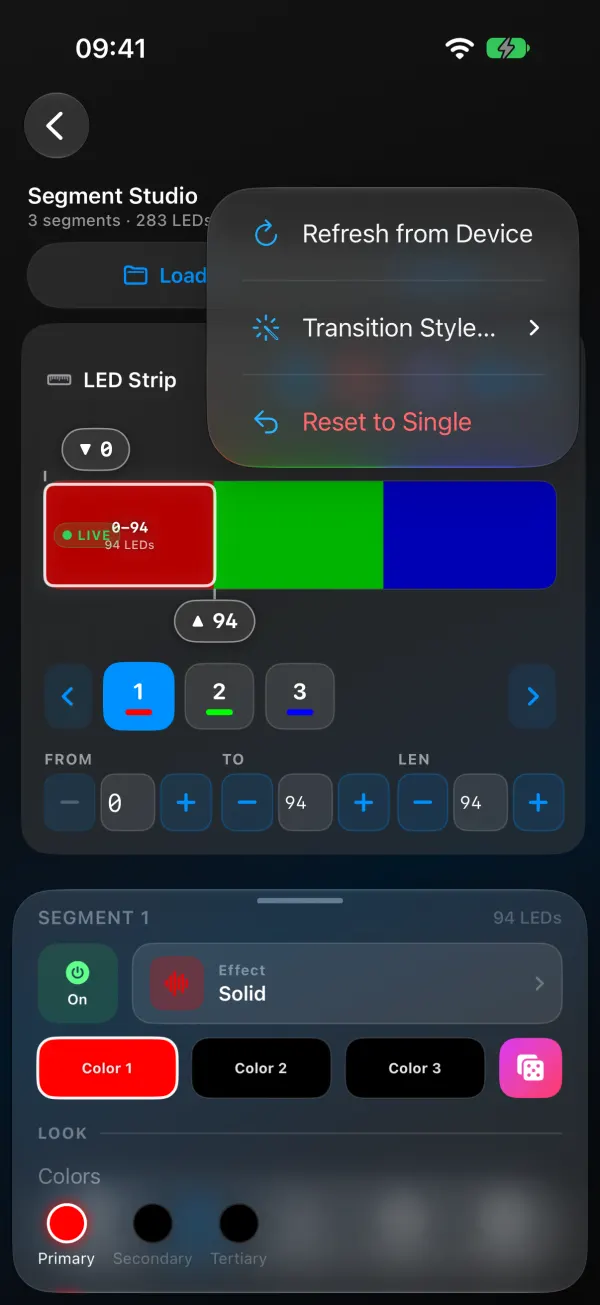
- Duplicate, Reset to Single, saving and loading layouts as presets, and an All segments table that shows gaps.
- A live preview of the layout, which keeps working while the light is offline.
For a quick color change you don’t need the Studio at all. Tap a segment chip on the Control tab and change its color there.
Segments not saving or keep resetting
WLED doesn’t store the segment layout in its settings. It lives in memory, so after a reboot or a power cut the light starts with its default segments again, unless a preset puts them back.
- Gone after a reboot. Save the layout in a preset with Save segment bounds ticked, then make that preset the power-on preset (Apply preset at boot). See WLED presets and the power-on preset.
- Reset when you load a preset. The preset was saved with segment bounds from an older layout. Load your current layout, then save it into that preset again.
- Changed by another light. With UDP sync, a receiving light that has Segment options and bounds ticked under Receive (Config > Sync Interfaces) takes the sender’s segments. Untick bounds on lights with their own layout.
- Changed by Home Assistant or a script. Anything that sends segment settings to the light can change them. Check automations that load presets or set segments.
Segments acting strange
My segment is one LED short. Stop is exclusive. For LEDs 0 to 29, Stop is 30.
Changing the color only affects part of the strip. Only some segments are selected. Select all of them in the web UI, or pick the segment chips you want in the app.
I can’t add another segment. You’ve hit the firmware limit (16 on ESP8266), and the web UI stops offering Add segment. Merge a few, or use grouping instead of separate segments.
Part of the strip stays lit in an old color. No segment covers those LEDs, and on 0.14 and 0.15 uncovered LEDs keep their last color. Stretch a segment over the gap or reset to a single segment.
Segments disappear after loading a preset. That preset was probably saved with a different layout, since Save segment bounds stores whatever layout you had at the time. Set the layout up again and save it into the preset.
FAQ
What are segments in WLED? Ranges of LEDs on one light that each run their own effect and colors.
How many segments can WLED have? 16 on ESP8266, 32 on most ESP32 boards (20 on an ESP32-S2 with 0.15.1 and later 0.15 releases, 64 on ESP32 boards with PSRAM running WLED 16).
Can WLED segments overlap? Yes. The later segment draws on top, and on WLED 16 blend modes control how they mix.
If you want exact numbers for halves, thirds or a center accent, the zones guide has them worked out.