WLED Presets, the Power-On Preset and Copying Presets
How WLED presets are stored (presets.json, 250 slots), how to load one at power-on, and how to copy presets to another controller.
If your WLED light comes back orange after every power cut, that’s the boot default, and the fix takes about a minute. Save the look you want as a preset, then tell the light to load that preset when it powers up. Everything below works in the WLED web UI, and the app steps come after.
Preset on startup (power-on preset)
- Save the look as a preset and note its number.
- In the web UI, open Config›LED & Hardware (called LED Preferences on 0.14 and 0.15).
- Set Apply preset X at boot to that number. 0 means “use the defaults”.
- Save.
If you want the light to come on at all after a power loss, also check Turn LEDs on after power up/reset in the same section.
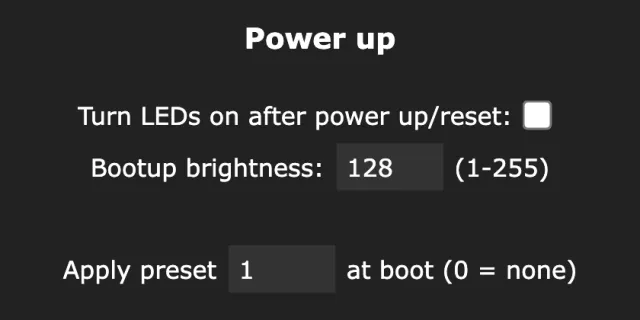
One trap: delete that preset later and the light keeps pointing at the empty slot, so it falls back to the defaults again. Change or clear the boot preset whenever you delete the one it uses.
What a preset actually stores
A preset is a saved state written to presets.json on the light, in a numbered slot from 1 to 250. The web UI save dialog gives you a few choices:
- Name and an optional Quick load label (a short label or emoji for the quick load buttons at the top of the UI).
- Include brightness: whether loading the preset also sets brightness.
- Save segment bounds: whether the segment layout (start and stop of each segment) is part of the preset. Leave it off for presets that should only change effects and colors on whatever layout is there. Turn it on for presets that set up zones.
- Use current state: on by default. Turn it off to save an API command instead, for example
{"on":false}for an “off” preset that schedules can call.
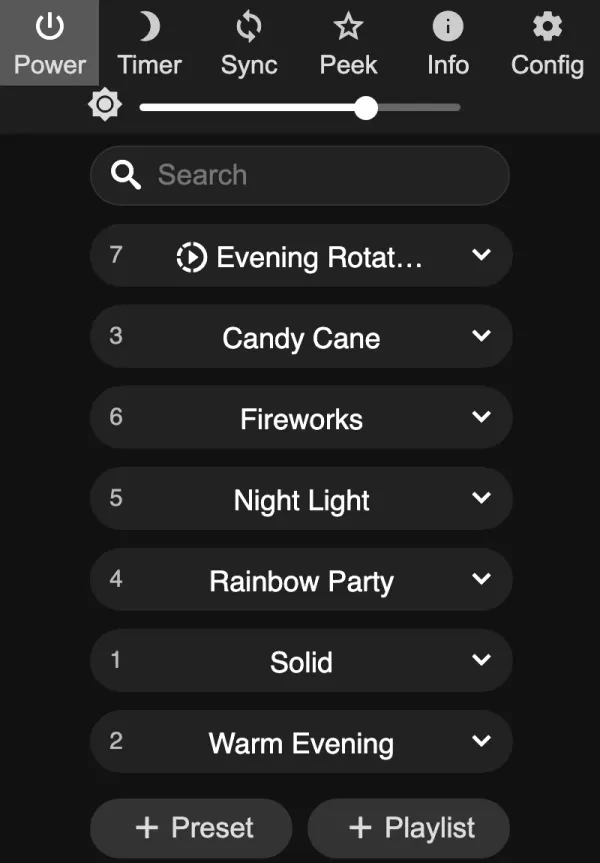
You load a preset by tapping it, or through the API by sending {"ps":5} to /json/state.
Slots 1 to 250 are yours, but some tools park things in the high numbers. WLED Max’s Circadian Mode uses slots 230 to 237 when it runs on the light, for example. Keep everyday presets low.
Copying presets to another light
In the web UI, presets are one file, so copying them is a backup on one light and a restore on the other:
- On the source light, open Config > Security & Updates and use Backup presets. Your browser downloads
presets.json. - On the target light, same page, Restore presets, pick the file.
- The target now has the same presets in the same slots.
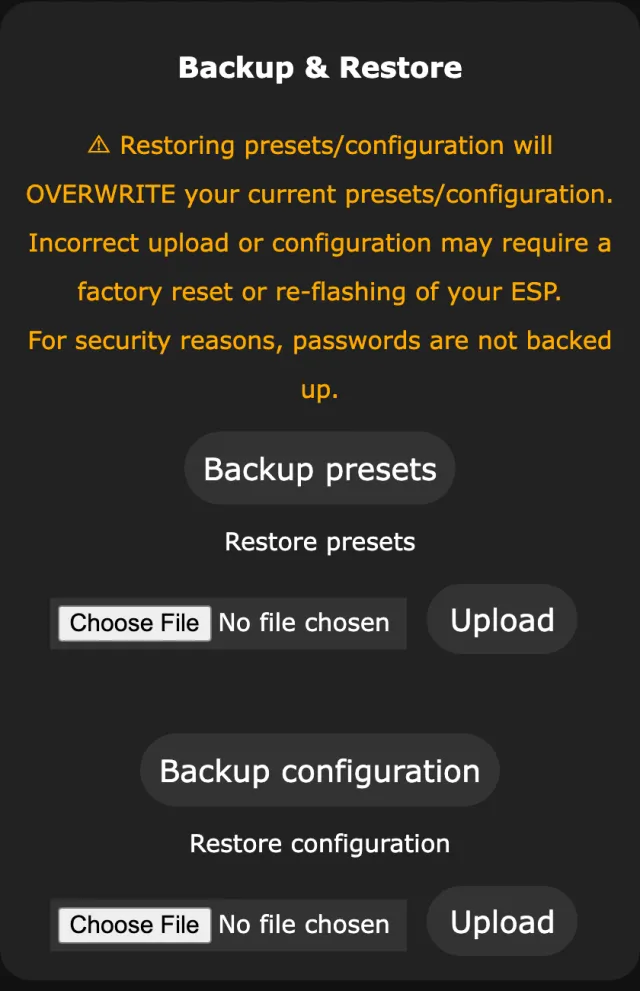
This replaces every preset on the target. Presets that store segment bounds may not fit a strip of a different length, so check those after copying.
In WLED Max there’s a direct route. Go to Settings > Backup & Restore, and under Migration tap Copy Presets Between Devices:
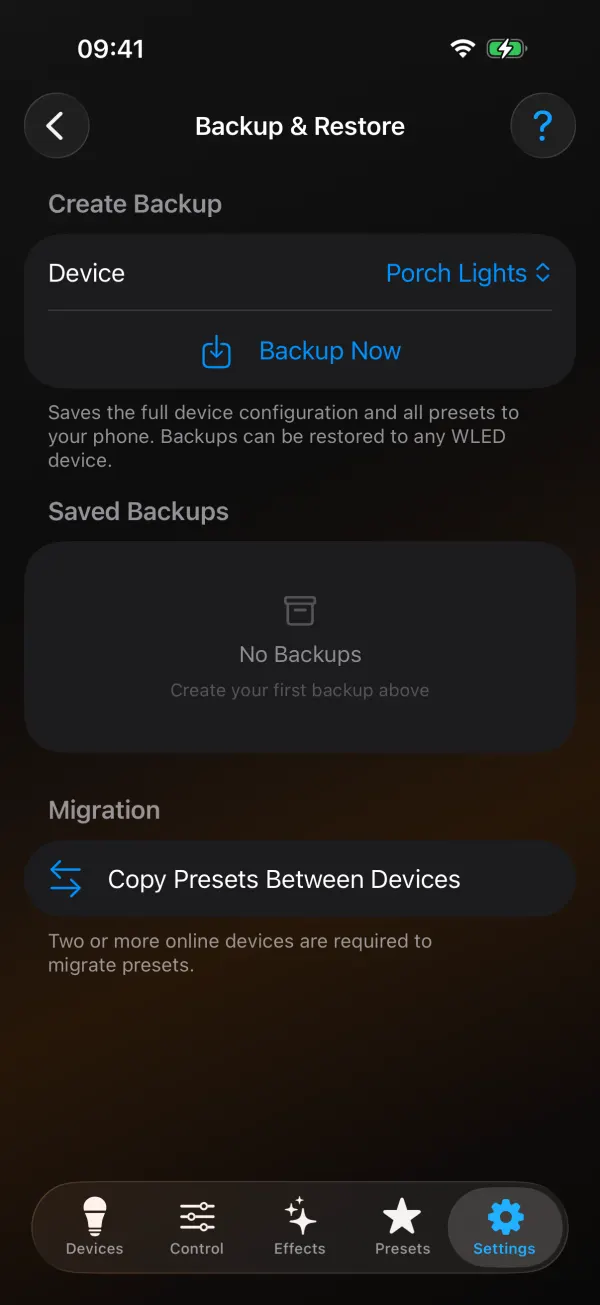
- Pick the source light under From.
- Pick the target light under To.
- Tap Copy Presets. All presets on the target are overwritten, so back that light up first if it has anything you want to keep.
The app needs two or more lights online for this (on iOS the screen says so). It’s worth doing before you use Apply to Multiple Devices on a device preset, because applying preset 5 to several lights loads each light’s own slot 5, whatever that happens to be there. Copying needs two lights, so in practice it needs Premium. More on running several lights in control multiple WLED devices at once.
The Presets tab in WLED Max
The Presets tab reads the light’s presets.json and lists presets and playlists. You can:
- Save Current State to a new slot, with a name and an optional Quick Load Label.
- Long-press a preset for Edit Parameters (change the stored speed, intensity and sliders without loading and re-saving), Save Current State to This Preset to overwrite it, Apply to…, Apply to Multiple Devices, Change Icon and Delete Preset.
- Set as Power-On Preset, which makes it the boot preset in one tap.
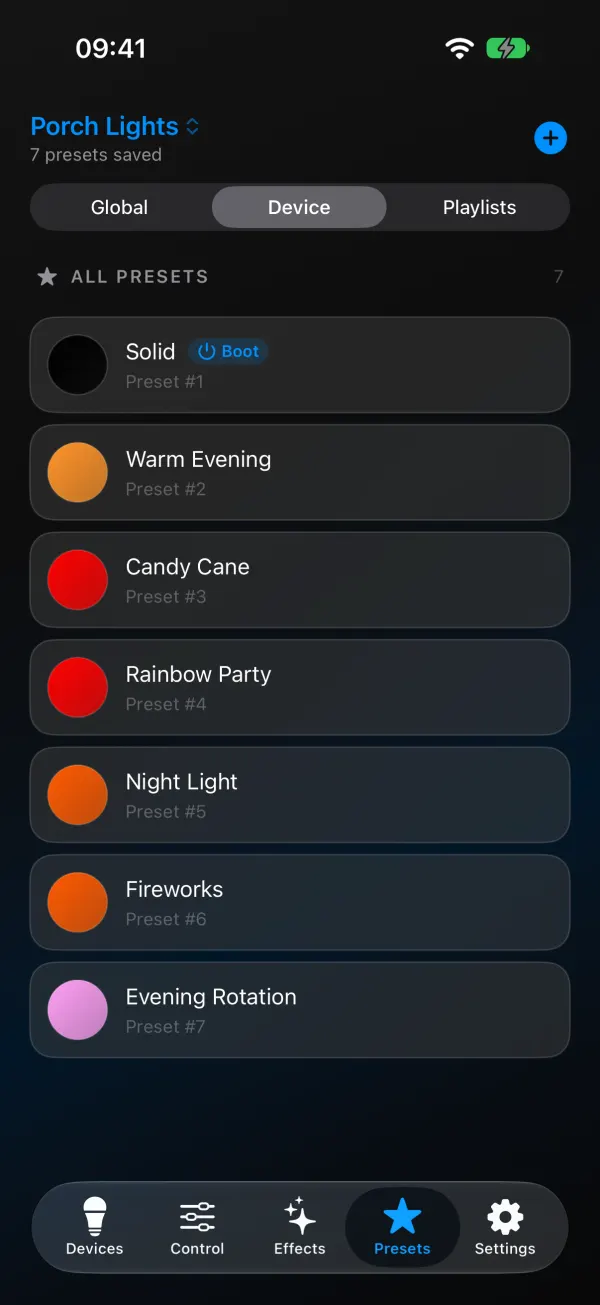
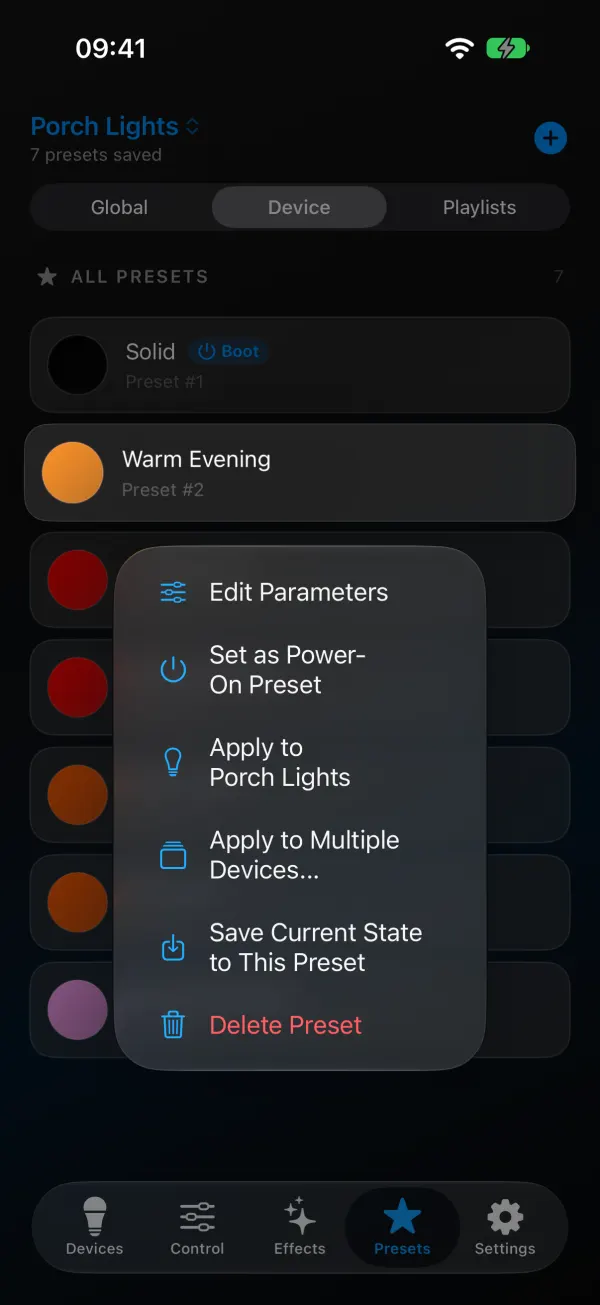
Since version 1.1.4, deleting the power-on preset in the app also clears the power-on setting, so the light doesn’t point at an empty slot.
If the light’s presets file is damaged, the app won’t quietly overwrite it. It offers to save a copy of the raw file first (iOS: Save a Copy of the File, Android: Back up raw file).
On lights running WLED 16, the app also warns about presets that use effect 77, because “In v16, effect 77 became Copy Segment (was Meteor Smooth)”. It can’t fix those for you, so re-save them with the effect you want.
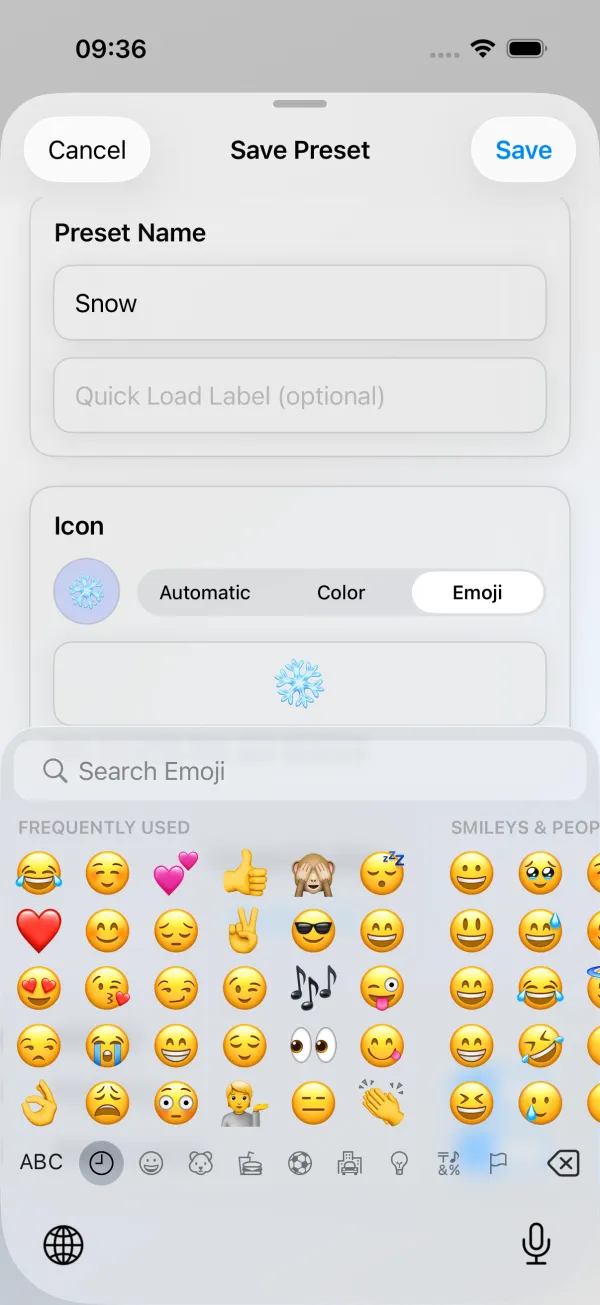
Each preset can have an icon in the list, also new in 1.1.4. In the Icon card when you save, or with Change Icon in the long-press menu, pick Automatic (“Uses the preset’s main color.”), Color or Emoji. Below the icon you choose a Preset Number and what to Include (Brightness and Section Layout).
Presets that live on the phone
Device presets belong to one light. Global presets belong to your phone: “Saved to your phone and available for all controllers. Apply to any device at any time.” They’re good for looks you want everywhere, like a warm white evening scene, and you can apply one to a single light, a group or all devices. Global presets can be renamed (device presets can’t). On iOS they follow Sync with iCloud if you turn it on, so they show up on your iPad too.
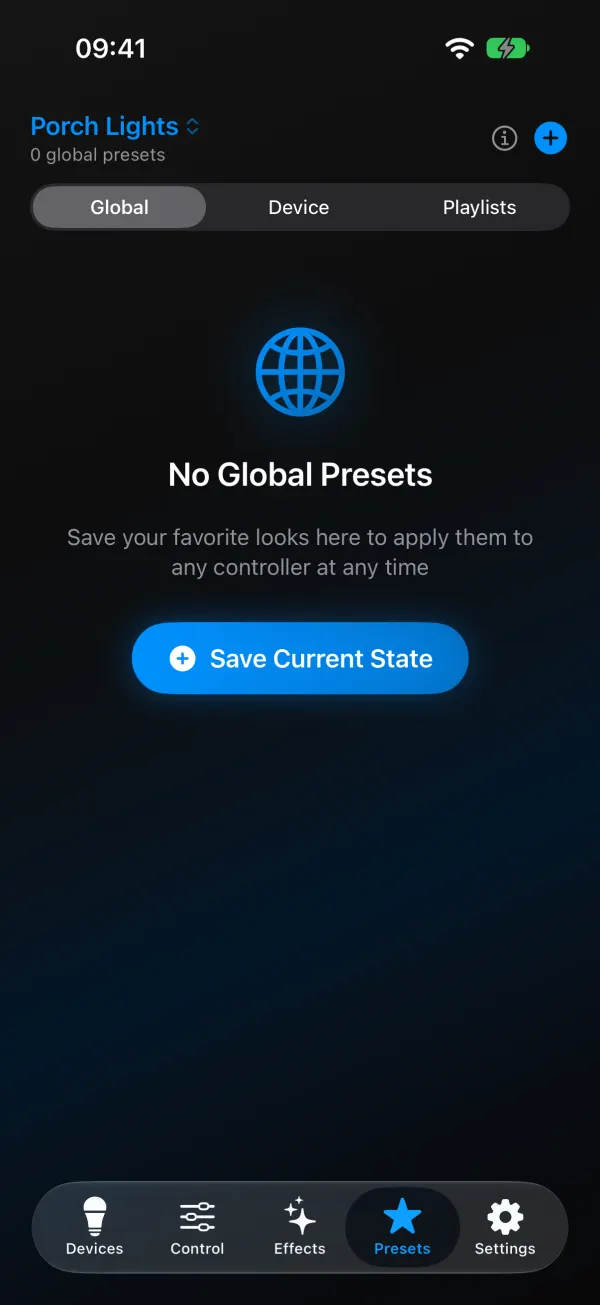
When you customize an effect, Apply opens Save Effect with both options: Save to Device or Save to Cloud on iOS (Save to Cloud makes a global preset), and Save to Device or Save as Global Preset on Android.
Boot preset ignored, presets gone
The light comes on orange after a power cut. No boot preset is set, or it points at a deleted slot. Set Apply preset at boot (or Set as Power-On Preset in the app).
My preset doesn’t save. The file system on an ESP8266 is small, and a big presets.json (lots of presets with segment layouts) can fail to save. Delete presets you don’t use.
Loading a preset messes up my segments. It was saved with segment bounds from another layout. Re-save it with your current layout, or with segment bounds off.
Presets look different on another light. Different LED counts, firmware versions or color orders. Effects scale with length, and WLED 16 changed some effects.
Brightness jumps when I load a preset. That preset includes brightness. Re-save it without Include brightness.
How many can you store? 250 slots, though on an ESP8266 you’ll usually run out of flash space first.
Presets not saving or error 12
Two error banners in the web UI are about presets, and they mean different things.
Error 11, “Not enough space to save preset!” The flash is full. WLED only saves when there’s room for a full copy of presets.json plus about 9 KB, so on an ESP8266 a file with many presets that store segment layouts hits the limit sooner than you’d think. Delete presets you don’t use, or save new ones with Save segment bounds off, which keeps them small.
Error 12, “Preset not found.” Something asked for a slot that’s empty. After you delete or renumber presets, check everything that points at slot numbers: Apply preset at boot, the timers and button actions in Time & Macros, the entries inside your playlists, and any automations that send {"ps":N}.
If presets vanish after a save, or the Presets tab says “Sorry, there was an issue loading your presets!”, the file itself may be damaged. Restore a backup of presets.json, or use the backup the web UI keeps in your browser (it shows up with that message). Every code is explained in the WLED error codes list.
Download ready-made presets
Presets are just JSON, so you can share them. We put together two sets with effects, colors and a playlist each:
- Christmas: candy cane, red and green, C9 style twinkles, warm white, candles and a playlist. On the Christmas patterns page.
- Halloween: Halloween Eyes, lightning, pumpkin candles, slime drips and a playlist. On the Halloween page.
Restoring a downloaded file replaces all presets on the light, so back up first or paste the presets one at a time with Use current state unticked, as described on those pages.
Next up, if you want presets to rotate on their own: WLED playlists and Shuffle. For full config backups, see back up and restore a WLED config.