Turn WLED On at Sunset (and Off at Bedtime) With Schedules That Run on the Light
Run a WLED preset at sunset, sunrise or a set time, on chosen days or only in winter. Timer slots on 0.15 and WLED 16, offsets and common mistakes.
Written by Jamie Conde, who builds WLED Max at MeowScript. WLED Max is an independent app and is not affiliated with or endorsed by the official WLED project.
A WLED timer never turns a light on. It runs a preset, and the preset decides what happens. Once that clicks, the scheduler in Config > Time & Macros is easy, and because it lives on the light, it keeps working with your phone switched off and no hub in the house.
Everything here works in the free WLED web interface. Further down is how the same settings look in our app.
Time-controlled presets: two kinds of timer tables
WLED’s name for its timers is Time-controlled presets, the heading of the timer table in Config > Time & Macros. How that table looks depends on the version.
WLED 0.14 and 0.15 have 10 fixed timer slots:
- 8 regular slots that fire at an hour and minute you choose. Hour 24 means “every hour” at that minute.
- 1 sunrise slot and 1 sunset slot, fired at the local sunrise or sunset, shifted by an offset from -59 to +59 minutes.
WLED 16 works differently. You add timer rows as you need them, up to 16 on ESP8266 and 64 on ESP32. Each row has a Type (Regular, Sunrise or Sunset), the sun offset goes from -120 to +120 minutes, and you pick the preset by name instead of typing a number.
Timers can be limited to days of the week and to a date range (November 15 to January 10, say, so the holiday look only runs in season). One thing that trips people up on 0.14 and 0.15: only the 8 regular slots have a date range. The sunrise and sunset slots get weekdays but no dates. On WLED 16 every timer has both.
Make the presets first
On the main WLED page, set up the look you want and save it as a preset, for example preset 1, “Evening”. Then turn the light off and save a second preset, preset 2, “Off”. (The API command {"on":false} in the preset editor does the same.) Write down the numbers.
Tell the light where and when it is
- Open the light in a browser and go to Config›Time & Macros.
- Turn on Get time from NTP server. The default server is fine.
- Choose your time zone. The light handles daylight saving from the zone rules.
- Enter latitude and longitude. Two decimals are plenty, it’s only used for sunrise and sunset. There’s an N/S picker next to latitude and an E/W picker next to longitude, so type the numbers without a minus sign and pick the direction (W for the Americas, S for the southern hemisphere).
- Save, and check the time shown on the page.
What the fields should look like for New York. Use your own zone and coordinates.
Off by a whole number of hours means the time zone is wrong. Showing 1970 means the light can’t reach the internet for NTP.
Add the timers
Still in Time & Macros, scroll to the timer table:
- Sunset: enable it, offset -15 (fifteen minutes before sunset, while there’s still some light outside), preset 1.
- A regular slot: enabled, 23:00, preset 2, all days. That’s bedtime.
- If you stay up later on weekends, add a second regular slot at 23:59 for Friday and Saturday only, and change the first one to Sunday through Thursday.
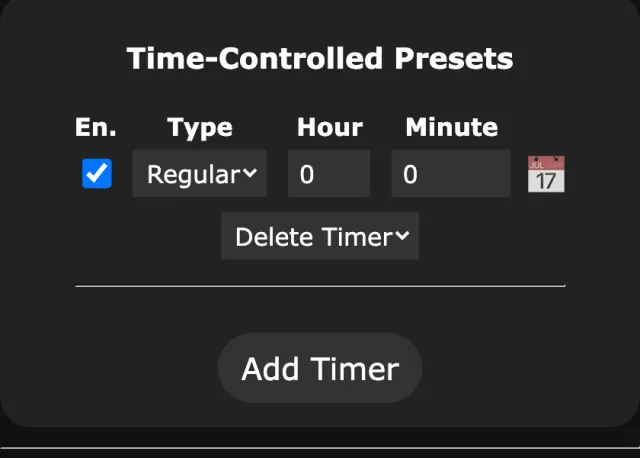
Save. The light now comes on before dusk every day and goes off at 11.
Only in December
On WLED 16, add a sunset timer running “Christmas” with offset 0 and a December 1 to January 6 date range, plus a regular timer at 23:30 running “Off” with the same range. Outside those dates nothing fires, and your normal timers take over again.
On 0.14 and 0.15 the sunset slot can’t take a date range. Use a regular slot at a rough dusk time (17:00, for example) with the December 1 to January 6 range, and keep the sunset slot for your everyday look. Same trick if you want two different sunset looks for two seasons, since those versions only have one sunset slot.
Holiday schedules with date ranges
Date ranges have no year, so a timer set up once comes back every year by itself. Ranges can also run over New Year (November 28 to January 6 works). Some ranges that work as a starting point:
| Holiday | Date range | Looks to run |
|---|---|---|
| Halloween | October 15 to October 31 | Halloween effects and presets |
| Diwali | November 6 to November 11 (2026) | Diwali diyas and festive patterns |
| Christmas | November 28 to January 6 | Christmas patterns and presets |
| Hanukkah | December 4 to December 12 (2026) | Blue and white, eight nights |
| Fourth of July | July 1 to July 5 | Red, white and blue |
Christmas and Halloween fall on the same dates every year. Diwali and Hanukkah follow other calendars and move each year, so their ranges need a change every autumn. For each holiday you need the same pair as above: a sunset (or dusk) timer that runs the holiday preset, and a bedtime timer that runs your Off preset, both with the range. Outside every range, your everyday timers run as usual.
The holidays list only changes the web UI background
WLED’s Config > User Interface page has an option called Enable custom Holidays list, with an upload for holidays.json. It looks like a holiday schedule, but it only swaps the background image of the web interface on the dates in the file. It never touches the lights. For the lights, use timers with a date range as above.
WLED schedule or timer not working
This is where most of the questions come from.
The sunset timer never fires. Latitude and longitude are missing or zero. At 0,0 the light calculates sunset for a spot in the Atlantic Ocean. Also check the timer is enabled, and that its date range (if any) includes today.
It fires an hour early or late. Time zone or daylight saving. Pick the named zone for your region rather than a fixed UTC offset.
The timer runs, but nothing visible happens. The preset may be the one that’s already showing. Or the number points at an empty preset slot, so check the list.
The light never turns off at night. There is no “off” action without a preset. Make an Off preset and point a timer at it.
It worked until a power cut. After an outage the light needs Wi-Fi and NTP before it knows the time. If your router boots slowly, the first timer can be missed. A power-on preset (web UI: LED & Hardware, called LED Preferences on 0.15 and older; app: Presets > Set as Power-On Preset) at least makes it start in a sensible state.
Timers vanished after a firmware update or restore. They live in the light’s cfg.json. Back that file up first. See Back up and restore a WLED config.
Same schedules, on a phone screen
In WLED Max, open the light’s Device Settings and tap Schedules. The app edits WLED’s timers using the classic layout of 8 clock timers plus one sunrise and one sunset timer.
- Tap Add Schedule.
- Pick a Trigger: a time, Sunrise or Sunset. Sun triggers get Offset (minutes) from -59 to +59.
- Pick the Preset. The list shows names, so no numbers to remember.
- Pick Repeat: single days, or Every day, Weekdays or Weekends. Time triggers also have an Every hour switch.
- Optional, for time triggers: Seasonal Range limits it to a month-and-day range (“winter months only”). The app saves the range on clock-time timers only, not on Sunrise or Sunset.
- Tap Save Schedules. The app writes them to the light.
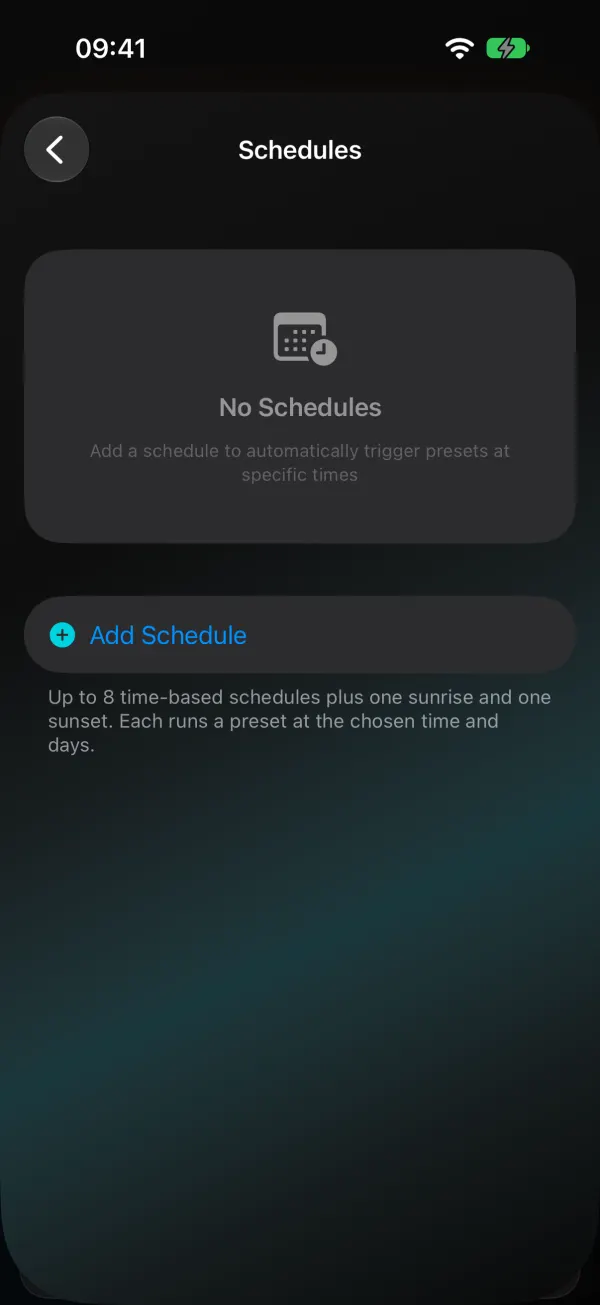
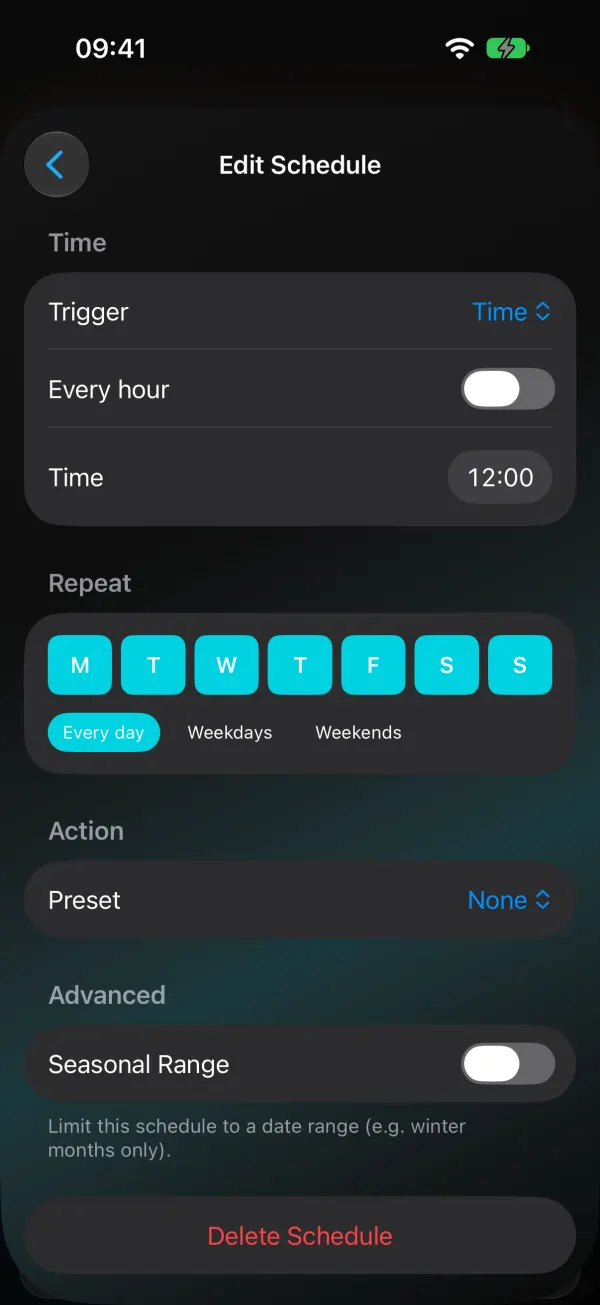
You can’t add a second sunrise or sunset schedule there, because the classic layout has one of each. Android also shows “Requires latitude/longitude in Time & Macros.” in the editor. NTP, latitude and longitude are in the app too, under Time & Macros in the same Device Settings screen, and there you type negative numbers for west and south (for example -74.0060). The app sets a UTC offset in seconds instead of WLED’s named time zones. If you want daylight saving handled for you, pick the named zone once in the web UI.
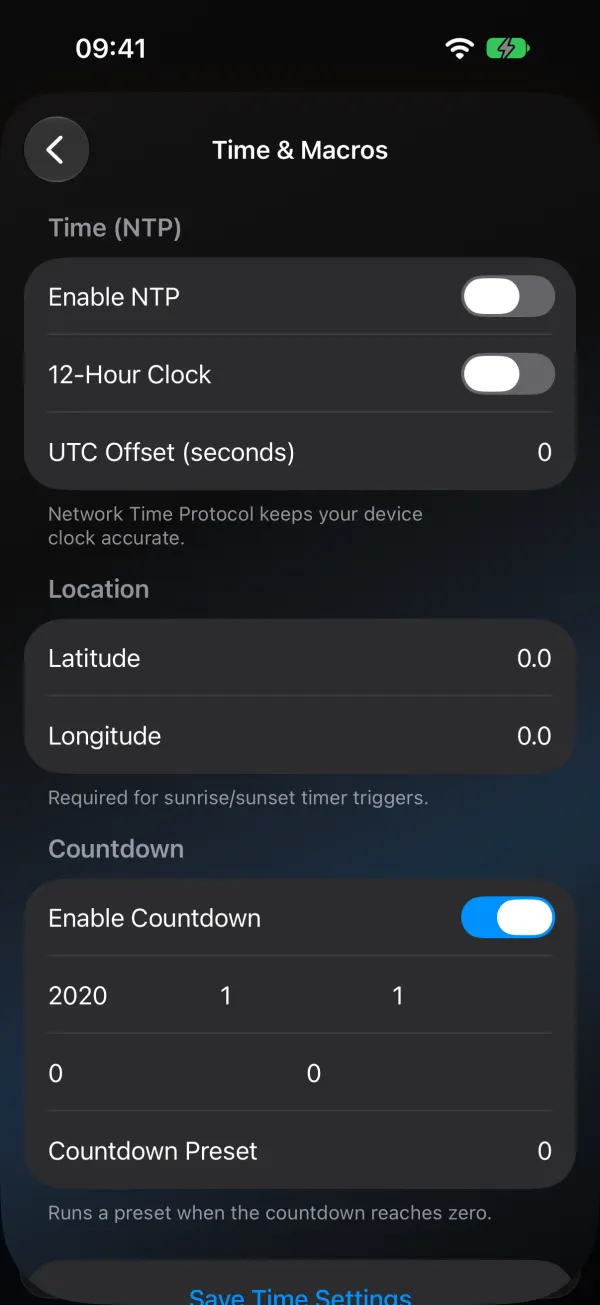
Don’t confuse these with Schedule Turn On under Schedule & Timer. That one is a single turn-on run by the phone, explained in the sleep timer guide. Anything that should repeat belongs in device schedules.
Circadian Mode also writes into these timer slots, which matters if you’re running low on free ones. For holiday looks to schedule, see WLED Christmas and Diwali patterns.