WLED Sleep Timer and Wake-Up Light: Fade Off at Night, Brighten in the Morning
Use WLED's Nightlight timer to fade lights off after 30 minutes (up to 255), and set up a wake-up light that brightens in the morning.
Written by Jamie Conde, who builds WLED Max at MeowScript. WLED Max is an independent app and is not affiliated with or endorsed by the official WLED project.
WLED already has a sleep timer. It’s just called Nightlight, which is why people miss it.
Start it and the light fades (or switches) to off over a set number of minutes, anywhere from 1 to 255. That’s 4 hours 15 minutes at the top end. The countdown runs on the light itself, so it doesn’t care if your phone dies or leaves the house. Everything in the first half of this page uses only the WLED web interface.
What Nightlight actually does
When you start it, WLED remembers the current brightness and moves toward a target brightness over the time you picked. Four modes:
| Mode | What happens |
|---|---|
| Instant | Stays as is, then switches to the target brightness when time is up |
| Fade | Brightness fades smoothly to the target over the whole duration |
| Color fade | Fades brightness and also blends the primary color toward the secondary color |
| Sunrise | Runs WLED’s Sunrise effect, capped at 60 minutes. Started with the light off it is a sunrise. Started with the light on it plays a sunset instead |
The target is usually 0, meaning off. Set it to 10 or so and the light settles into a soft glow and stays there.
Setting it up in the web UI
- Open the light’s IP address in a browser, for example
http://192.168.1.50. - Go to Config›LED & Hardware (LED Preferences on 0.14 and 0.15) and scroll to the nightlight section. Set the default duration (30 minutes is a good start), the mode (Fade looks the most natural) and the target brightness (0 for off). Save.
- On the main page, tap the Timer button (the moon icon). The nightlight starts with those defaults.
- Tap the moon again to cancel.
In the web UI this block is headed Timed light (on WLED 16 the page is called LED & Hardware).
If you script your lights or use home automation, the JSON API does the same thing:
POST http://<light-ip>/json/state
{"nl": {"on": true, "dur": 30, "mode": 1, "tbri": 0}}
dur is minutes (1 to 255). mode is 0 Instant, 1 Fade, 2 Color fade, 3 Sunrise, and tbri is the target brightness.
Sunrise alarm (wake-up light) without any app
WLED can’t start a nightlight at a set time by itself. A timer plus a preset gets you most of the way:
- Make a preset that uses the Sunrise effect (effect ID 104). Its first slider, “Time [min]”, is the length of the sunrise in minutes, 1 to 60. The cleanest way to set an exact value is the preset’s API command field, for example
{"on": true, "bri": 255, "seg": [{"fx": 104, "sx": 20}]}for a 20 minute sunrise. - In Config > Time & Macros, make sure NTP is on and your time zone is right.
- Add a timer that runs that preset at 6:40 on weekdays.
Why not put "nl" with mode 3 in the preset instead? Because the preset also turns the light on, and WLED plays a sunset when the light is already on. The Sunrise effect avoids that.
It works fine, as long as you don’t mind editing a bit of preset JSON.
Schedule & Timer in the app
In WLED Max, open a light on the Control tab and tap Schedule & Timer. There are two tabs, Turn Off and Turn On.
Turn Off tab (the sleep timer)
- Pick a duration: 15, 30, 60, 120 or 240 minutes, or tap Custom Duration for anything from 1 to 255.
- Choose a mode: Gradually dim to off or Turn off instantly when timer ends. The third mode, Gradually brighten (wake-up light), starts WLED’s Sunrise mode right away. Use it for a sunrise that begins now, with the light off to start, and remember WLED caps a sunrise at 60 minutes.
- Tap Start Timer.
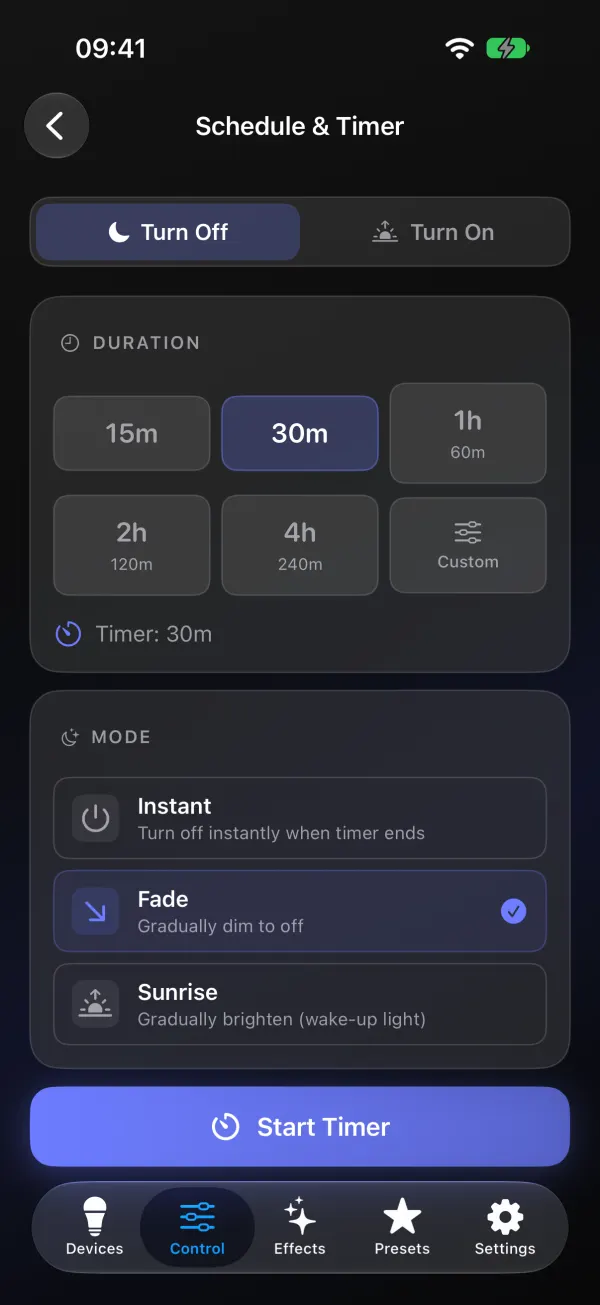
The countdown runs on the light itself. Close the app, lock the phone, go out. The light still turns off on time. To stop early, come back to the same screen and tap Cancel Timer.
On iOS the countdown also shows as a Live Activity on the Lock Screen and in the Dynamic Island (iOS only). Not seeing it? Open iOS Settings > Apps > WLED Max and turn on Live Activities.
Turn On tab
- Switch to the Turn On tab.
- Pick the time under Turn On At.
- Set Turn-On Brightness.
- Optional: turn on Load preset on turn-on and pick a preset. A preset built on the Sunrise effect (see the recipe above) makes the light fade up instead of jumping on.
- Tap Schedule Turn On.
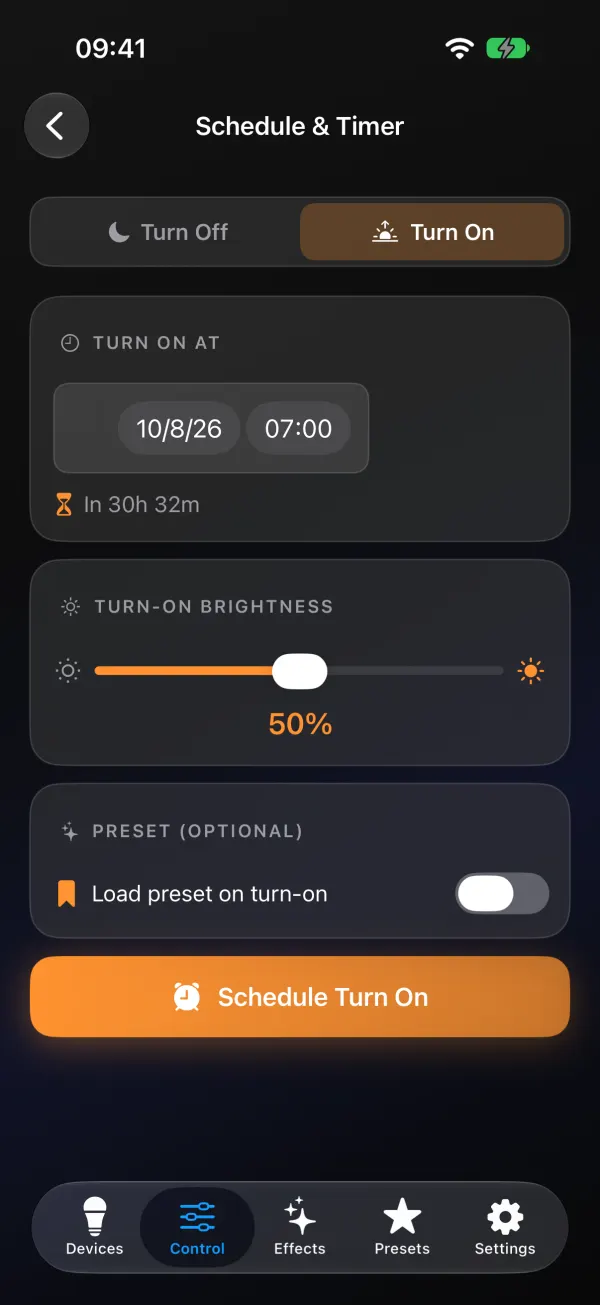
The catch: Schedule Turn On is a one-time schedule run by the phone, not a repeating timer stored on the light. On iOS it uses a background task plus a local notification. On Android it uses an alarm, so WLED Max needs Alarms & reminders allowed in Android settings. For a light that comes on every morning whether or not your phone is around, use the device timers from our sunrise and sunset schedule guide. Those run on the light.
Timer didn’t fire, or faded wrong
It switched off at once instead of fading. The mode is Instant. Change it in the nightlight section of Config > LED & Hardware (LED Preferences on 0.14 and 0.15), or pick Gradually dim to off in the app.
The morning turn-on didn’t happen (Android). Check that Alarms & reminders is allowed for WLED Max (Settings > Apps > WLED Max). Some phones’ battery savers kill scheduled tasks too. Set WLED Max to Unrestricted under Battery.
The morning turn-on didn’t happen (iOS). iOS decides when background tasks run. Keep notifications on for WLED Max so the scheduled notification can wake the app. If it has to work every day, use a device timer instead.
Wrong time. Check the time zone and NTP in Config > Time & Macros on the light, especially right after a daylight saving change.
Need more than 4 hours 15 minutes? 255 minutes is the firmware limit. For longer gaps, have a device timer run an “off” preset at a fixed time.
Picking the right tool
Falling asleep with the lights on is what the nightlight is for. It needs nothing else. Waking up tomorrow to a slow sunrise is a job for Schedule Turn On with a Sunrise preset, or a WLED timer running that preset. If you want that every weekday for the rest of the year, set a device timer once (Time & Macros in the web UI, or Device Settings > Schedules in the app) and forget about it. And if you’d like the color to follow the sun all day, that’s circadian lighting, a different setup.
Also handy: WLED widgets on iOS and Android, so a light is one tap from the home screen.