WLED Widgets on iOS and Android, Plus Lock Screen and Quick Settings
Put WLED on your home screen: free Shortcuts and HTTP Shortcuts widgets, and the WLED Max widgets, Lock Screen toggle and Quick Settings tile.
WLED can’t give you a widget. It runs on the light, not on your phone, so any home screen button has to come from something on the phone that talks to the light’s JSON API. The good news is that you can build decent buttons for free in about five minutes. What the free versions can’t do is show you whether the light is actually on.
Free, on iPhone: the Shortcuts widget
- Make a shortcut with Get Contents of URL: method POST, URL
http://<light-ip>/json/state, JSON body{"on":"t"}(that’s a toggle). The Shortcuts and Siri guide has more bodies and the full steps. - Make a few more. One per preset (
{"ps":1},{"ps":2}), one for off. - Long-press the home screen, tap Edit > Add Widget, choose Shortcuts, and pick the size that holds 1, 4 or 8 shortcuts.
It works fine. You just get buttons, with no state and no brightness slider.
Free, on Android: HTTP Shortcuts or Tasker
Android
HTTP Shortcuts is an open source app that puts request buttons on the home screen. New shortcut, method POST, URL http://<light-ip>/json/state, body type JSON, body {"on":"t"}, then place it. If you already use Tasker, an HTTP Request task plus a Tasker task widget does the same thing (WLED with Tasker and MacroDroid). Same limit as on iPhone: buttons, not a status display.
WLED Max widgets
Both apps have widgets, and unlike the free options above they show whether the light is on. The two platforms differ a little: effect buttons are Android only, the Lock Screen toggle is iOS only, and Android also has a Quick Settings tile. iOS comes first, then Android.
WLED Max on iOS
The widgets are free. On the free plan they control your one active light. Locked lights aren’t offered when you set up a widget, and a widget that already points at one shows “Device locked”.
WLED Control comes in small and medium. Long-press the home screen, tap Edit > Add Widget, search for WLED Max and pick WLED Control. Then long-press it and tap Edit Widget to choose a light, a group or All Devices, plus up to four presets (Preset 1 to 4). It shows the light’s state and has working buttons: power, brightness minus and plus, preset chips and color circles. The circles come from Widget Colors in the app (Settings›App Preferences›Widgets), up to 10 of them. There are no effect buttons on the iOS widget. Save the effect in a preset and use a preset chip instead.
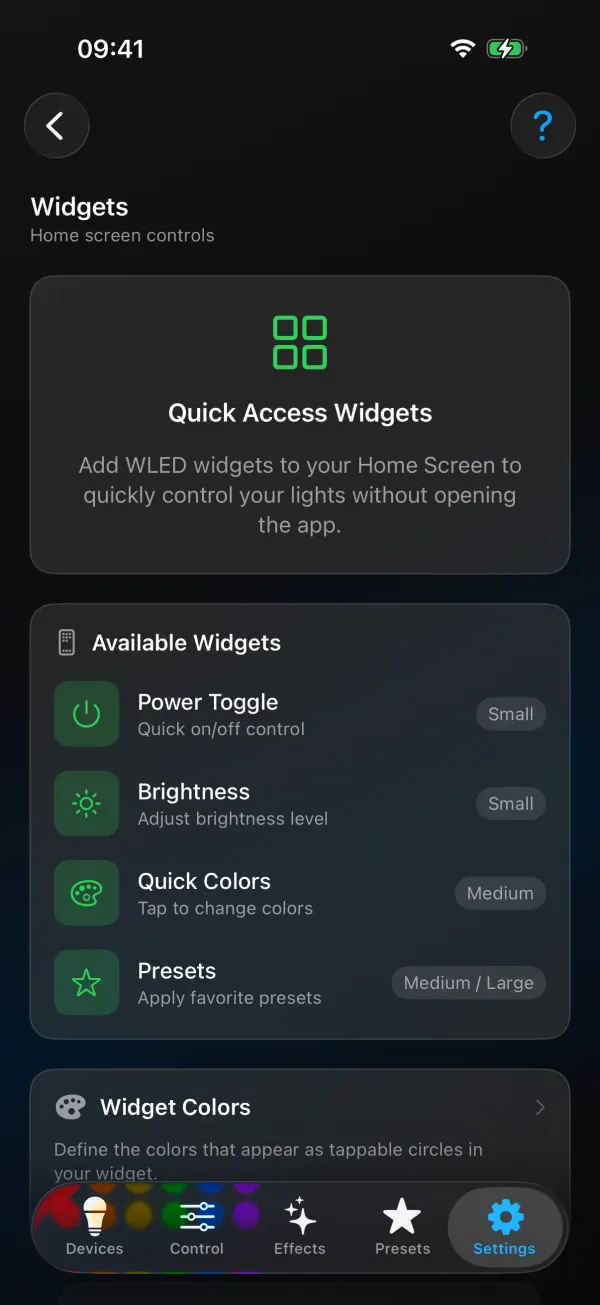
WLED Quick Toggle goes on the Lock Screen (iOS only). Long-press the Lock Screen, tap Customize, tap the widget area and pick it. Circular, rectangular and inline sizes, each with the light’s state and a power toggle.
Close relatives that aren’t widgets: Siri phrases like “Turn off Desk in WLED Max” work without opening the app, and the sleep timer puts a countdown Live Activity on the Lock Screen and in the Dynamic Island. There’s no Control Center control yet, and no Apple Watch app.
WLED Max on Android
WLED Control (4x3)
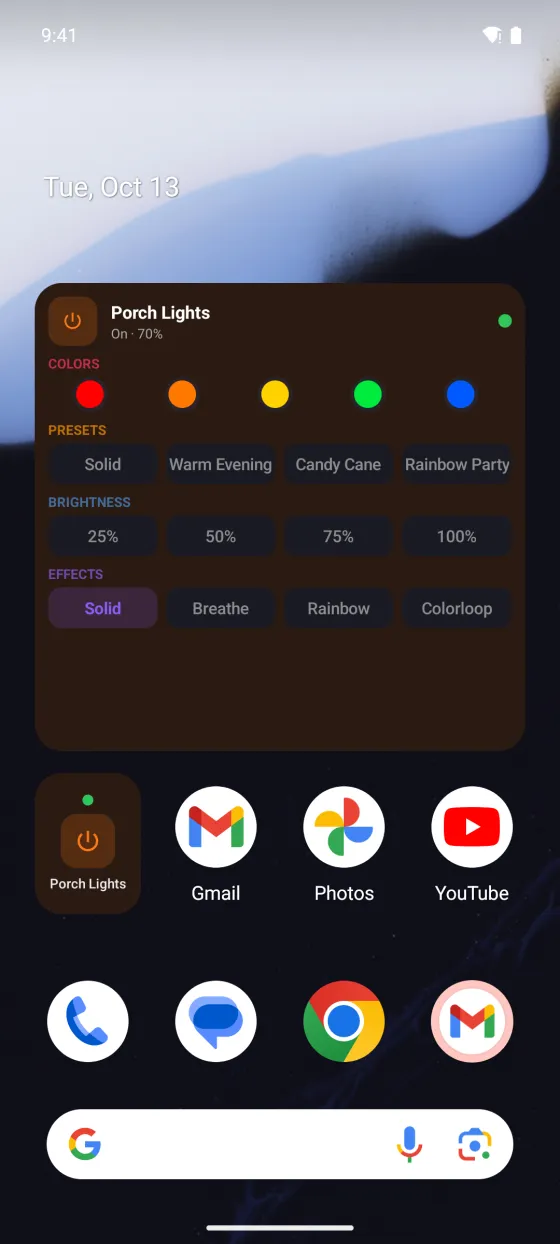
- Long-press the home screen, tap Widgets, find WLED Max and drag WLED Control out. It’s 4x3, and you can resize it down to 4x2 or make it taller. At 4x3 it has room for all the color circles.
- Under Select Target, pick a light, a group or All Devices.
- Under Widget Sections, choose what it shows: Show Colors, Show Presets, Show Brightness and Show Effects. The colors come from Widget Colors in the app (Settings > App Preferences > Widgets > Widget Colors).
- Under Choose Presets and Choose Effects, pick up to 4 of each, then tap the checkmark at the top to save.
Brightness buttons jump to 25, 50, 75 or 100%. Effect buttons are Android only.
Power Toggle (1x1)
One power button for a light or a group. Nice for a bedside lamp on your second home screen.
Quick Settings tile
Android
Android only. Pull down the notification shade, tap the pencil (edit) icon and drag the WLED Max tile into your active tiles. A tap toggles power. Long-press to pick a light, a group or All Devices.
Picking one
For a single lamp you only switch on and off, the iOS Lock Screen toggle or the Android Power Toggle or Quick Settings tile is plenty. A room with a few looks you flip between wants WLED Control with your presets. Changing effects from the home screen works directly on Android, and on iOS through presets. And if you don’t want another app, stick with the Shortcuts widget or HTTP Shortcuts.
Widget not updating
It shows old state. Home screen widgets refresh on a schedule the phone decides, not live. Tapping a button updates it right away. If the light was changed somewhere else (web UI, Home Assistant), the widget catches up on its next refresh.
Buttons do nothing. The phone has to be on the same Wi-Fi as the light. On iPhone, also make sure Settings > WLED Max > Local Network is on.
“Device locked” (iOS) or “Locked” (Android). That light is locked on the free plan, where only the first light you added stays active. Point the widget at your active light, or see free plan and Premium.
Presets missing. The widget reads presets from the light. Save them on the light first (Presets tab), then edit the widget again.
If you’re still choosing an app, our WLED app comparison covers which ones have widgets.