Split a WLED Strip into Zones and Fix Overlapping Segments
Split one WLED strip into equal zones, a center accent or mirrored halves with exact start and stop numbers, then fix overlaps and gaps.
Here are the numbers first, since that’s what most people come for. Each zone is one WLED segment, and a segment’s Stop is not included, so every zone’s Stop is the same number as the next zone’s Start.
| Strip | Zones | Ranges (Start to Stop) |
|---|---|---|
| 60 LEDs | 2 | 0 to 30, 30 to 60 |
| 150 LEDs | 3 | 0 to 50, 50 to 100, 100 to 150 |
| 300 LEDs | 4 | 0 to 75, 75 to 150, 150 to 225, 225 to 300 |
| 144 LEDs | 3 | 0 to 48, 48 to 96, 96 to 144 |
The general rule: for N LEDs in Z equal zones, zone k (counting from 0) runs from k × N / Z to (k + 1) × N / Z. When N doesn’t divide evenly (100 LEDs in 3 zones), make one zone a LED longer: 0 to 33, 33 to 66, 66 to 100.
New to segments? WLED segments explained covers what each setting does.
Two other layouts
Center accent. A short middle zone between two longer ones, say a highlight above a TV. On 120 LEDs: 0 to 50, 50 to 70, 70 to 120.
Mirrored halves. For a strip that runs up one side of a window frame and back down the other, don’t make two segments. Use one segment over the whole strip and turn on Mirror. The effect renders on the first half and is reflected onto the second, so both sides move together.
Setting it up in the web UI
- Open the light’s Segments panel. Segment 0 covers the whole strip.
- Edit segment 0 and set Stop to the end of zone 1 (for example 50). Apply.
- Tap + Add segment, set Start 50 and Stop 100. Apply.
- Add the last one: Start 100, Stop 150.
- Tick each segment in turn and give it an effect and colors.
- Save a preset with Save segment bounds ticked so the layout comes back. See WLED presets and the power-on preset.
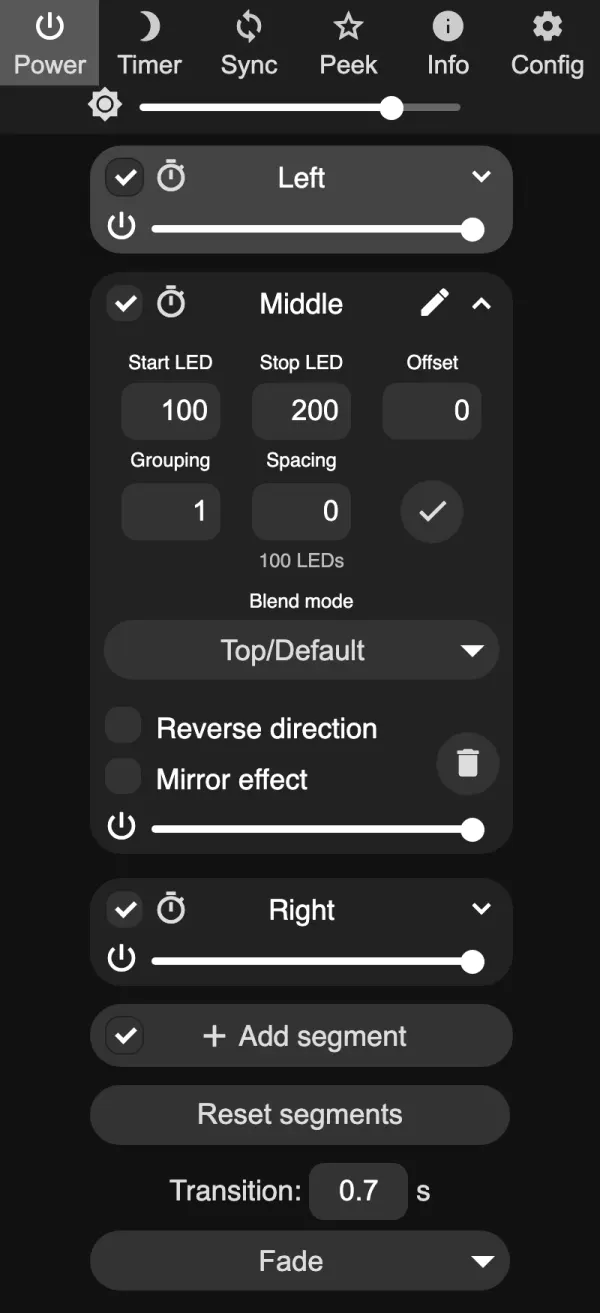
Before giving each zone a real effect, set each one to a different Solid color. Mistakes jump out right away.
Overlaps and gaps
Read your Start and Stop values in order.
An overlap is a segment that starts before the previous one stops. With 0 to 52 and 50 to 100, LEDs 50 and 51 belong to both. The later segment draws over the earlier one, and with moving effects those shared LEDs can flicker between the two.
Overlap: 0 to 52 and 50 to 100. The amber sliver (LEDs 50 and 51) belongs to both.
Gap: 0 to 50 and 52 to 100. LEDs 50 and 51 belong to nobody.
A gap is a segment that starts after the previous one stops. With 0 to 50 and 52 to 100, LEDs 50 and 51 belong to nobody. On WLED 0.14 and 0.15 they keep whatever color they last had, which looks like a stuck pixel.
The fix in the web UI is to edit the numbers until each Stop equals the next Start. If the light has a lot of segments, open http://<light-ip>/json/state instead of expanding every panel. It lists each segment’s start and stop in one place.
Not every overlap is a mistake. Repeating patterns built with grouping and spacing stack several segments over the same LEDs on purpose (the 2 red 1 white guide uses this), and WLED 16 blend modes make overlaps useful for layered looks. Only fix the ones you didn’t mean to make.
Doing it in Segment Studio
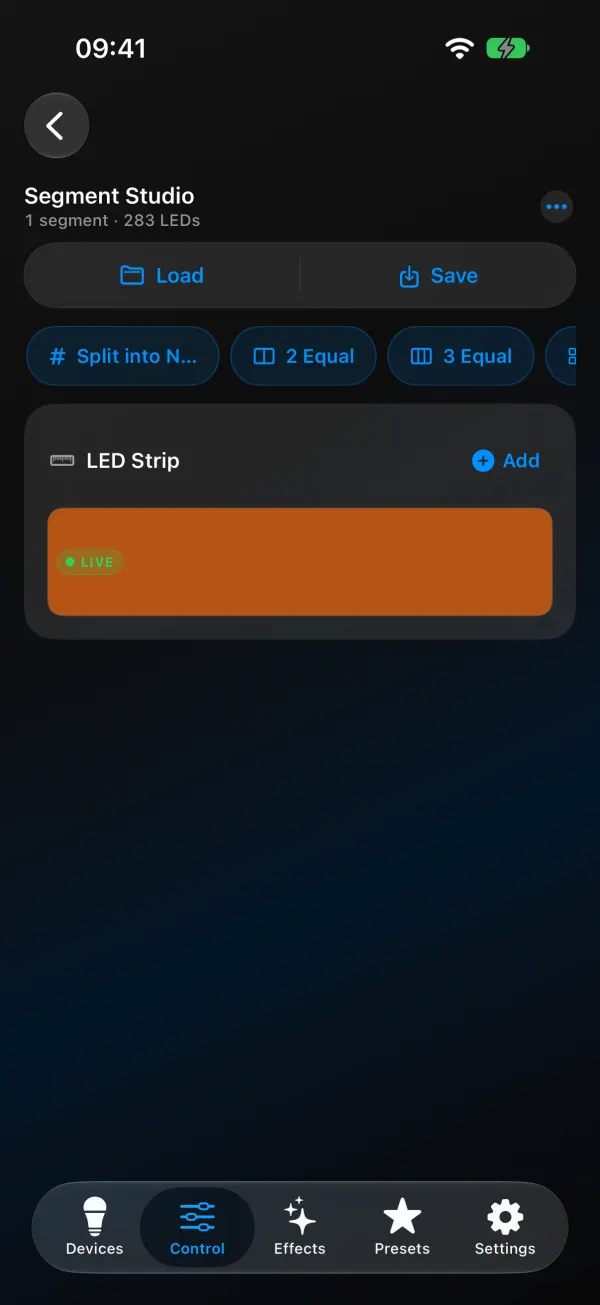
In WLED Max, open Segment Studio from the Control tab (the Segment Studio tile, or Studio in the segments row).
To split, choose Split into N segments (“Divides the full strip into equal-sized segments”), pick the count, and the app writes the exact ranges. While the light has one segment, quick chips offer 2 Equal, 3 Equal and 4 Equal. On iOS you also get Mirror, Center Accent and Chase Lanes. Note that the app’s Center Accent is 20% at each end and 60% in the middle, which is the opposite of the short center zone above. Chase Lanes makes two interleaved segments using grouping. On Android, Split selected in half in the menu cuts one segment in two.
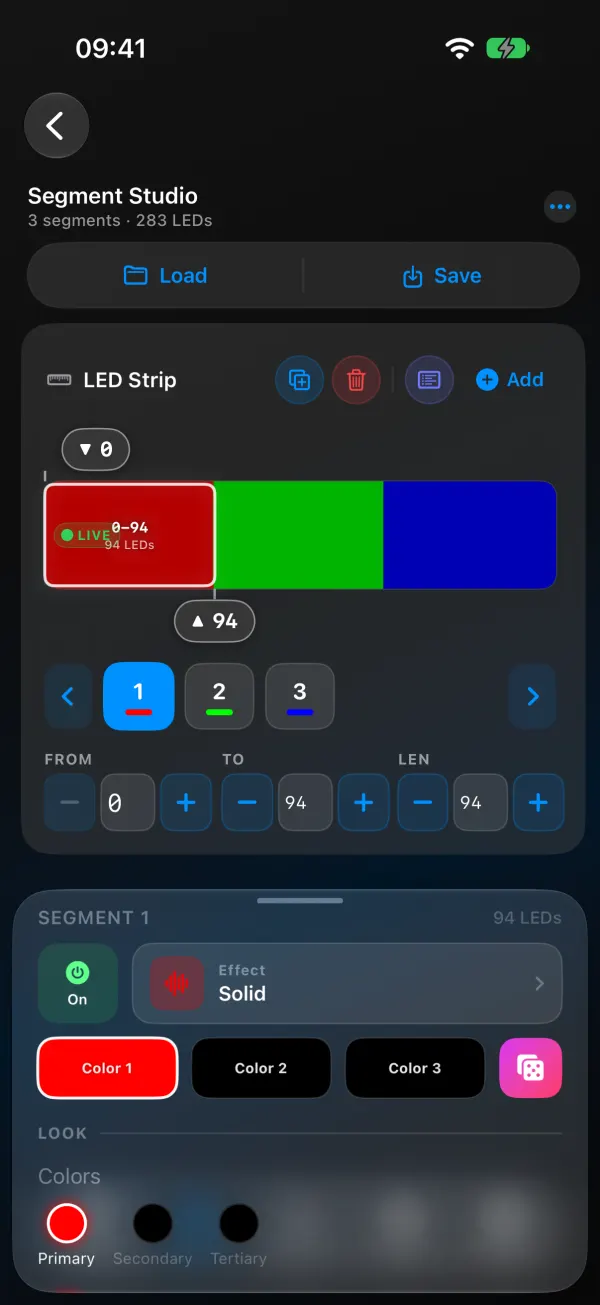
After that, drag the handles on the strip to fine-tune, or type exact values in the From, To and Len fields. Tap a segment to set its effect, palette, colors, brightness, speed and intensity while the live preview shows what the light is doing right now.
Overlaps show up in amber. Tap one and the Studio names the two segments and the shared LEDs, then offers Trim Segment 2 or Trim Segment 3 (“Trimming shortens the chosen segment until the overlap is gone.”). On firmware before WLED 16 it won’t let you drag one segment over another to begin with. Gaps are drawn on the strip and listed in the All segments table. Drag a neighbor over the gap, or add a segment there.
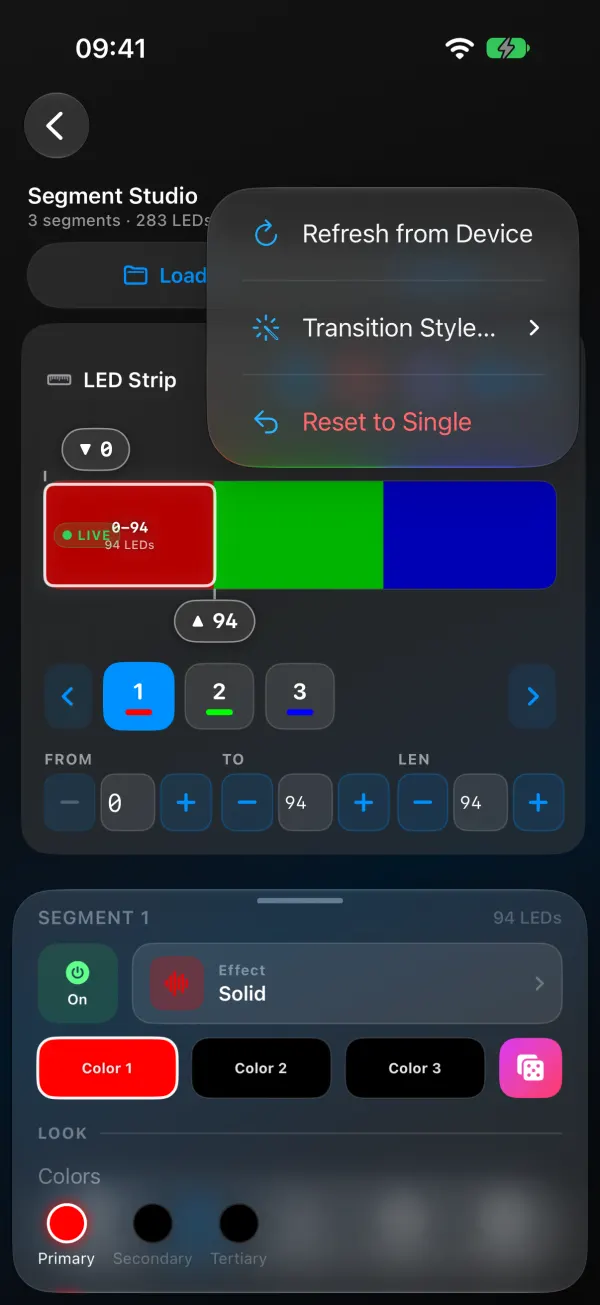
Deleting asks what to do with the freed LEDs: leave a gap, or merge them into the left or right neighbor. Undo works for 5 seconds. If it all goes sideways, Reset to Single puts back one segment over all LEDs.
Once the layout looks right, save it as a preset from the Studio so you can load it later.
Zones still off by one?
The last LED of each zone doesn’t change. You used inclusive numbers (0 to 49, 50 to 99). Stop is exclusive, so it’s 0 to 50, 50 to 100.
Splitting does nothing. The light already has its maximum number of segments (16 on ESP8266, usually 32 on ESP32). Use fewer zones or merge some.
One zone runs backwards. That run of strip was installed the other way round. Turn on Reverse for that segment.
Zones reset after a reboot. Your layout isn’t part of the power-on state. Save it in a preset and make that the power-on preset.
Effects look squashed in short zones. Some effects need length. Give short zones something simple (Solid, Breathe, a slow palette effect) and keep the busy ones for the long zones.
Why does one segment flicker? Usually it is an accidental overlap with the next one. Check that each Stop equals the next Start.
Once your zones work, you may want to run the same look on other lights too: controlling several WLED devices at once.