WLED Playlists and Shuffle
Make a WLED playlist that cycles presets: durations, transitions, repeat count, end preset, Shuffle and the 100 entry limit, step by step.
A WLED playlist is a preset that plays other presets. Each one runs for a set time, with a transition in between, and the whole thing lives on the light, so it keeps going after you put your phone down. Tick Shuffle and the order changes every round. Playlists are a WLED feature, so the web UI can do all of it.
Three presets, a minute each, round and round. With Shuffle on, the order changes after each round.
Building one in the web UI
- Save the presets you want to cycle first, for example “Warm white”, “Candle”, “Aurora”.
- In the Presets panel, tap + Playlist.
- Name it. For each entry, pick a preset, a duration (seconds) and a transition (seconds). Add more entries with +.
- Set how often it repeats (or leave it on forever), choose an end preset, and tick Shuffle for random order.
- Save. The playlist shows up in the preset list. Tap it to start.
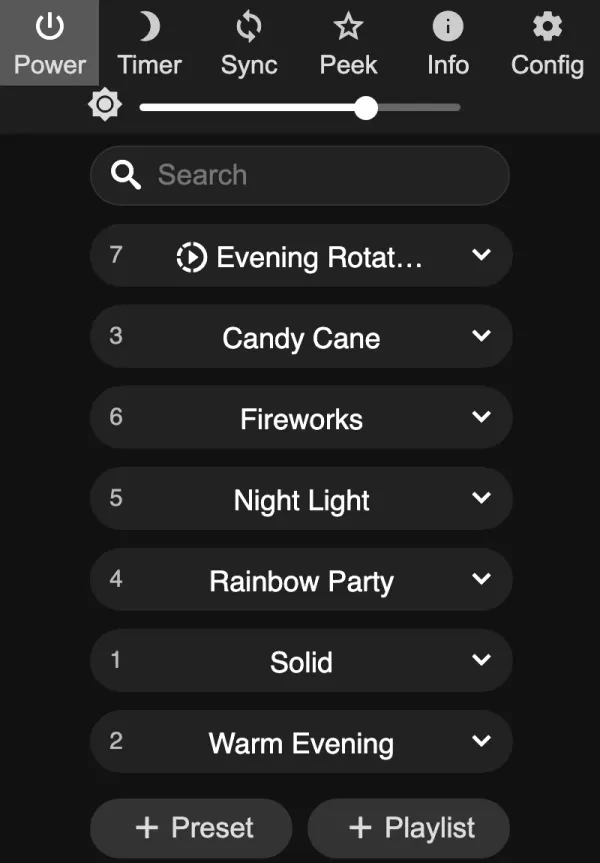
Some numbers that work: 30 to 120 seconds per preset feels relaxed in a living room. Holiday displays usually go 20 to 60 seconds so people walking past see a change. Long transitions (3 to 5 s) look smooth between similar presets, but between very different effects they just look muddy.
In WLED Max
On the Presets tab, tap Playlists at the top, then Create Playlist (“Create a playlist to automatically cycle through your presets”). It works the same on iOS and Android.
-
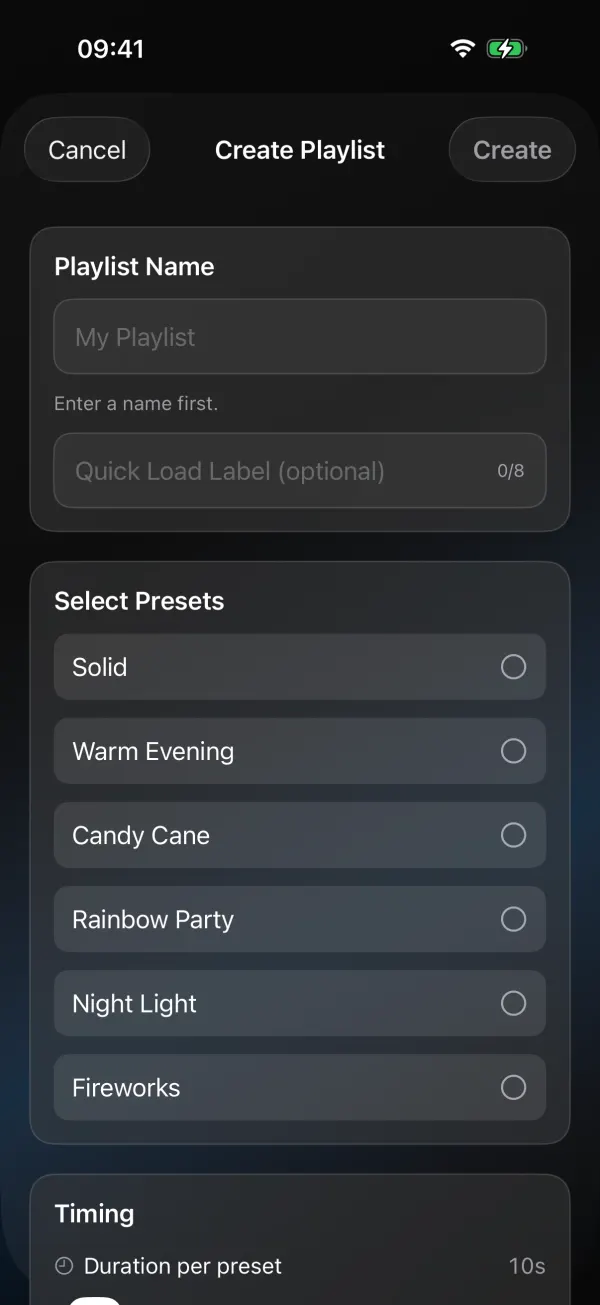
Name it and pick presets. The presets on the light are listed under Select Presets. Tick the ones you want.
-
Set timing and Shuffle. Duration per preset, Transition time, Plays and the Shuffle switch are further down.
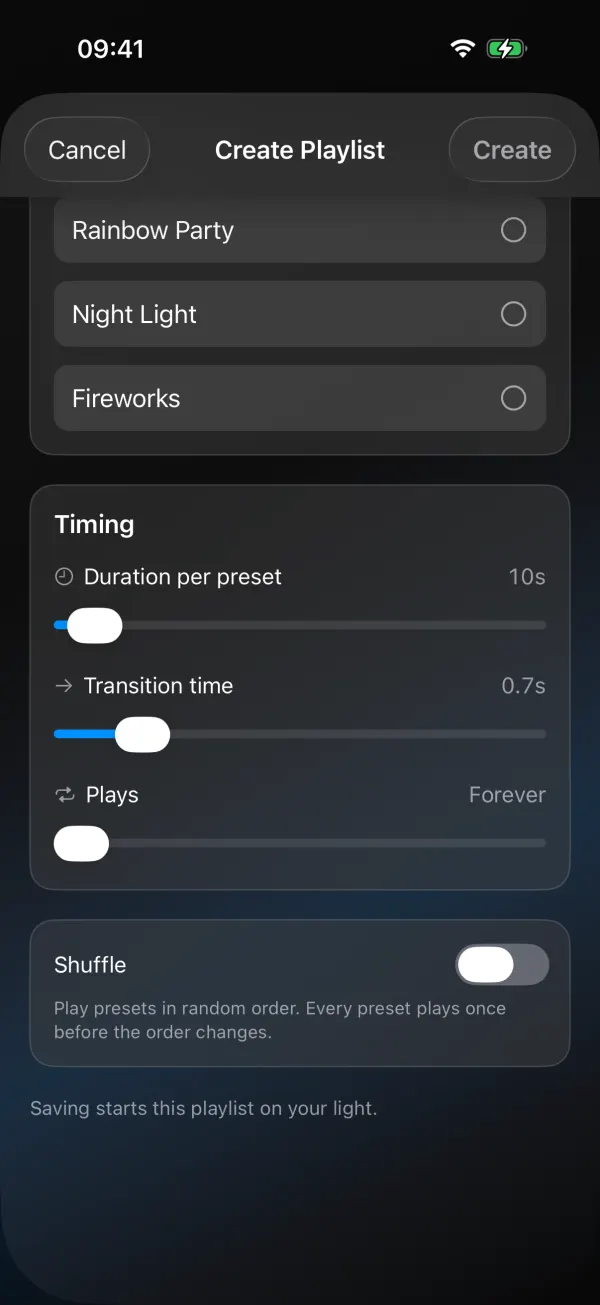
The full list of settings:
- Fill in Playlist Name.
- Tick the presets to include. Playlist Order shows them in sequence, with buttons to move each entry up or down or remove it.
- Set Duration per preset and Transition time. The defaults are 10 seconds and 0.7 seconds. If your presets already have different times, the app warns you that moving a slider gives them all the same time.
- Set Plays: Once, a number of times, or Forever.
- Turn on Shuffle (“Play presets in random order. Every preset plays once before the order changes.”).
- Tap Create. The playlist is saved on the light and starts playing.
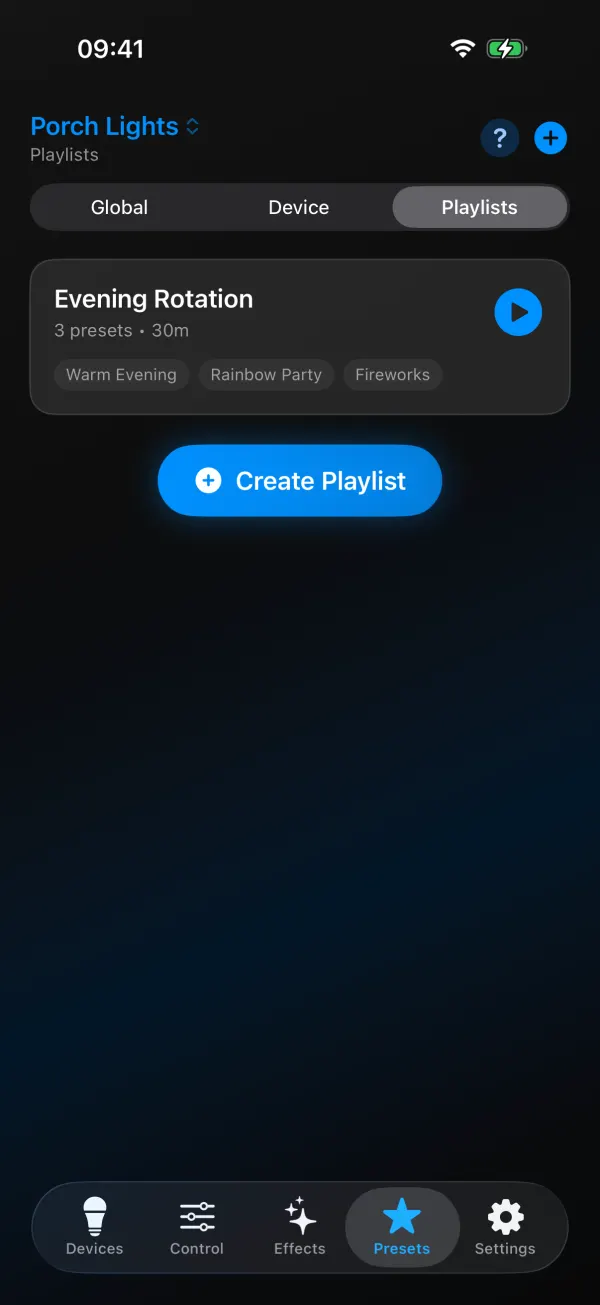
To change a playlist later, press and hold it and pick Edit Playlist. Change what you need and save, and the playlist starts playing. Delete Playlist removes it. Edit, Delete and Shuffle are new in version 1.1.4. Before that you could create playlists in the app but had to change them in the web UI. Settings the app doesn’t show, like the end preset you picked in the web UI, are kept when you save. If a preset in the list was deleted from the light, the editor says so (“This preset was deleted from the light. Remove it from the playlist.”). For a different time on each entry or an end preset, use the web UI (the steps above).
WLED playlist not working
It stopped when I changed the effect. That’s how WLED works. Picking another effect or loading another preset ends the playlist. Color and brightness changes don’t stop it, though the next preset in the list replaces them. Start it again from the preset list.
Every preset plays for 10 seconds no matter what I set. WLED 0.14 and 0.15 store durations of 0 or 0.1 s as 10 s. Use a real duration. On WLED 16, a duration of 0 means “stay on this preset” until something moves it on, so check your durations after a firmware update too.
Shuffle seems to repeat the same order. With only a few presets, random orders repeat a lot. Shuffle promises that every preset plays once per round, not a fresh order every time. The order is shuffled again at the start of every round, including the first.
Segments jump around between presets. Some presets in the list were saved with different segment bounds. Re-save them with the same layout. More in WLED presets and the power-on preset.
“Can’t edit this playlist”. The playlist isn’t on the light anymore, usually because it was changed or deleted from the web UI or another app. Refresh, and create it again if you still want it.
I want it on several lights. A playlist lives on one light. Copy the presets (playlists included) to the other lights, then start them with Apply to Multiple Devices, or use WLED’s UDP sync. See control multiple WLED devices at once.
Start a playlist at power-on
A playlist is stored as a preset, so it can be the boot preset. Note the playlist’s slot number, open Config›LED & Hardware (LED Preferences on 0.14 and 0.15) and put that number in Apply preset at boot. On 0.15 and 16 the playlist editor also has an Apply at boot checkbox that does the same in one step. The light then starts the playlist every time it powers up, which is the easy way to have a roofline that’s already cycling when the power comes back.
To start it at a set time instead, point a timer at the playlist’s slot. See schedules that run on the light.
Transitions between presets
Each playlist entry has its own transition: the fade, in seconds, from the previous preset to this one. In the web UI, newer versions won’t let a transition be longer than the entry’s duration. Leave the field out in JSON and the light’s default is used, which is set on the LED settings page under Transitions (750 ms out of the box). On 0.15, Enable transitions must be ticked there, and on 0.14 the box is called Crossfade. With it off, every change is instant, whatever the playlist says.
What’s inside a playlist
If you script WLED or edit presets.json by hand, this is the stored format:
{"playlist":{"ps":[1,2,3],"dur":[300,300,300],"transition":[7,7,7],"repeat":0,"end":0,"r":true}}ps: the presets to play, in order. Up to 100 entries.dur: how long each one stays, in tenths of a second (300 = 30 seconds).transition: fade time between presets, also in tenths (7 = 0.7 seconds). Leave it out and the light’s default transition is used.repeat: how many times to run the list. 0 means forever.end: what happens after the last round. 0 stays on the last preset. 255 (“Restore preset” in the web UI) goes back to the preset that was active before the playlist started, if there was one. Any other number loads that preset.r: shuffle. The list is shuffled at the start of every round.
The JSON above, drawn out.
Start it like any preset, by tapping it or sending {"ps":<slot>}.
A few setups we like
- Evening rotation: three quiet presets, 2 minutes each, Shuffle on, Forever, started by a timer at sunset (schedules that run on the light).
- Holiday roofline: a few Pattern Maker patterns (Candy Cane, Classic Christmas, Retro Bulbs), 45 seconds each, 1 second transition. The 2 red 1 white guide shows how to make them.
- Party mode: ten busy effects, 20 seconds each, Shuffle on.
- One-shot sequence: Plays once, end preset “off”, for a show that should stop by itself.