WLED With iPhone Shortcuts and Siri: Voice Control, NFC Tags and Flashing Alerts
Control WLED by voice or NFC tag with the free Get Contents of URL action and the JSON API, or with the Siri actions in WLED Max.
Siri can already talk to your WLED lights. All it takes is one Get Contents of URL action in the Shortcuts app, pointed at the light’s JSON API. No extra app, works with any WLED light.
After that we’ll cover what our app adds on iOS: ready-made Siri phrases, Shortcuts actions, the Flash Lights action from version 1.1.4, and how to run any of it from an NFC tag.
The free way: Get Contents of URL
Every WLED light takes commands at http://<light-ip>/json/state. A shortcut can send one:
- Open Shortcuts, tap +, and add Get Contents of URL.
- URL:
http://192.168.1.50/json/state(your light’s IP). - Tap the arrow to expand it. Method: POST. Request Body: JSON.
- Add fields. Light on at half brightness is
on(Boolean, true) andbri(Number, 128). Preset 3 isps(Number, 3). - Name the shortcut, say “Movie lights”. “Hey Siri, movie lights” now runs it.
Steps 2 to 4 as text. Shortcuts shows the same fields once you expand the action.
Bodies worth keeping around:
| What | JSON |
|---|---|
| Toggle power | {"on":"t"} |
| Off | {"on":false} |
| Load preset 5 | {"ps":5} |
| Brightness 25% | {"bri":64} |
| Start a 30 minute fade to off | {"nl":{"on":true,"dur":30,"mode":1}} |
It’s reliable and costs nothing. Two downsides. Each light needs a fixed IP (a DHCP reservation in your router), and one shortcut per action per light adds up fast.
If the shortcut returns an error, check the IP first, since lights can change address after a router restart. Then check the body type is JSON, not Form.
Siri phrases and actions in WLED Max (iOS only)
The app adds its own actions to Siri and Shortcuts, so there’s no URL or JSON to type, and they run without opening the app on iPhone and iPad. Say these with your light or group name:
- “Turn on Desk in WLED Max” / “Turn off Desk in WLED Max”
- “Toggle Desk in WLED Max”
- “Turn on Upstairs in WLED Max” (a group)
- “Set Desk brightness in WLED Max”
- “Make WLED Max blue”
- “Apply WLED Max preset”
- “Change WLED Max effect”
The full list is in the app under Settings›App Preferences›Siri Shortcuts, and in the Shortcuts app under WLED Max.
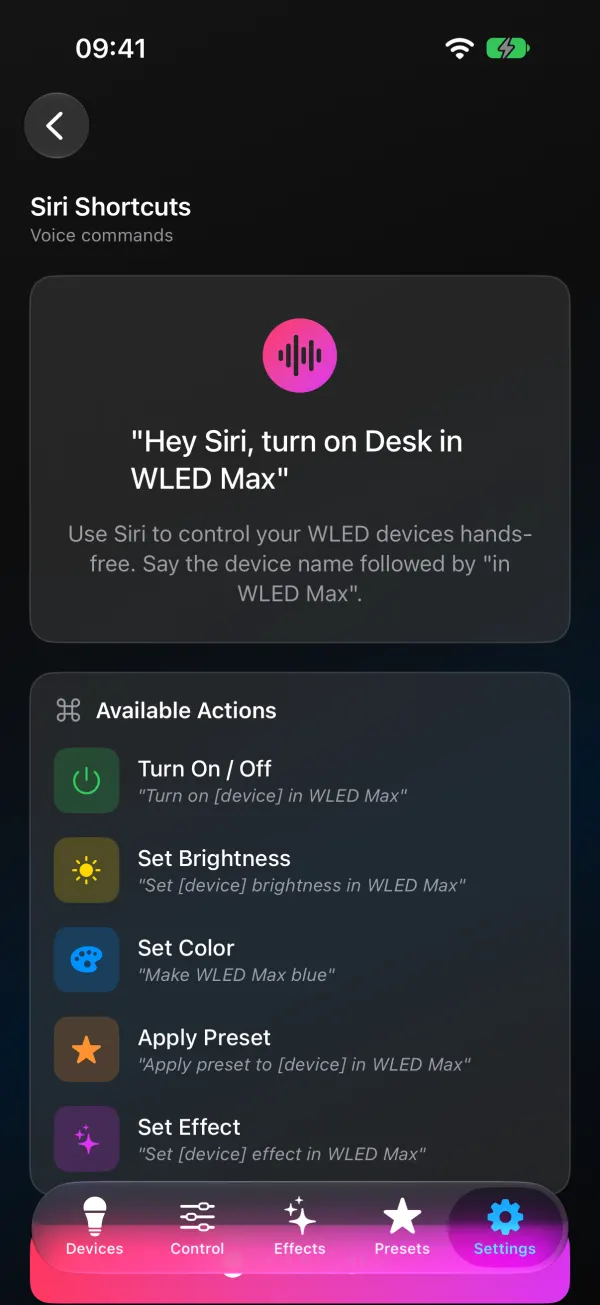
Search for WLED Max inside Shortcuts and you’ll find actions to turn on, turn off or toggle a light or group, set brightness, set a color, apply a preset and set an effect. Chain them. A “Movie night” shortcut can turn off the kitchen group, put the TV backlight on a preset and dim the shelf to 20%.
If Siri says it can’t find a light, use the exact name shown in WLED Max. Two similar names confuse it, so rename one (Control tab menu > Rename).
Flash Lights, for alerts
Version 1.1.4 added Light Alerts (Settings›Light Alerts) and a Flash Lights action in Shortcuts. An alert flashes your lights for 2 to 10 seconds, then they go back to whatever they were doing. The WLED side of that is explained in flash your WLED lights for the doorbell.
The action takes an Alert (one you saved), or Style, Color and Seconds set directly, plus Lights or Group.
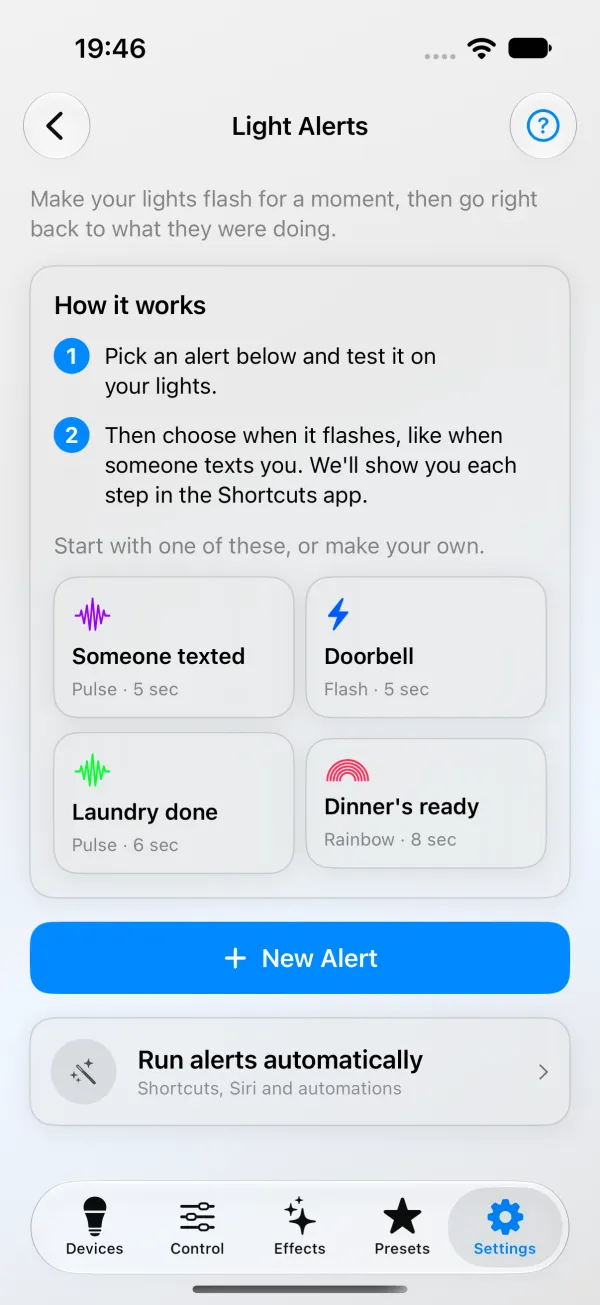
There’s no fixed Siri phrase for it. You name the shortcut instead: save one called “Dinner” that runs Flash Lights, and “Hey Siri, Dinner” flashes the lights.
To make it run on its own, the quickest route is in the app: open an alert, tap Set Up in Shortcuts, then Show Me Step by Step. Apple moved the buttons around between iOS 17 and 18, 26 and 27, so the guide follows your version and shows each tap for the trigger you pick: a message from someone, an NFC tag, an alarm, arriving home, and on iOS 27 a notification from an app you pick. Light Alerts step by step has the same steps written out.
For a doorbell, the Sound Recognition trigger can listen for the chime (turn on Doorbell under Settings, Accessibility, Sound Recognition first; on iOS 26 and later it’s under Sound & Name Recognition). The Home app can’t start a WLED Max alert, even for a doorbell that’s in the Home app.
Tap an NFC tag to run it
Any of these shortcuts can start from an NFC sticker instead of your voice. Stick one by the front door or on the nightstand, and tapping your iPhone to it runs the shortcut. Cheap NTAG215 stickers work fine. You need an iPhone XS, XR or newer (iPads have no NFC reader), and the tag automation only runs while the iPhone is unlocked.
Apple changed the Shortcuts app in iOS 27, so the steps depend on your version (Settings, General, About, iOS Version).
On iOS 27 and later
-
Open Shortcuts and tap + at the bottom. If you see a box that says Describe a shortcut, tap Edit at the top right.
-
At the bottom, under the search field, tap Automation, then NFC.
-
Tap Scan, hold the top of your iPhone to the sticker and give it a name, for example "Bedside".
-
Tap the blue arrow on that card, keep Automation on and turn off Confirm Before Run.
-
Tap Search at the bottom and add Get Contents of URL with the same URL and JSON body as above.
{"on":"t"}makes the tag a light switch. A WLED Max action works here too. -
Tap the back arrow at the top left. The shortcut is saved.
On iOS 17, 18 and 26
-
Open Shortcuts and tap Automation at the bottom.
-
Tap New Automation (or + if you already have some) and pick NFC.
-
Tap Scan, hold the top of your iPhone to the sticker and give it a name, for example "Bedside".
-
Choose Run Immediately, and turn off Notify When Run unless you want a notice every time.
-
Tap Next, start a new blank automation (on iOS 26 it's called Create New Shortcut) and add Get Contents of URL with the same URL and JSON body as above. A WLED Max action works here too.
-
Tap Done. On iOS 26 it's a checkmark.
If the automation keeps asking "Run?", it's Confirm Before Run on iOS 27, or Run Immediately in step 4 on older versions.
Apple Home and HomeKit
None of this puts your lights into the Home app. WLED has no built-in HomeKit or Matter, so a light only shows up in Apple Home through a bridge such as Home Assistant’s HomeKit Bridge or Homebridge. WLED in Apple Home and HomeKit compares the options. For voice control alone, the shortcuts above are enough.
It works at home, not away
WLED is controlled over your local network, so Siri, shortcuts and alerts only reach the lights while your iPhone is on the same Wi-Fi. Remote control needs a VPN such as Tailscale, see access local devices from anywhere. And if the app says it can’t reach your lights at home, open iOS Settings > WLED Max and turn on Local Network.
On Android instead? The same ideas with different tools are in WLED with Tasker and MacroDroid.