Make WLED React to Music Using Your Phone's Microphone
No mic on your WLED board? Your phone can listen and stream the sound to your lights over Wi-Fi with WLED audio sync. Settings and fixes.
Written by Jamie Conde, who builds WLED Max at MeowScript. WLED Max is an independent app and is not affiliated with or endorsed by the official WLED project.
Quick answer: WLED can react to sound picked up somewhere else. The AudioReactive usermod has a “Receive” mode that listens for audio data on UDP multicast 239.0.0.1, port 11988. Anything that sends that data, another WLED board with a microphone or a phone app, drives the effects. Your light needs a build that includes AudioReactive. ESP32 release builds have it since WLED 0.15. On ESP8266 it depends: the 160 MHz builds of 0.15 have it, and in WLED 16 the regular ESP8266 builds do too (receive only, an ESP8266 can’t send).
Most of this page is about how audio sync works inside WLED, so it applies to any sender. Our app comes in near the end.
Three ways a WLED light can hear
- A microphone on the board. An I2S mic such as the INMP441, or an analog mic on ESP32, with the pins set in Config > Usermods > AudioReactive. The classic setup.
- Audio sync from another WLED light. One board with a mic is set to “Send”, the others to “Receive”, and they all react to the same sound.
- Audio sync from a phone. The phone does the listening and sends the same packets a WLED sender would. The lights neither know nor care that it’s a phone.
Number 3 matters because most ready-made controllers and DIY strips have no microphone at all.
Sound reactive without a microphone
A light with no mic can still be sound reactive. It needs a build that includes the AudioReactive usermod, set to Receive, and a sender on the same network: another WLED board with a mic, or a phone. Nothing on the receiving board listens to sound itself, so no extra hardware is needed there.
Before you start
Firmware. You need a build with the AudioReactive usermod. ESP32 release builds include it since 0.15. On 0.14 it was a separate “audioreactive” download. On ESP8266, WLED 0.15 has it only in the “_160” builds, and WLED 16 has it in the regular ESP8266 builds too, except the 1 MB ESP01 one. An ESP8266 can only receive, which happens to be all you need here. Not sure? In the web UI, open Config > Usermods and look for an AudioReactive section.
Network. Phone and lights on the same Wi-Fi network. Multicast usually doesn’t cross VLANs or guest networks, so a light on an IoT VLAN and a phone on the main LAN often won’t talk without multicast routing.
Effects. It has to be an audio-reactive effect. Since 0.14, effects carry metadata marking them as volume or frequency reactive, and normal ones like Rainbow or Solid ignore sound completely. That’s the number one reason people decide “it isn’t working”.
Switching a light to Receive
In the WLED web interface:
- Open Config›Usermods.
- Find AudioReactive and tick Enabled.
- In the sync settings, set the mode to Receive. The default port is 11988. Leave it unless you changed it on the sender.
- Save. The light reboots, which takes 10 to 15 seconds.
- On the main page, pick an effect from the audio-reactive group (recent web UI versions mark them with a music note). GEQ, Gravcenter, Waterfall and Freqwave are good tests.
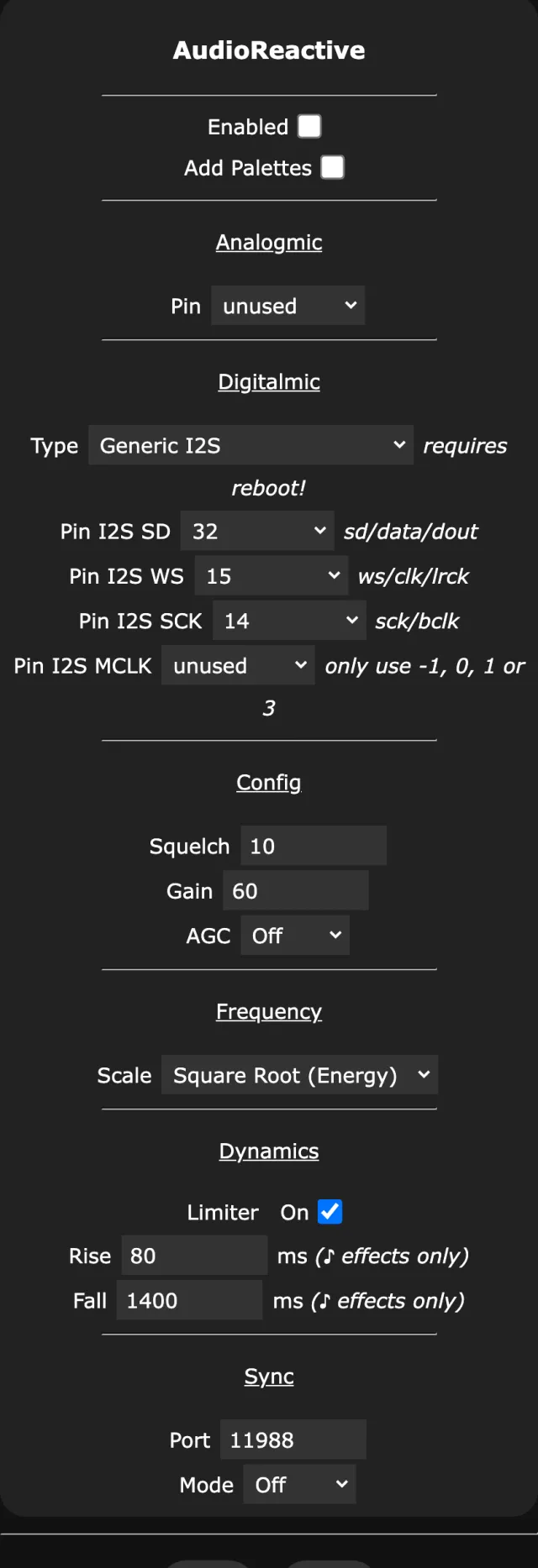
Got a second WLED board with a mic? Set it to Send and you’re done. If all you have is a phone, you need an app that sends WLED audio sync packets.
Picking effects that react
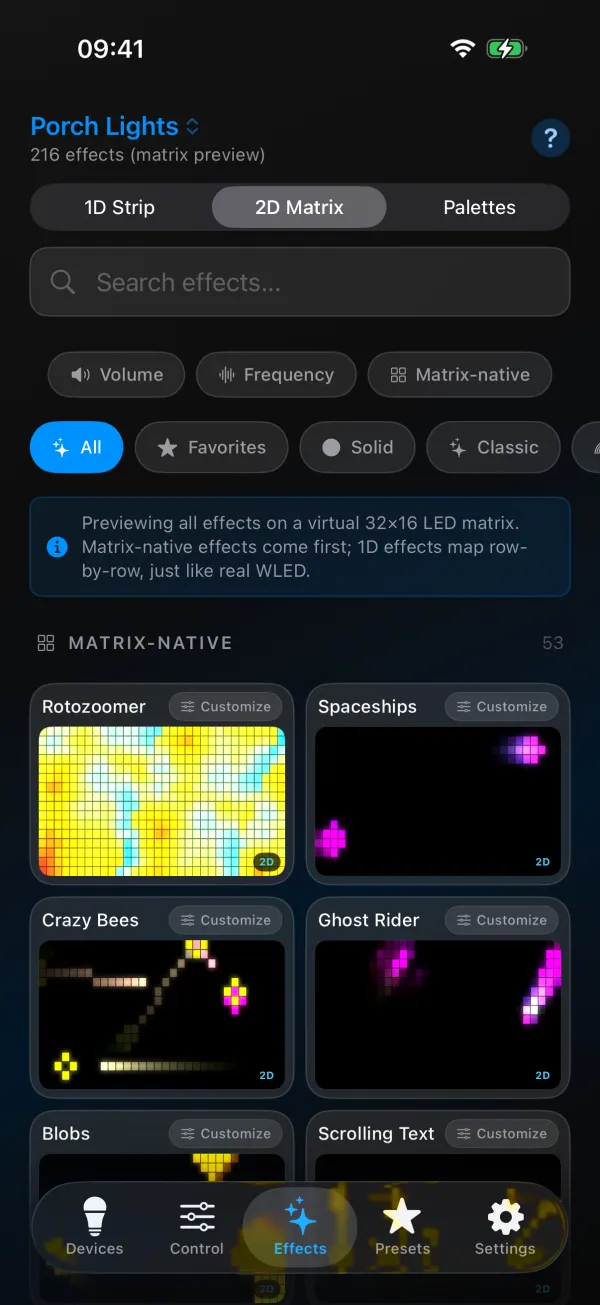
WLED’s audio effects listen to one of two things. Volume reactive ones use overall loudness, which suits a party where the music keeps changing: Gravcenter, Gravimeter, Juggles, Puddles. Frequency reactive ones use 16 frequency bands from bass to treble and look best with a clear beat and melody: GEQ, Freqwave, Freqmap, Waterfall, Rocktaves.
On a 2D matrix, GEQ and Waterfall are the obvious picks. On a single strip, start with Gravcenter or Freqwave. Speed and intensity still matter on most of them, so move one slider at a time.
Using your phone as the microphone
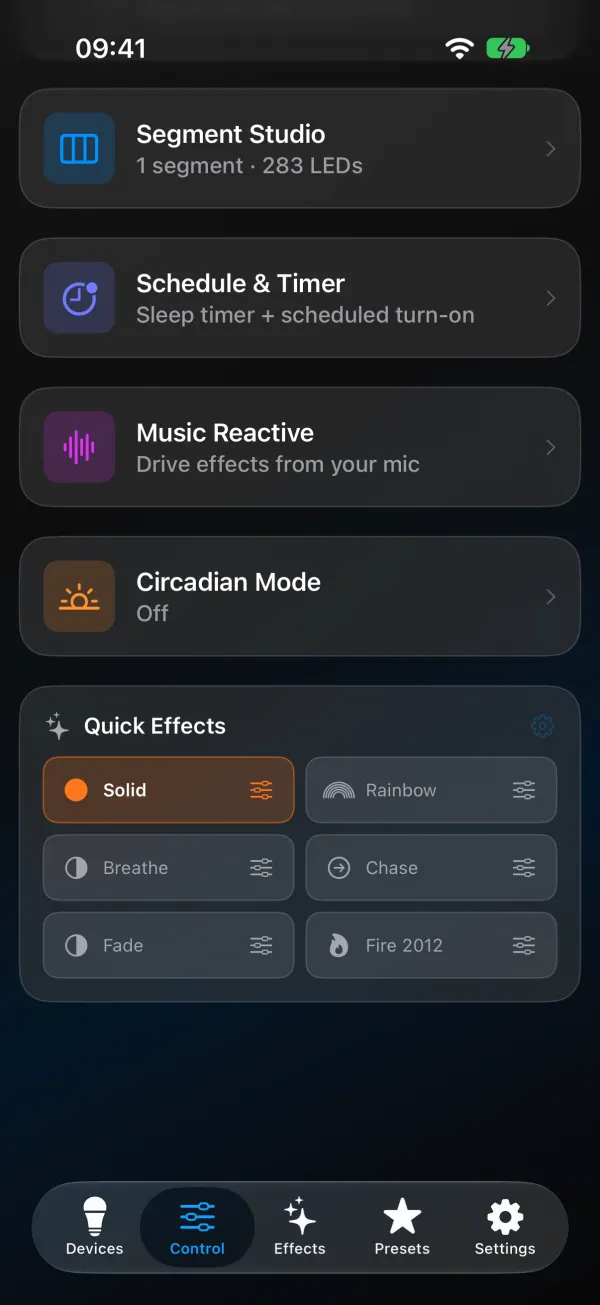
In WLED Max this is Music Reactive, a tile on the Control tab.
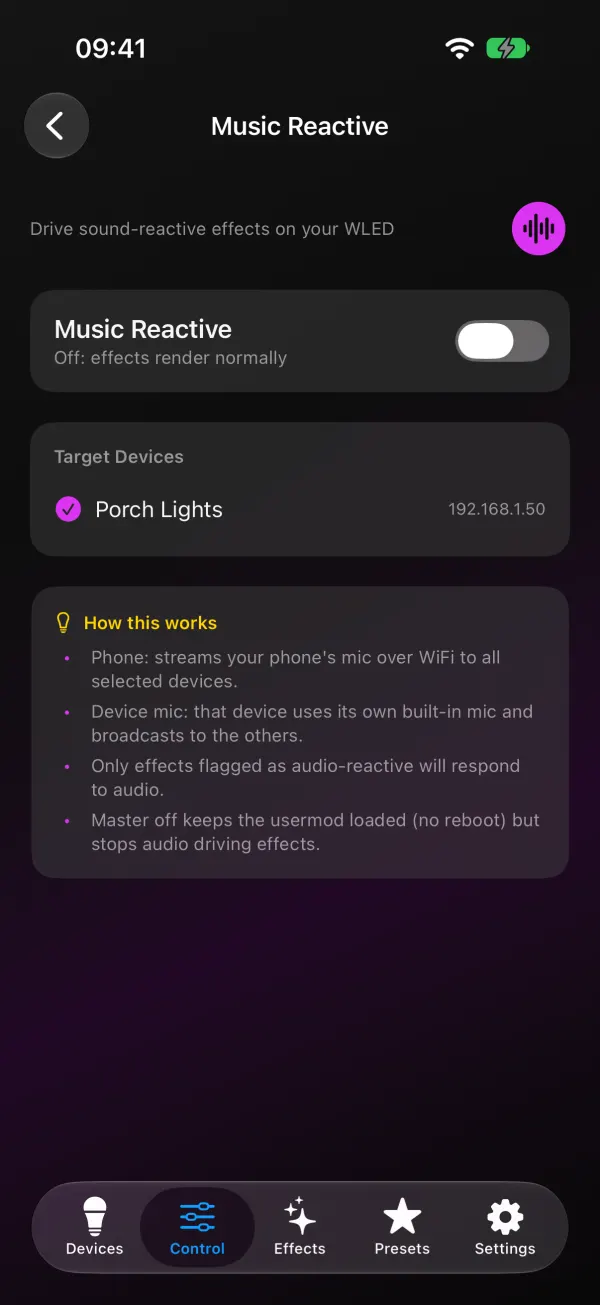
- Open the light on the Control tab and tap the Music Reactive tile, below the color picker.
- Allow microphone access. The audio is analyzed on the phone. Only beat data goes to your lights, never a recording.
- Under Audio Source, choose the phone. If one of your lights has its own working microphone, you can pick that light instead and let it broadcast to the others. (When no selected light reports a mic, the phone is the only choice shown.)
- Pick the Target Devices. One light on the free plan, as many as you own with Premium.
- If a light doesn’t have the usermod turned on yet, the app asks “Enable Music Reactive on device?”. Say yes. It turns on AudioReactive in Receive mode, and the light reboots (10 to 15 seconds).
- Pick an effect under Audio-Reactive Effect on the same screen.
- Watch the Frequency Spectrum. Moving bars mean sound is going out. Adjust Sensitivity until the loudest part of the music fills the lights without sitting at max, or turn on Auto Gain Control and let it adapt.
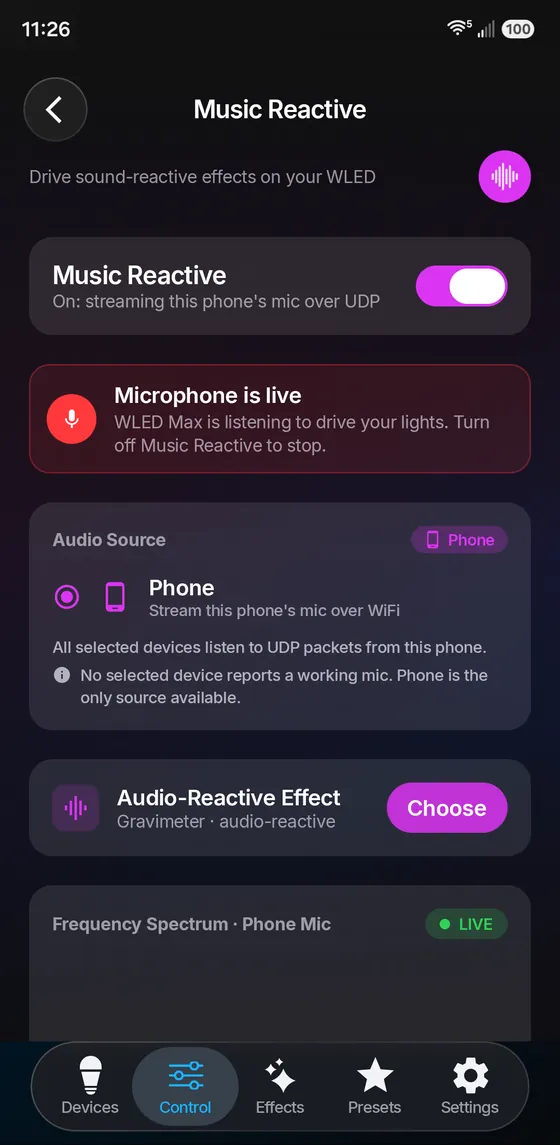
Streaming carries on with the screen locked, so the phone can sit next to the speaker. In the effects browser, the Volume and Frequency filters show only the effects that react to sound on your firmware.
The music doesn’t have to play from the phone, by the way. The microphone hears whatever is in the room: a TV, a speaker, a live band.
Lights don’t react
Pick GEQ or Gravcenter on the light, play something with a strong beat, and watch the Frequency Spectrum in the app. If the bars move while the lights stay still, the problem is on the light's side.
Bars move in the app, lights do nothing. Is the effect on the light an audio-reactive one? Then check AudioReactive is enabled and set to Receive in Config > Usermods. If there’s no usermod section at all, your build doesn’t include it (common on ESP8266 with WLED 0.15 or older).
Worked yesterday, not today. Usually the phone joined a different network: a 5 GHz guest network, a VPN, mobile data. Multicast stays inside one network. Turn off the VPN and check the Wi-Fi name.
The lights lag behind the music. A small delay over Wi-Fi is normal. More than a fraction of a second means busy Wi-Fi or a weak signal at the light. Moving the phone closer to the router helps more than moving it closer to the light.
Everything maxed out, even quiet songs. Sensitivity is too high, or the phone is right next to the speaker. Lower Sensitivity, or use Auto Gain Control.
Only some lights react. Each one needs AudioReactive in Receive mode. Lights on another subnet or VLAN won’t get multicast without extra router setup.
Two senders fighting. A WLED board with a mic that’s also set to Send will clash with the phone. Set it to Receive, or turn its sync off, while you use the phone.
Comparing apps for this? The WLED apps comparison covers which ones can send audio. For other light settings, see WLED settings from your phone.