Circadian Lighting With WLED: Warm White at Night, Cool White at Noon
Make WLED follow the sun, 2700K in the evening to 6500K at noon. The CCT hardware you need, a timer-based setup, and Circadian Mode in WLED Max.
The strip you bought decides how good circadian lighting will look, far more than any setting. Get that part right and the rest is a handful of presets on a timer.
The idea is simple enough: warm light (around 2700K) in the morning and evening, cool light (around 6500K) at midday. WLED has no circadian mode of its own, but you can build one from presets with different color temperatures, run at set times by WLED’s timers. That manual method works with WLED alone.
Check your strip first
- CCT strips have two white channels, warm and cool, and give the most natural result because they mix real warm and cool white LEDs. In WLED’s LED settings (Config > LED & Hardware on WLED 16, LED Preferences on 0.14 and 0.15) the output type will say something like “CCT” or “RGBCCT”, and the color temperature slider changes the actual white mix.
- RGBW strips have one white channel, usually at a fixed temperature. WLED tints it with the RGB LEDs. It works, it just looks less natural.
- Plain RGB strips fake white by mixing red, green and blue. The result leans blue or pink, and it’s not really suited to this.
Quick test: open the WLED web UI. If there’s a Kelvin slider and moving it changes the white LEDs, the light reports CCT support. The colors and white channel guide goes deeper.
When the color looks wrong
Blue at noon, orange at night, never actually white. That’s an RGB strip mixing white from colors. A CCT or RGBW strip fixes it. Software can’t.
The temperature slider moves and nothing changes. In the light’s LED settings (LED & Hardware on WLED 16, LED Preferences on 0.14 and 0.15), the output type must include the white channels (CCT or RGBW). Check the white balance and CCT settings on the same page.
Changes happen an hour off. Time zone or daylight saving on the light, under Config > Time & Macros. With Runs On Device in WLED Max, also open the app once after a daylight saving change, so the light gets the new times.
A curve that suits most homes
This is the curve WLED Max uses. The times move with your sunrise and sunset, and midday here means halfway between the two.
| Time of day | Color temperature |
|---|---|
| Night, until an hour before sunrise | 2700K |
| Sunrise | about 3040K |
| Two hours after sunrise | 4000K |
| An hour either side of midday | 6500K |
| Mid-afternoon | about 5250K |
| An hour before sunset | 4000K |
| Sunset | about 3350K |
| From an hour after sunset | 2700K |
In between, the color moves gently from one value to the next. WLED Max changes only the color temperature and leaves brightness to you. If you build the presets yourself, lower brightness at the warm ends of the day feels natural.
The same table as a day, roughly. Warm at both ends, coolest around noon.
Six to eight steps a day with a slow transition already feels smooth. You don’t need a change every minute.
Building it with WLED timers
- Time and location. Config > Time & Macros: NTP on, the right time zone, latitude and longitude.
- Presets. Set the light to 2700K at low brightness and save a preset. Then 4000K, 6500K and so on. Give them a long transition (in the LED settings page or per preset), 10 to 30 seconds, so the changes are gentle.
- Timers. The sunrise slot takes the first step and the sunset slot the evening one. Regular slots at fixed times cover the steps in between.
The weak spot is those fixed midday times. June’s “mid-morning” isn’t December’s, so you end up nudging them a few times a year. On 0.14 and 0.15 you also only have 8 regular slots plus one sunrise and one sunset slot. WLED 16 helps here: more timers, and several sunrise or sunset timers with offsets. Home Assistant users often hand the job to an automation or the Adaptive Lighting custom integration, which works out the curve on the hub.
Circadian Mode in WLED Max
Open the Control tab and tap Circadian Mode.
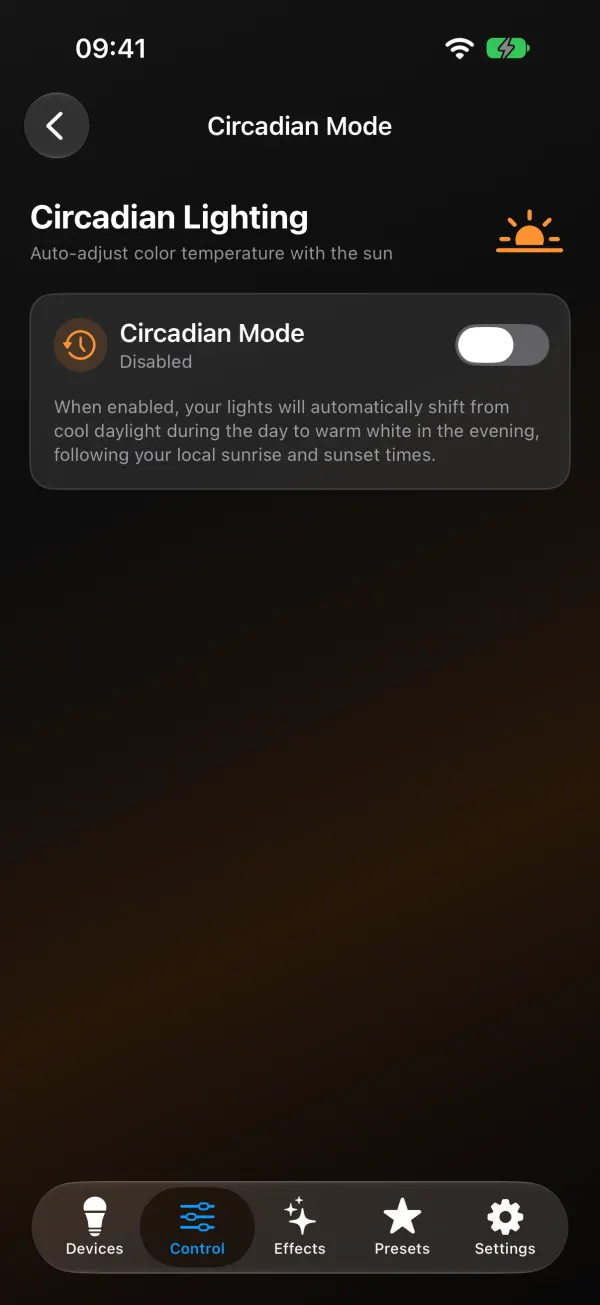
- Type your city. Only the name is used, to look up sunrise and sunset. The app doesn’t ask for location access. Sunrise and sunset show in the city’s own time. When the city’s clock differs from your phone’s, the time zone abbreviation follows the time (6:17 AM EST, for example).
- Turn it on. Lights shift from 2700K at night to 6500K at midday, following your local sunrise and sunset. The screen shows the current Kelvin value, today’s sunrise and sunset, and when the next update happens.
- Turn on Runs On Device if the light should keep following the curve when your phone is away. Each light needs internet time (NTP) for this.
What Runs On Device writes. The app turns today’s curve into WLED’s own building blocks. On WLED before 16 that’s up to 8 steps in presets 230 to 237. On WLED 16 it’s up to 16 steps in presets 230 to 245. These high numbers stay out of the way of yours. Each step holds the average of its part of the curve and fades into the next one over about a minute. Then the app adds WLED timers that run those presets at the right moments, on the light’s own clock.
Your own timers are left alone: the steps only use free timer slots. If a light has fewer than 8 free slots, the app asks before it writes anything, names the light and says how many steps it gets. With fewer steps it keeps the midday and night steps first. Sunrise and sunset drift a minute or two daily, so the times get refreshed when you open the app on a new day, more than 12 hours after the last sync, or after a daylight saving change.
The light’s clock. The steps run on the light’s own time, so each light needs internet time (NTP) and the right time zone. If a light’s clock is wrong or not set, Circadian Mode shows the same red “Schedules won’t run” card as the Schedule & Timer screen, with the light’s name and a Fix the clock button. After a daylight saving change, open the app once so the lights get the new times. WLED doesn’t know the daylight saving rules of every time zone. In a zone it can’t represent, the light runs on a fixed UTC offset, and a note under Runs On Device names the lights: after each daylight saving change, open the app or tap Fix the clock.
With Runs On Device off, the app updates the lights every 5 minutes while it’s open. iOS only allows the occasional background update, so on an iPhone Runs On Device is the dependable choice.
Runs On Device turns the curve into presets 230 to 237 (up to 245 on WLED 16) plus WLED timers, so it shows up in the light's own timer list. Leave those slots free.
Touching a light pauses it. Change a light’s color or temperature by hand and Circadian Mode pauses for that light only, until the next sunrise. The others carry on. There’s a Resume now button, and Pause all for movie night.
Some limits to know about:
- The light has to report CCT support. Others are skipped, with the message “Your WLED device must support CCT”.
- Runs On Device needs free timer slots and free presets from 230 on (one per step, so up to 237, or up to 245 on WLED 16). If one of your presets sits there, the app says so and overwrites nothing. If a light has no free timer slot at all, the app tells you before it writes (“Kitchen: all 8 schedule slots are in use, so Circadian can’t run on this light.”, with the light’s own name and count) and leaves that light out. Free a timer in Device Settings > Schedules, or leave Runs On Device off and let the app update while open.
- When you add a daily schedule in Schedule & Timer and Circadian Mode holds the slots it needs, the app offers to give 2 slots to the new schedule. It asks first, and Circadian then runs on that light with fewer steps.
- Turning off Runs On Device removes its timers and presets from the light. Switching Circadian Mode itself off only stops the app’s updates, so turn off Runs On Device first if you want the light to stop following the sun.
- On ESP32 lights with add-on hardware on I2C pins, the app won’t write timers, to protect that setup. It points you to the light’s own settings page instead.
If it suddenly stopped following the sun, you most likely changed a color by hand. Tap Resume now.
For the timer basics behind all of this, see turn WLED on at sunset. For fading off at bedtime, the sleep timer guide.